
Calendrical
In the Calendrical function, you see an overview of absence for a selected employee and period. You can track absence periods, reasons, and the total absence for each employee. You can also easily check, for example, sick pay periods and days for the base of accruing holiday and not the base of accruing holiday, as well as compare these with the schedule.
Click on Calendrical in the side menu.
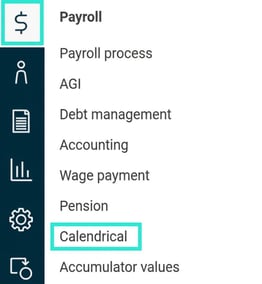
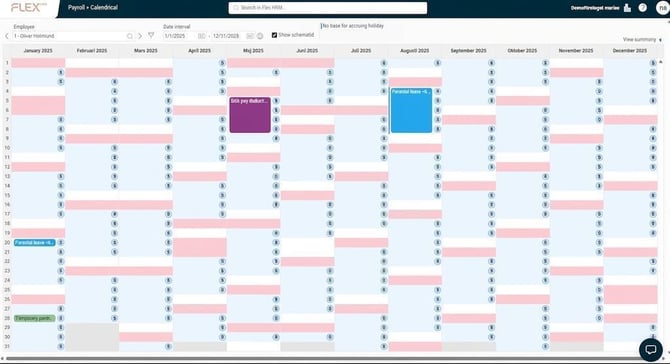
You will then see the following view:
Settings in the calendar
Employee
Specify which employee you want to work with by entering the name and/or employee number in the field, or by clicking on the magnifying glass. With the help of the arrows you can browse to the previous or next employee.

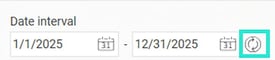
Date interval
Specify the date interval you want to display the calendar for. Click on the refresh icon to update the view after each change of date.
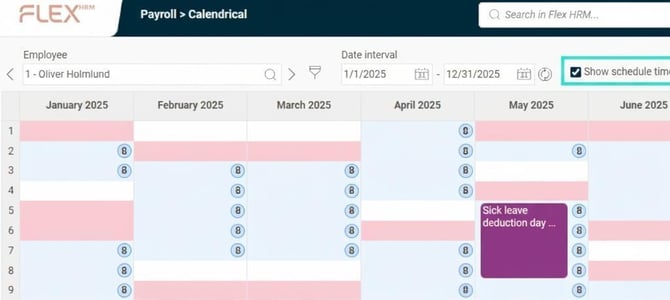
Show schedule time
Tick the box Show schedule time if you want to include assignments about schedule time in the calendar. The schedule time (as number of hours) will then be shown as an icon on each day in the overview.
Filter
With the Filter function, you can specify a selection of employees you want to work with in the calendar.

The filter affects search, listing of employees, and browsing to the next and previous employee.
Click on the filter icon and the following window appears:
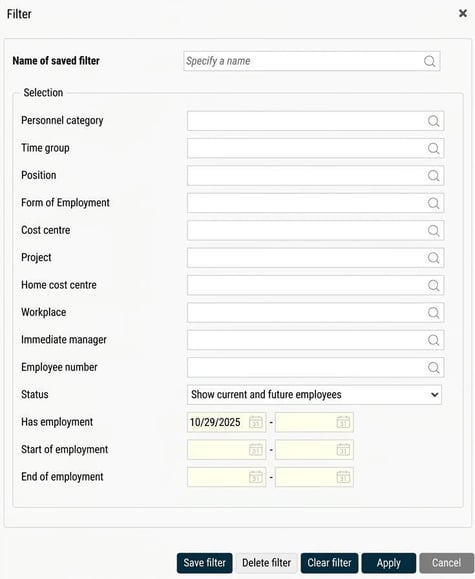
If there are one or more filters saved from earlier, select which filter you want to use in the field Name of saved filter. You can either enter the filter name or fetch it with the help of the magnifying glass. The remaining selection fields will then be filled in automatically.
If there is no saved filter, specify your selection manually. Fill in personnel category, time group etc. You can save the filter for future use by clicking on Save filter. It will then be saved and can be selected in the field Name of saved filter next time. Then click on Apply.
Overview
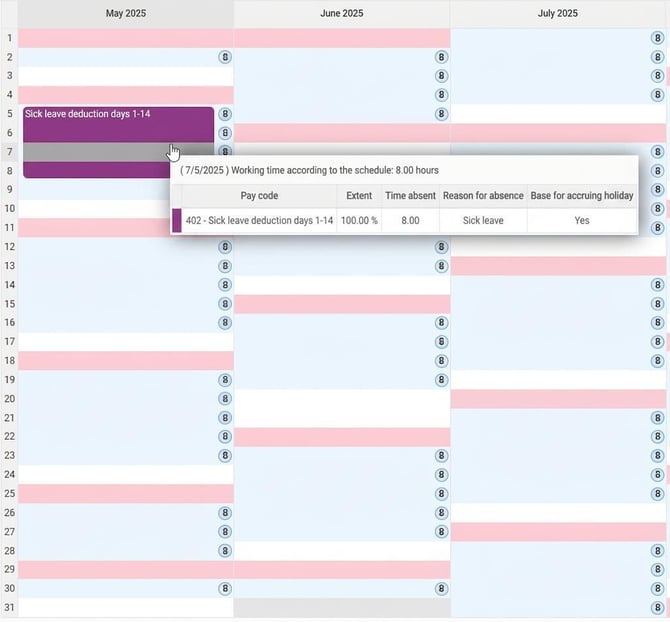
The main part of the view is the calendar itself. The months are shown as columns and the dates are shown as rows (numbered from 1 to 31).
The blue dots in each cell show schedule time in hours. This is only shown if you have ticked the box Show schedule time (see above).
Sundays and other bank holidays are marked with a pink background colour. Settings for bank holidays are done under Administration > Settings > Time and Plan > Schedules > Bank holidays.
Each absence entry for the chosen employee is shown as a coloured box. The box shows the name of the reason for absence or the salary code (for example, to see whether it is sick leave day two to fourteen or remaining annual leave). Place the mouse pointer over the box or click on it to view details of the absence. The following box will then appear:
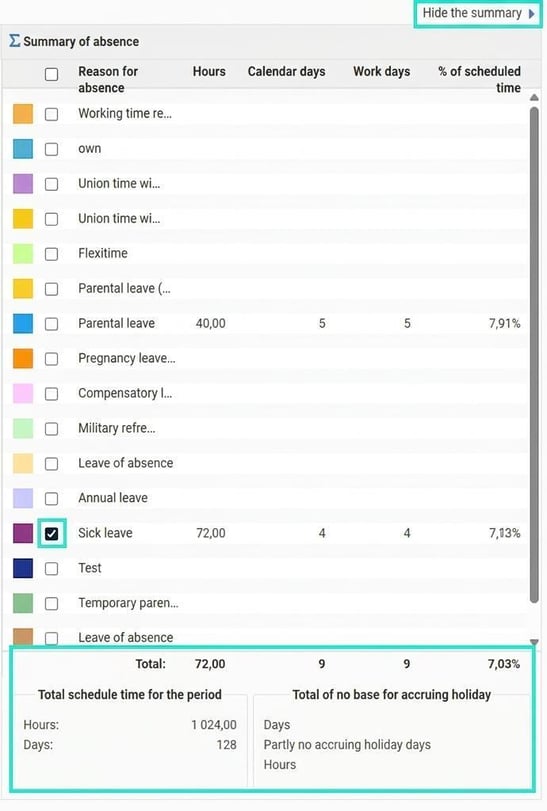
Summary of absence and selection of reason for absence
You can also filter the calendar based on reason for absence. This enables you to view summaries per reason for the entire selected period. This can be useful if you, for example, only want to see sick leave to check the number of qualifying days.
Click on the icon View summary to expand a table from the right in the view.

Click on Hide the summary to hide the table again.
Select which reason(s) for absence you want to display by ticking the boxes for them. A summary will be shown for each reason for absence on the respective row, as well as as a total on the bottom row.
At the bottom you also see the total schedule time (in hours and days) for the period, as well as total not the base of accruing holiday absence.
Please note: This article is AI-translated. This means that linguistic errors or misunderstandings may occur.