
If your company uses the function Enter availability you can in My schedule in HRM Mobile enter when you are available to work. This makes things easier for the scheduler, who can quickly see who can be rostered for a shift.
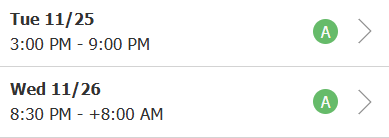
Days where you have entered availability are marked with a A in My schedule.
How to enter your availability for an entire week
-
Open My schedule in HRM Mobile.
-
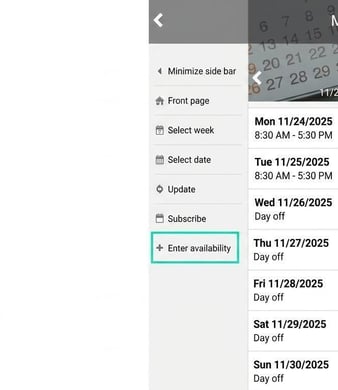
Click on Enter availability in the side menu.
-
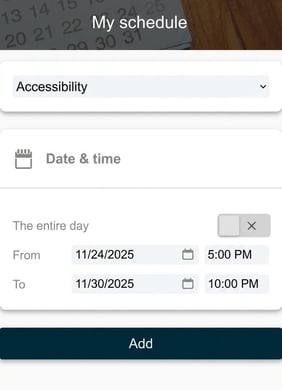
Here you can now specify your availability for all or part of the week. You can choose to be available 24-hour or at selected times.
How to enter your availability for a specific day
-
Click on a separate day in My schedule.
-
Here you can specify availability for the day, either for the entire day or between certain times.
Recurring availability
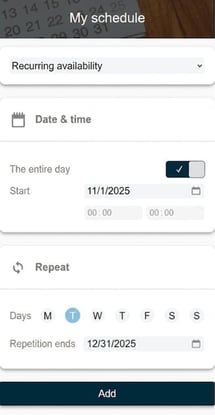
You can specify recurring availability, for example, that you are available to work every Tuesday until the end of the year.
|
|
Edit or delete availability
If you need to change your availability, do so by opening it in My schedule.
-
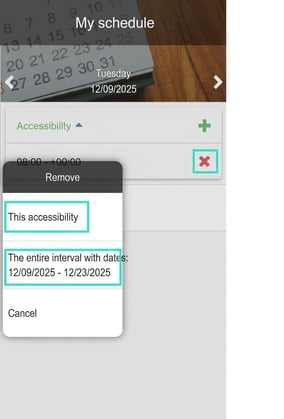
Click on the red x to delete an availability.
- You cannot edit an entered availability. You need to delete it and add a new one.
-
If you entered availability for several days via the side menu, and then choose to remove it for a specific day, you will be asked whether you want to delete it for that specific day or for the entire period.
Please note
Availability does not affect any work shifts that have already been entered, it only shows when you are available for work.
If you already have a work shift scheduled in the timetable, it will not be affected if you remove your availability. You are still rostered for the shift.
Availability does not prevent you from being rostered during times when you have not specified you are available.
Please note: This article is AI-translated. This means that linguistic errors or misunderstandings may occur.