
The Monthly report gives you an overview of the times you have entered during a month.
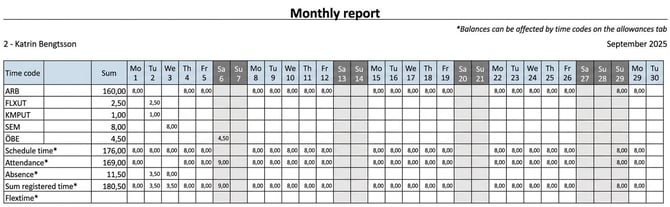
You can print the monthly report in two different ways: directly from the time report or via the view Reports.
1. Print from the time report
To print a monthly report directly from the time report:
-
Go to More > Print.
-
You can choose to group the times by Unsocial working hours time code or by an account code.
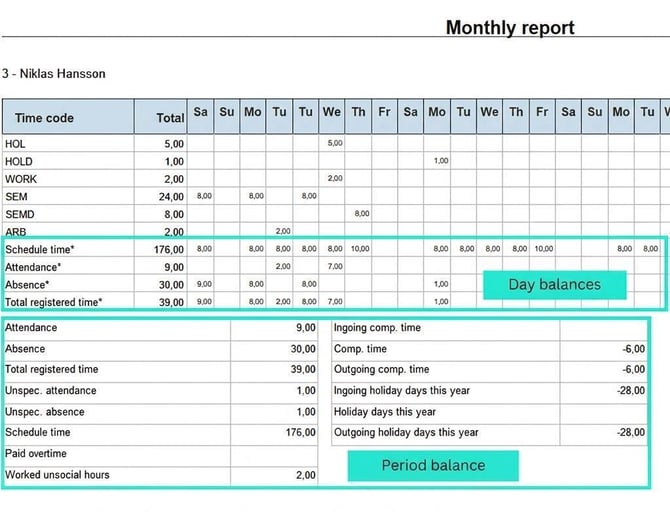
When printing from the timereport, day balances and period balances are always included.
2. Print from the Reports view
You can also generate the Monthly report from the Reports view. There you have the possibility to make more selections:
-
Selection by employees: Select individual employee numbers, or filter using time group and/or home account code.
-
Date interval: Select the desired date interval.
-
Transferred times: Choose whether you want all time reports, only reports that are transferred to payroll, or reports that are not transferred to payroll.
Print settings
As with printing in the time report, you can choose to group by Unsocial working hours time code or by an account code.
If you choose to group, you can also choose whether the name of the unsocial working hours time code/account code should be shown instead of its code.
You can also choose whether day balances and period balances should be printed.
How grouping works
The display option Group according to determines how time rows are merged and in what order they are shown in the Monthly report.
-
Group by Unsocial working hours/account code:
-
Time rows without unsocial working hours/account code are displayed first.
-
Then the rows are displayed in alphabetical order, based on the unsocial working hours time code/account code code (or name if you have chosen to display the name instead of the code).
-
Rows without unsocial working hours/account code are sorted according to the time code's code.
-
-
No grouping:
-
The time rows are shown in alphabetical order, based on the time code's code.
-
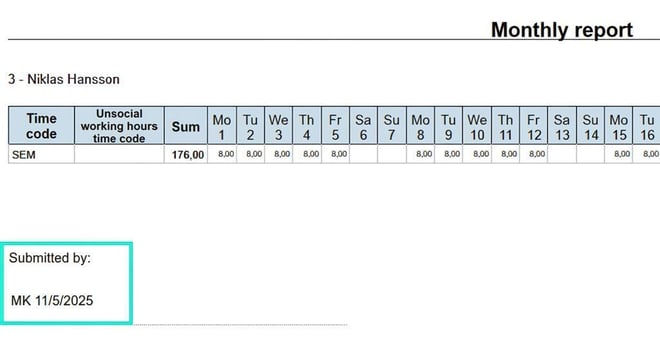
Show receipt on the printout
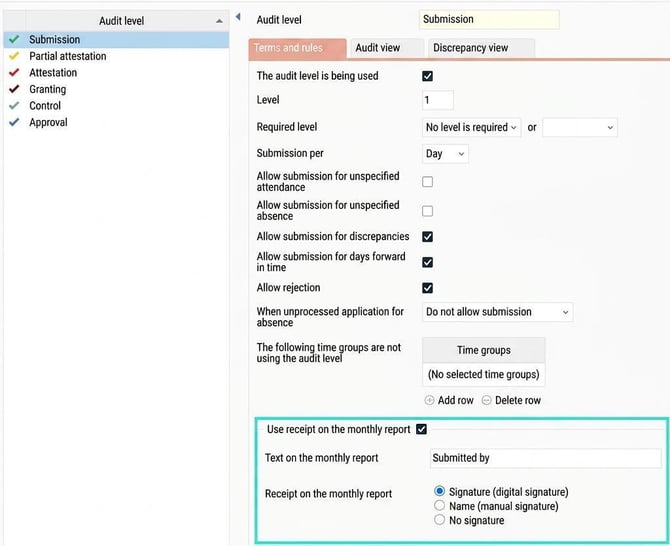
You can choose to display who has reviewed the time report on the printout. This is set per audit level in the system under Settings > General > Audit levels > Time reports. You can set whether a receipt should be displayed, and whether it should be shown with the user's signature or with a field for a manual signature.
Please note: This article is AI-translated. This means that linguistic errors or misunderstandings may occur.