
Change schedule in the time report
Discrepancy when schedule has been changed in the time report
Change schedule in the time report
The schedule can be changed directly in the time report without going to Schedule/Staffing. Authorisations determine who can change and what can be changed. A role with authorisation Change schedule can change all schedule details (day schedule, time, etc). A role with authorisation Change daily schedule can only replace the day schedule.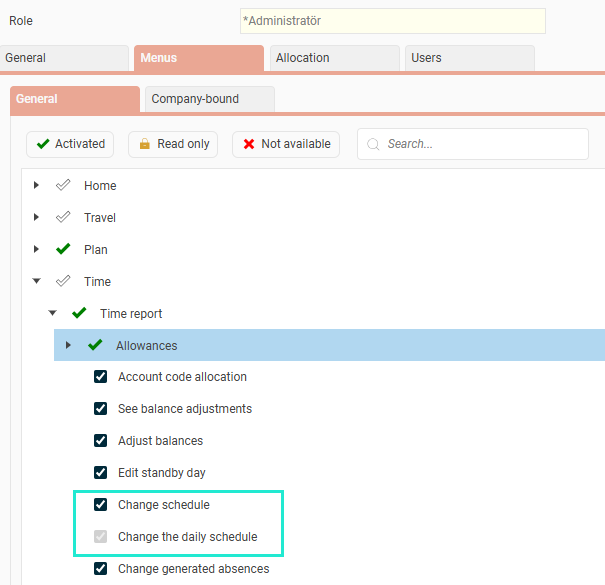
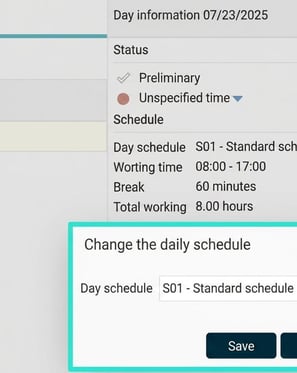
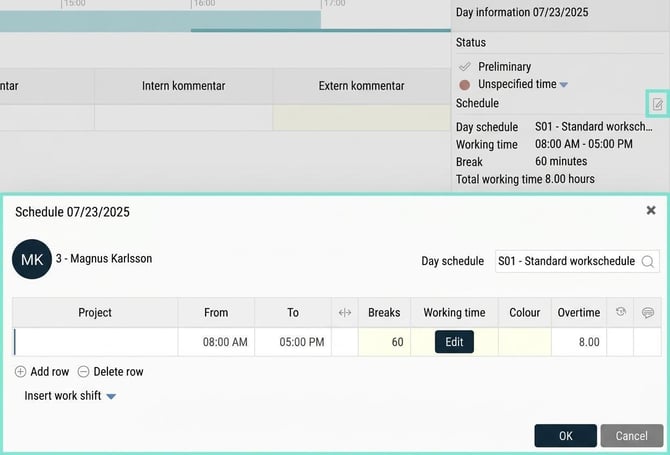
In the time report, an icon appears in the day information which you can click on. If you are only authorised to change the daily schedule, a window appears where you can select a day schedule.
If you are authorised to change all schedule details, you will get a more detailed popup when you click the icon. In addition to changing the daily schedule, you can adjust working time, flex frames, break times, as well as plan overtime and write a comment. If you use HRM Plan you can also insert work shifts or staff to an account code.
Discrepancy when schedule has been changed in the time report
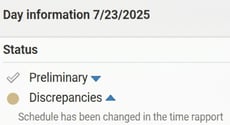
There is an option to set that a discrepancy is generated if the schedule has been changed from the time report. This can be helpful if, as a manager, you want to give employees authorisation to change their own schedules, but still want to keep track of which days the schedule has been changed when approving.
To activate the discrepancy, you need to enable the setting 'Schedule has been changed in the time report' under Discrepancy settings, which can be done at one of the following levels:
- company (Time reports)
- time group (Time groups > Time tab)
- employee (Employees > Time tab)
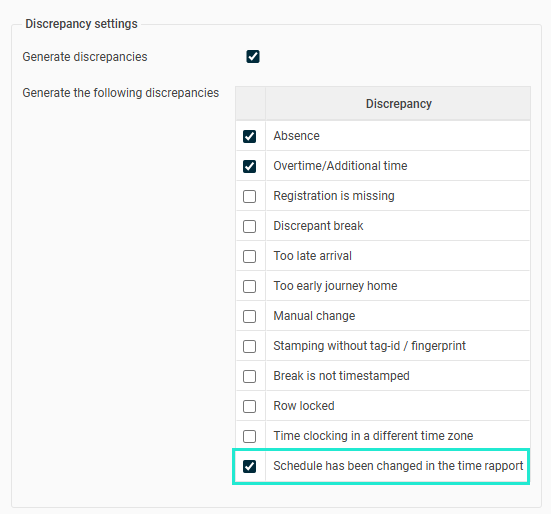
A discrepancy will then be shown in the time report if the schedule has been changed from the time report. Note that it refers to the latest change. This means that if the schedule is first changed from the time report and then changed from Schedule/Staffing, it will not generate a discrepancy.
Please note: This article is AI-translated. This means that linguistic errors or misunderstandings may occur.