
Auditing of time reports (submission, approval, etc.) is a way to ensure that information is correct for payroll and statistics.
However, there are times when you may wish to automate the audit to reduce the manual work for employees and/or managers.
For example, it could concern:
- automatic submission of time reports for employees on parental leave
- automatic submission of days off without any reported time
- automatic partial approval of certain internal projects
- automatic approval of time reports without discrepancies
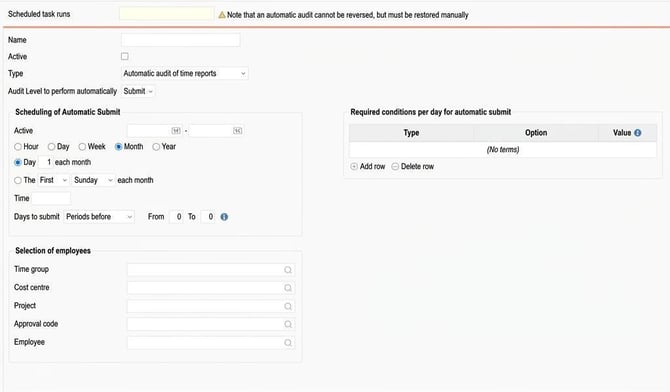
Under Administration > Settings > Import/export > Scheduled task runs there is a task run called Automatic audit of time repots.
Here you select the applicable audit level, when it should run, and how far back in time it should process.
Tip!
The info icon helps you schedule the task run. Click on it to get more detailed information on how the run will be performed.
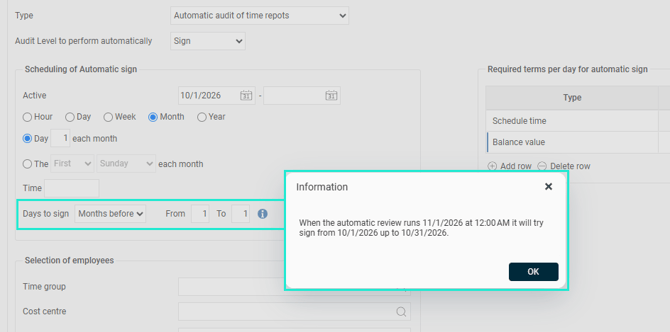
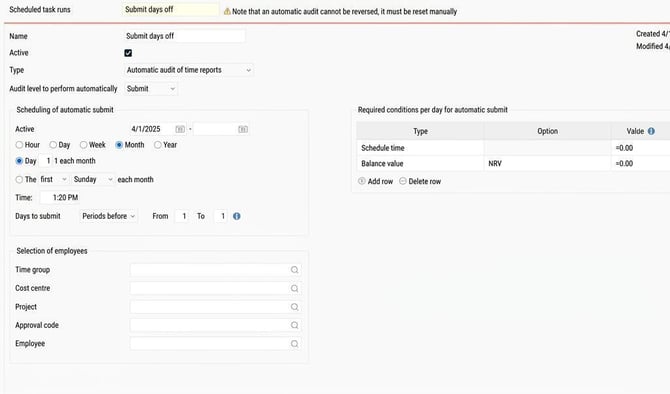
You can make a selection of employees, for example only a particular timegroup. Then, you choose the conditions that must be met for an automatic audit of a day.
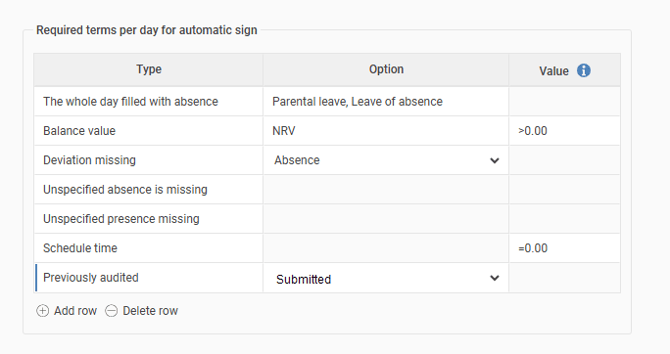
Possible conditions are:
The entire day filled with absence. The condition can apply to one or more reasons for absence.
Balance value. K can apply to one or more balances.
Deviation missing. K can apply to a selected discrepancy. Use several rows if you want to set conditions for multiple discrepancies.
Unspecified absence/attendance missing.
Schedule time.
Previously audited, for example, Submitted.
For Balance value and Schedule time the condition must have a value. For example, "=0" to say that a day being audited must not have any schedule time.
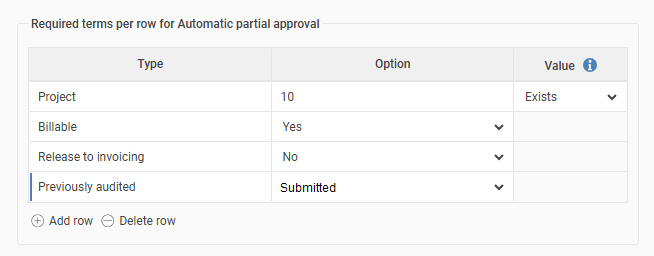
If the audit level is set to be audited per time row (often called partial approval), a number of additional conditions can be set that need to be met per time row in order for that time row to be partially approved: account code, billable, released.
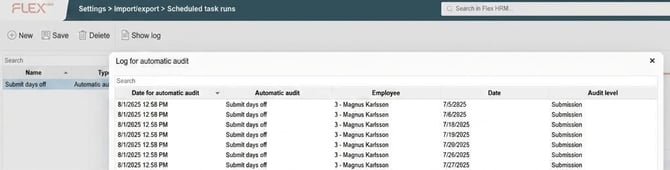
In the menu in Scheduled task runs there is a log where you can search for what has been audited automatically.
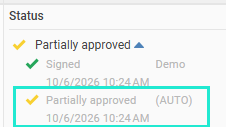
The signature (AUTO) appears in the time report when the audit has not been performed by a user but via this automatic audit.
Example
The scheduled task run in the picture is set to, on the 1st day of each month, check the previous month and submit the days that do not have any schedule time and where no attendance has been registered.
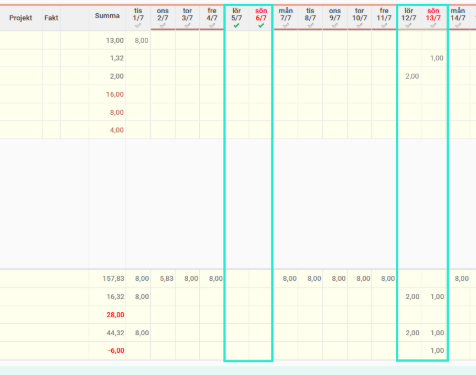
When the run is performed on 1 August, 5 and 6 July are submitted as these are days off. 12 and 13 July are not submitted. These are also days off but have registered attendance.
Note
Automatic audit cannot be reversed. To restore, this must be done manually.
Please note: This article is AI-translated. This means that linguistic errors or misunderstandings may occur.