
Login to Flex HRM is done via Visma Connect. With Visma Connect, users can utilise several secure authentication methods, including login with passkey or two-step verification (2FA) using authentication apps such as Visma Authenticator, Google Authenticator or Microsoft Authenticator.
You can set a requirement in Flex HRM for users to use two-step verification when logging in.
Require two-step verification for a user
In the user register, you can enable or disable the setting Require two-step verification.
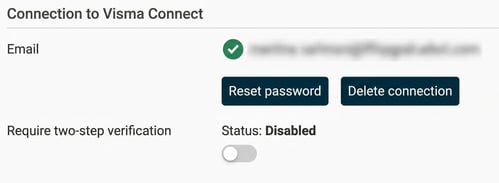
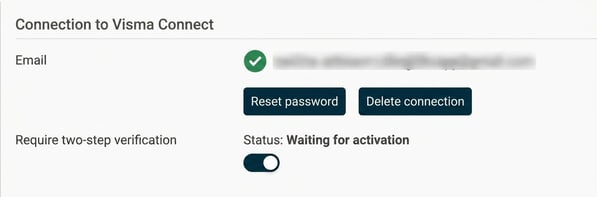
When you enable the setting, its status becomes Waiting for activation. It is the user themselves who activates 2FA at the next login. After entering their password, they need to enable and use 2FA in order to log in.
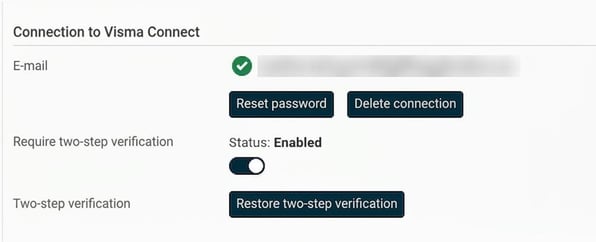
Once the user has activated 2FA, the status changes to Activated, and the button Restore two-step verification is displayed.
2FA can also be required in Visma Connect. As a result, users can have a 2FA requirement without it showing in the user register in Flex HRM.
Set requirements for two-step verification via import or API
Instead of ticking Require two-step verification for each user individually in the user register, you can use the import template for employees and users. If you wish to import the requirement for an existing user, you will need to at least include the fields:
- User-ID
- Employee number
- Require two-step verification
Since imports are performed per company, you can only import for users who are linked to an employee.
You can also activate Require two-step verification via API.
Require two-step verification when creating new Visma Connect users
To facilitate on boarding of new employees, there is the setting Require two-step verification when creating Visma Connect users under General > Security > Visma Connect.
If you select this setting, the requirement for 2FA will be switched on automatically when the user is linked to Visma Connect. This means you won’t have to manually activate the requirement in the user register. Note that this does not affect existing Visma Connect accounts, only when creating new ones.
Restore two-step verification
The button Restore two-step verification is shown in the user register for users who have activated 2FA. When you click Restore two-step verification a one-time code is generated, which the user can use to set up 2FA anew.
To enable the reset, the user whose 2FA is to be restored must have an email address belonging to a domain you have verified in Visma Connect. The user performing the reset from the user register must be added as authorised to configure authentication settings in Visma Connect.
If the requirements are not met, the reset button is disabled. An information icon will display the reason why the button is not active. If the reason is that you lack a verified domain, you will be prompted to contact support for assistance with the reset.
Important for those who have not yet started using Visma Connect is that the 2FA solution prior to Visma Connect applied to the user in HRM. 2FA in Visma Connect applies to Visma Connect login.
The requirement for 2FA with Visma Connect is therefore not the same 2FA solution you had earlier. Users do not automatically get a requirement for 2FA in Visma Connect, even if they had it in HRM previously.
Please note: This article is AI-translated. This means that linguistic errors or misunderstandings may occur.