
Prerequisites for the button to be displayed
For the clock button to appear on the home screen in the Flex HRM app, the following three criteria must be met:
- The company has a licence for HRM Time and Time clocking.
- You are set up as a day report user. You can check this yourself in HRM Time:
- If you see the Day view tab in your time report, you are a day report user.
- If you only see the Weekly view and Monthly view tabs, you are a period report user, and in that case the clock function is not available for you.
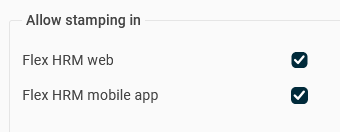
- The setting to allow clocking in the mobile app is enabled in Flex HRM (under one of the paths below).
How to hide the clock button
If you want to hide the clock button, untick the setting to allow clocking in the mobile app. You can do this on three different levels:
- For the entire company: Go to Settings > Time and Plan > Time reports.
- Per timegroup: Go to Settings > Time and Plan > Time groups.
- Per employee: Go to Employees > Time.
Please note: This article is AI-translated. This means that linguistic errors or misunderstandings may occur.