
Create a specification

Remove a base

Check the specification

File for reporting

Calculation for full days, part of days and employment information
Ongoing work for reporting Sick leave during the sick pay period (SUS)
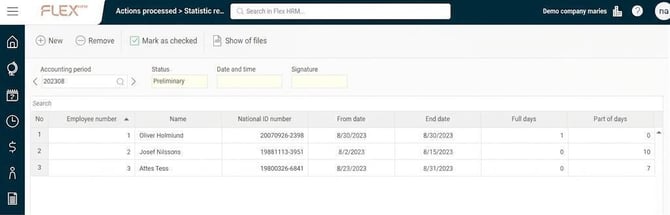
Once a month you, if selected, must report Sick leave during the sick pay period (SUS) ( formerly named Cyclically Statistics for sickpay (KSJU)) to SCB. This is done in Flex HRM Payroll under Administration > Actions processed > Statistics reporting > Sick leave during the sick pay period (SUS).
Create a specification
The first step in the reporting process is to create a specification for the month's reporting. Do this by clicking the button New in the button bar.
In the dialog that appears, select which month the reporting specification should apply to. Here you also have the option to make a selection of specific employees if needed.
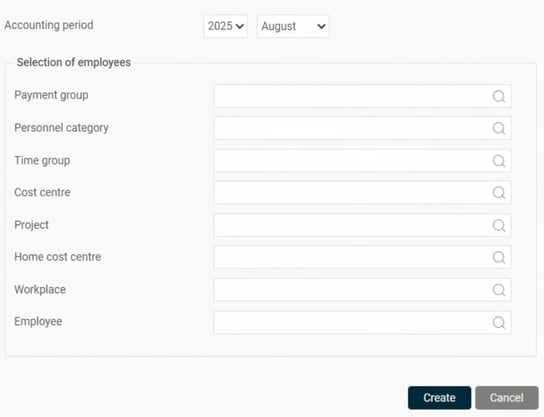
When you click the button Create the process of creating the specification and a file for reporting begins. When the specification and file have been created, you will see the specification with its status set to Preliminary in the view.
Remove a base
If you discover an error in the specification, you can easily remove it by clicking the Remove button and create a new specification from scratch. You can also delete earlier specifications that you no longer wish to keep.
Check the specification
The next step is to check the specification before submitting the information to SCB. This is done by auditing the specification in the view.
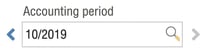
At the top of the view you select the accounting period you wish to view.
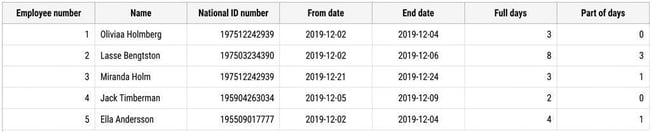
The table below displays the specification that has been compiled and is to be reported to SCB.
Once the specification has been audited, mark it as checked by clicking the button for Mark as checked. The status of the specification is then changed to Inspected. Date, time and signature for the user who marked the specification as checked are recorded on the specification.

If you find an error in a checked specification, you can choose Remove the inspection marking, which resets the specification status to Preliminary.
File for reporting
At the same time as the specification is compiled, a file for reporting is also created. This file can be used as an alternative to manually entering the numbers in SCB's reporting service. You retrieve the file for reporting by clicking the button Show of files in the button bar. The file remains here until you choose to remove the specification from the list.
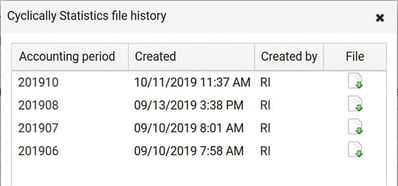
The list of files contains one file per accounting period, with the latest one at the top. Download the file by clicking the icon and submit it to SCB. This is done by logging in to SCB's website and following the instructions for reporting via file.
In-depth information on how the specification is created
Below you will find detailed information on how the specification is created in the system.
Calculation for full days, part of days and employment information
Below is a detailed description of how each field is being calculated for hourly paid employees.
- Full days are when the person has been absent for a full workday based on their scheduled hours; for instance, a person working 50%, 4 hours counts as a full day. Part of day should be indicated if the individual went home during their workday, where absence is counted as part of days and not number of hours (regardless of the level of employment). A day with a qualifying deduction may become a part day if the individual went home during the day, but equally a full day if the individual reported sick in the morning and did not arrive at work.
- If a sick case is not completed at the turn of the month but continues into the following month, the sick case is split into two parts, one for each month. There must thus Always be information in the fields First day of the sick pay period and Last day of the sick pay period.
- National ID number is Always entered as 12 digits even if it is saved as 10 digits in HRM.
Please note: This article is AI-translated. This means that linguistic errors or misunderstandings may occur.