
Have you made a change in the settings, perhaps in an overtime rules or home account code, and want it to take effect in the time reports, even if they have already been submitted? Use the function Recalculation of time reports. Time report days that have not been reviewed will be updated automatically without recalculation. Days that have been transferred to payroll will be recalculated if you tick Include time reports that have been transferred to payroll.
The items that are recalculated are the time lines according to the current rules for, for example, overtime, unsocial working hours and time clock tolerances. Any generated lines for allowances from events will also be recalculated. Please note that already stamped times will not be affected, which means that, for example, a clock-out for a break will still remain a clock-out for a break, even if the schedule now specifies that there is no break there.
Example
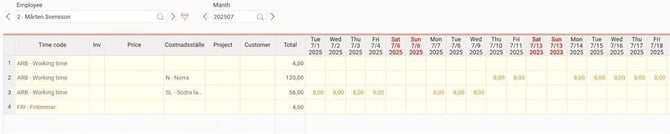
Homecost centre is added to the time reports. Employee 2 has submitted their time report for the first nine days in July. I change their home cost centre afterwards and want this to take effect from 1 July. The days from 10 July will change automatically as they are not reviewed, but 1–9 July remain on the earlier home cost centre.
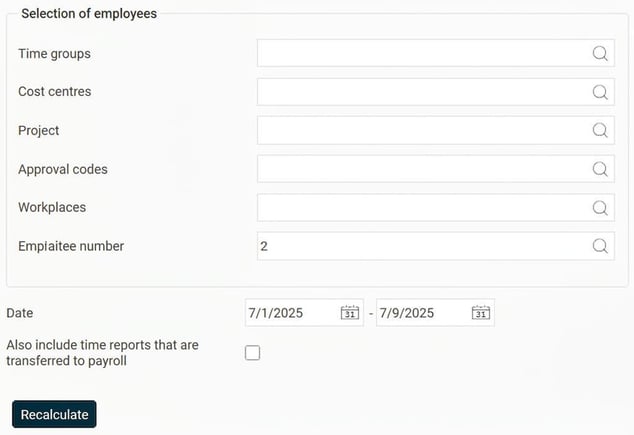
Under Actions processed > Service routines > Recalculation of time reports I select employee 2 and 1–9 July.
A notification is displayed when the recalculation is complete. The time report now shows the new home cost centre from 1 July, without me having to remove the submitted mark made by employee 2.

Note
You usually do not want to recalculate time reports after they have been transferred to payroll.
The recalculation cannot be undone, so check your selection carefully before recalculating.
Please note: This article is AI-translated. This means that linguistic errors or misunderstandings may occur.