
Conversation templates
Conversation templates can be used for various types of conversations in HRM. They are often used for performance management such as staff appraisals, salary reviews, or other types of follow-up and feedback discussions.
1. Go to Settings > Personnel > Employee register – additional fields to create templates.
2. Select the Staff appraisal menu on the right in the menu.
3. Create page content, or create questions within existing page content.
No page content?
- Add row with the required name and select the type Staff appraisal.


Once there is page content
- Click on the pencil icon to create questionnaires
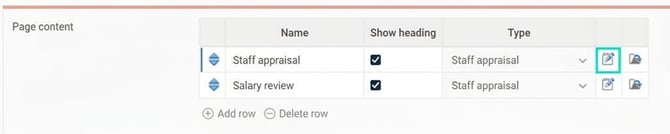
- Click on New
- Under General set the Name of the conversation and, if needed, a description.
- Make the desired settings for who is to fill in answers, who should sign, and whether sharing should be used.
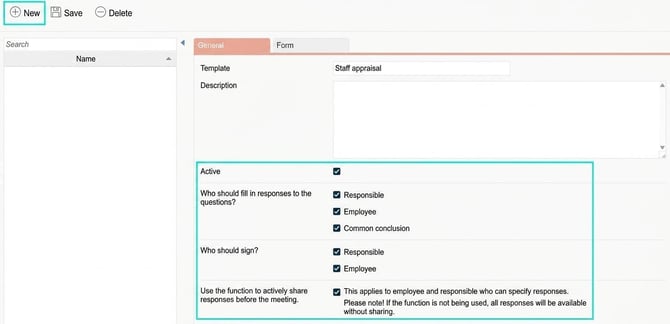
You can choose from the following sections:
-
- Who should answer the questions?
You can combine these however you like. The fields for responsible and employee will always be locked to these two people. The common conclusion is accessible to and can be entered by anyone with authorisation.
- Who should answer the questions?
-
- Who should sign?
Choose whether both parties or just one of them should sign. At least one must sign the conversation so that it is clear when everything is completed and ready to be locked. - Use the sharing function
You can choose whether to use the function for sharing answers. If sharing is not used, saved answers will be immediately available to all authorised users.
- Who should sign?
- Then go to Form and start creating headings and questions
- Add row, specify type Heading or Question and then create the content.
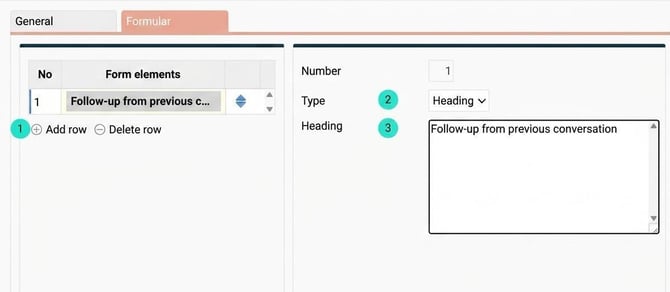
- For the type Question you enter the question, any description for the question, and finally select what type of response will be used.
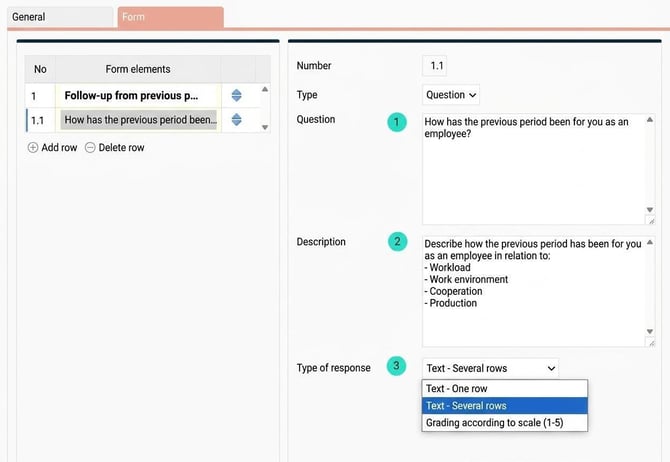
A description for a question in the template is useful if, for example, you want to explain a rating scale or provide a bit more background information for a question in the form.
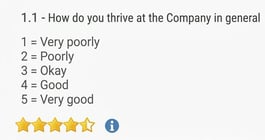
4. Save
Change in an existing template?
A template that has started being used cannot be changed freely and therefore information about this appears when you open a template that is in use. If a user has filled in answers to questions in a template, it isn't entirely appropriate to change that question as the answer may then take on a different meaning. However, you are allowed to edit questions and headings to improve them or correct spelling mistakes and similar. You can also add new questions.

Archived template
An archived template differs from an inactive template. A template is archived when a staff appraisal template is signed in the employee register. Archiving happens automatically to lock the conversation for any changes made to the main template.
This means that if you edit the main template after all started conversations are signed, only new conversations created from the template will be affected. It's important that all conversations are signed if you want to change or add questions in the template before the next conversation without affecting ongoing ones. You can see archived templates by ticking the box Show activated templates.

Deactivate template
If you do not want a manager to be able to use an old conversation template, you need to deactivate that template. It will then no longer be selectable when someone creates a new conversation in the employee register.
Reminders for conversations
To ensure employees and responsibles are always informed about what’s happening and any changes in the process, we use reminders. These are used to show what you still have left to do on the front page, as well as sending out information when something happens regarding a conversation.
Reminder settings can be found under Administration > Settings > General > Reminders. To receive reminders for the entire process, you can create seven different reminders. Here’s how you create them.
First choose Staff appraisal under Type of reminder. Then you can choose between four different options for generating reminders.
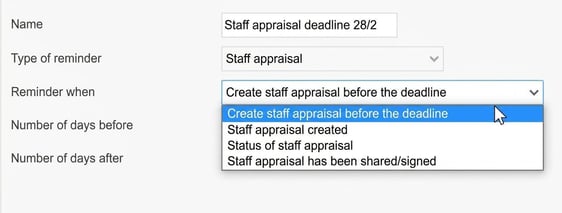
Create staff appraisal before the deadline
This is used to remind whoever is to initiate and create the conversation for the employee. This is usually the manager, but can also be the employee themselves or HR.
Make the following settings for this type of reminder:
- Choose how many days before and after the deadline the reminder should be visible on the front page.
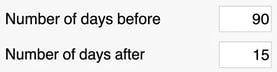
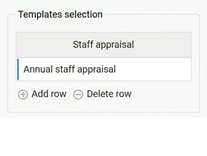
- Under Templates selection select which conversation templates the reminder applies to.
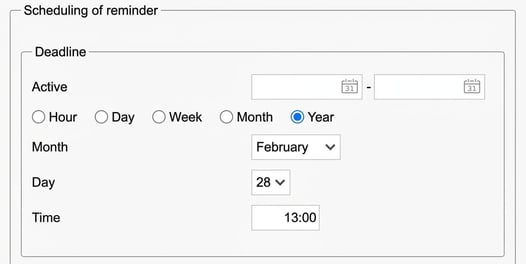
- Scheduling of reminder. Here you specify the deadline for when all staff appraisals need to be completed. In the example below, the deadline for initiating the annual staff appraisal conversation is 28 February at 13:00.
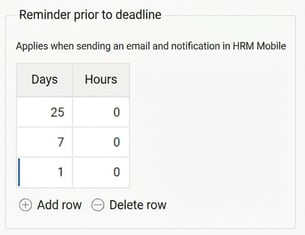
- Under Reminder prior to deadline specify when before the deadline a reminder should be sent by email or as a notification in HRM Mobile if not all conversations have been started.
- If not all employees are covered by staff appraisals, you can make a selection of which employees are concerned.
- If you want the employee to be informed that staff appraisals are to be started, you can enable this under Message to employee and write a message.
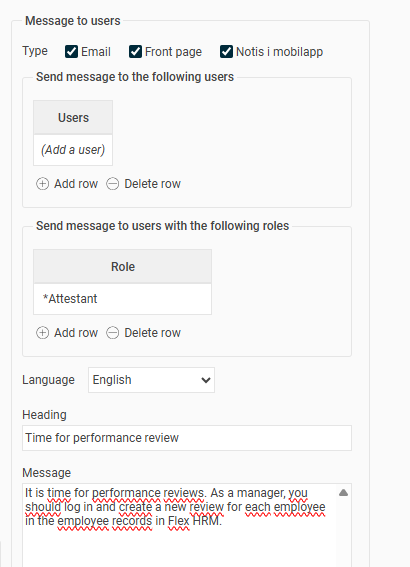
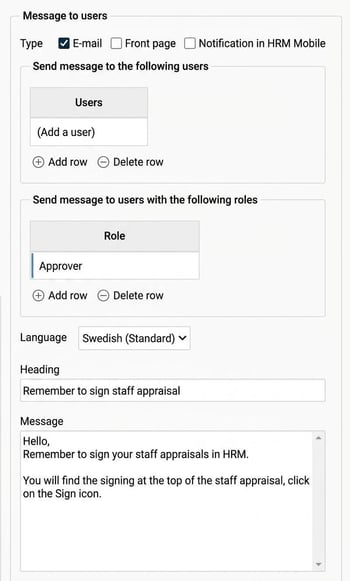
- Message to users. Here you specify which type of reminder should be sent to the manager or e.g. HR. In the example below, we specify the roles Administrator and Approver so that administrators can see the status for the entire organisation and approving managers receive a reminder for their group of employees. You also write a message with information for the recipient. If you want different messages for different roles, add two separate reminders.
Staff appraisal created
This type of reminder is used to notify that a new staff appraisal has been created and is ready to be filled in. This reminder can be sent by email and as a notification in HRM Mobile.
Make the following settings for this type of reminder:
- Under select which conversation templates the reminder applies to Templates selection.
- If not all employees are covered by staff appraisals, you can make a selection of which employees are concerned.
- Message to employee. Here you specify if the employee should receive information by email or notification.
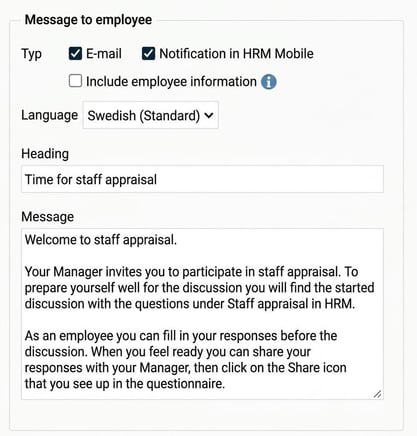
- Under Message to users you can choose whether, for example, the manager or HR should receive a notification when a staff appraisal has been created. This can be useful if the manager does not create the staff appraisal themselves.
Status of staff appraisal
This type of reminder is used for employees and responsibles to be reminded to share or sign the conversation.
Make the following settings for this type of reminder:
- Send reminder when - Here, select whether the reminder applies to an employee or responsible who has not shared or signed. If you want reminders for all four, you need to create four different reminders.
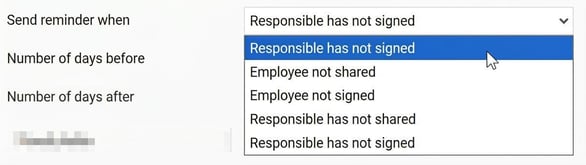
- Then specify the number of days before and after the timing of the conversation the reminder should appear on the front page. For example, the reminder to share a conversation can be set to appear a certain number of days before the meeting, and the signing reminder after the meeting has been held.
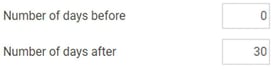
- Under Templates selection select which conversation templates the reminder refers to.
- For sending out reminders by email and notifications in HRM Mobile, specify under the scheduling of reminder how often the notifications should be sent.
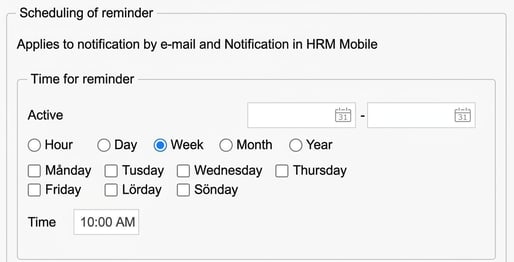
- If not all employees are covered by staff appraisals, you can make a selection of which employees are affected.
- Message to employee - Here, you specify the type of reminder and message for the employee to whom the conversation relates. Normally, this is used to remind the employee who has forgotten to share or sign a conversation. But you can also choose to display a reminder if the responsible has not shared or signed.
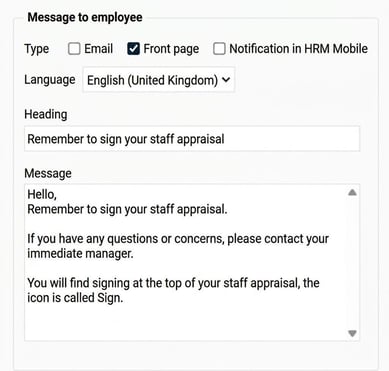
- Under Message to users specify the type of reminder and message that the responsible should receive. You can also choose whether the manager should get reminders both for conversations they haven't shared/signed and for when employees have not shared or signed.
Staff appraisal has been shared/signed
This type of reminder is used to inform that a staff appraisal has been shared or signed by an employee or responsible. This reminder can be received by email and as a notification in HRM Mobile.
Make the following settings for this type of reminder:
- Under Templates selection select which conversation templates the reminder applies to.
- If not all employees are covered by staff appraisals, you can make a selection of which employees are concerned.
- Message to employee/ Message to responsible - Here you specify the message to the employee/responsible that the conversation concerns.
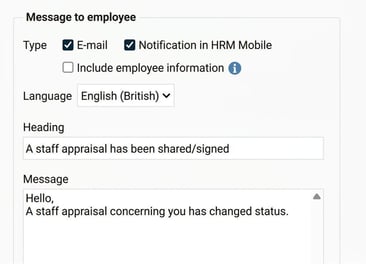
The message also shows who changed the status and what the new status is.
Authorisations
The authorisations for staff appraisals are in part tailored to make the process work as efficiently as possible for your organisation.
Who is considered responsible for a staff appraisal?
Auser who is authorised for the employee and for the tab in the employee register where the staff appraisal is located.
Who can create, modify and delete a staff appraisal?
To add new or delete staff appraisals, the user needs write access to the tab where the staff appraisal is located in the employee register.
The response fields for the employee and the responsible, as well as the sharing and signing options, are in the system controlled so that only users linked to the respective employees can access them. This is to ensure no one else enters answers or signs on someone else's behalf. All that’s required to enter answers in the fields designated for the user, sign and share, is read only access to the tab where the staff appraisal is.
To enter answers in the field for Common conclusion, the user needs write access. This lets you control who can write here. Note that even users other than the employee and the responsible can be authorised to write in this field. However, only the employee and the responsible can sign and approve what is written. For this reason, it's also not possible to restrict viewing of these sections. The intention is not to write confidential notes here, but only content that both parties can access and sign.
Who can see staff appraisals?
The relevant employee and the responsible can always see staff appraisals on a tab they can access.
Example authorisation for Employee
With the following authorisation, an employee can complete their answer, share and sign conversations created for them under the Staff appraisal.
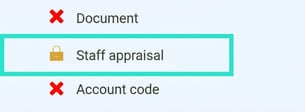
Example authorisation for Manager
With the following authorisation, a manager can initiate new conversations for their employees, answer in their own field, write the conclusion, as well as share and sign. The manager also has the rights to delete conversations.
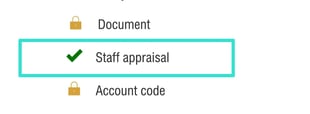
If an employee gets a new manager when changing department or if the department gets a new manager, there may be different cases regarding whether the new manager should have access to earlier staff appraisals. This can be managed for the role with the checkbox “Show all staff appraisals” under Personnel > Employees.

A role with this box ticked can then see all staff appraisals on any tabs they have authorisation for. They will also see staff appraisals even if not the responsible or relevant employee. This lets a new manager see old conversations, or give HR access to conversations.
Please note: This article is AI-translated. This means that linguistic errors or misunderstandings may occur.