
A report package is a way to select multiple reports with preset selections to be generated simultaneously in Flex HRM. You can set up any number of report packages, and everyone with authorisation to the module can use the created packages.
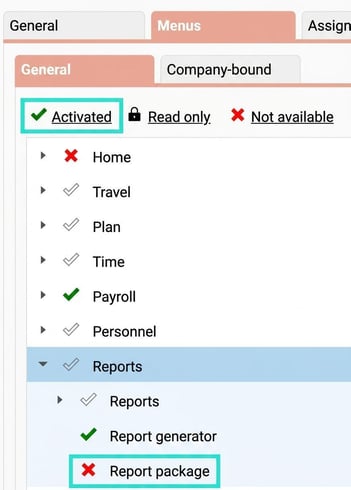
Note that if a user is granted authorisation for Report package, they can view and export all reports created and shared in the report generator.
Authorisations
You activate access to the function on the Role whose users should be able to build and export report packages.
Create a report package
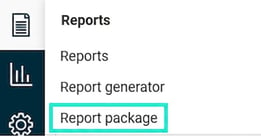
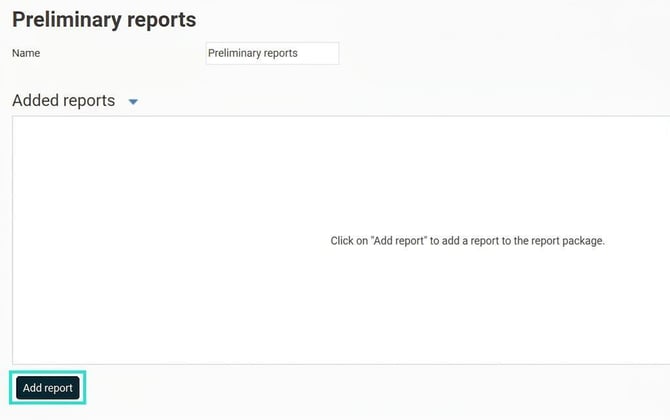
Under Reports > Report package you create and configure the packages you want to use by adding the desired reports with selections to each package.
To create a new package, click the New button.
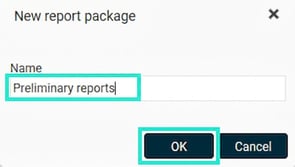
Give the package a name and click OK.
To add a report to the package, click on Add report.
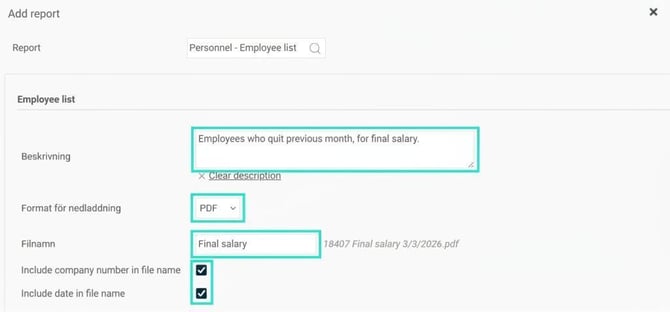
Select a report from the list. You can choose any reports available under the Reports menu, i.e. both standard reports and reports from the Report generator. You can use the search field to look for a report name or a report category.
Specify a description to clarify what the report is set to do, and choose the format in which the report should be downloaded. Also, specify the wanted file name in the dedicated field, and whether the company number and date should be included in the file name.
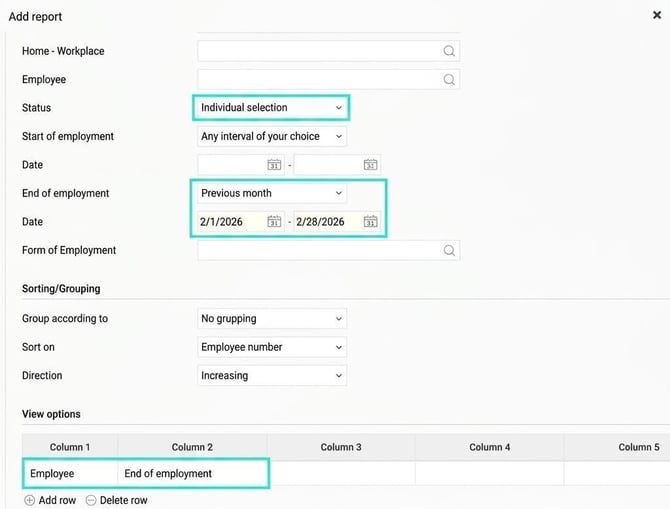
Make the selections (filters) you want applied to this report. In the example below, we want to add a report of the type Employee list with selections for all employees who quit the previous month, in order to see who should receive their final salary. We have chosen to display two columns: Employee and End of employment.
Then click Add at the bottom of the window to add the report to the Report package.
Preview reports in a report package
To display the reports in a report package, select the package.
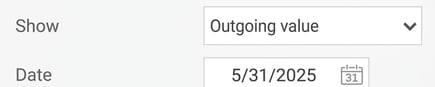
Make any necessary adjustments to selections (e.g., if you have reports with date intervals that are generated each month, you may need to update the dates). You can see which selections are set on each report by selecting the report in the list under Added reports.
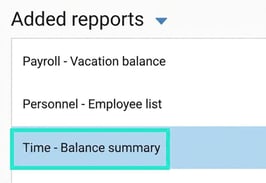
In the example below, a selection with a specific date is shown, which needs to be adjusted each month.
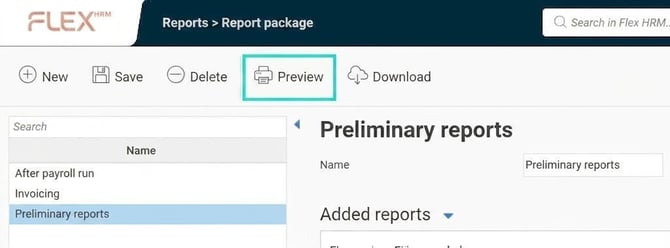
Click on Preview.
If you have four or more reports in the package, a notification shows how many reports will be opened. Respond Yes to continue.
All reports in the package will open in their own tabs in the browser. You can then access each report tab to view the report and choose in which format you wish to download it.
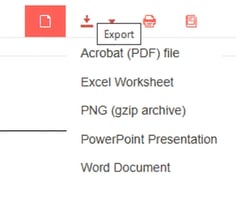
Download reports in a report package
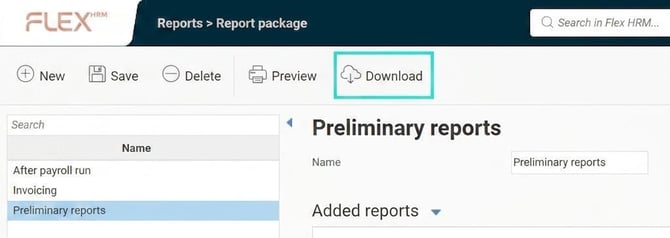
To download the reports in a report package directly, select the package. Make any necessary adjustments to the selections if needed and then click on Download.
Please note: This article is AI-translated. This means that linguistic errors or misunderstandings may occur.