
Travel expense claim overview
The main information of the travel expense claim is always shown at the very top of the travel expense claim view. Your travel expense claims are always collected under the Travel expense claims list.
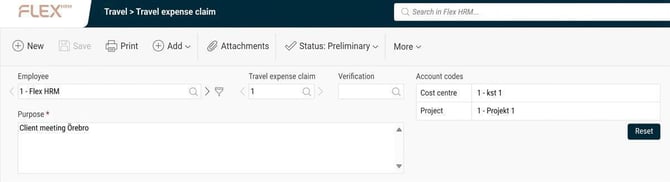
The Purpose field of the travel expense claim is a description of what this particular travel expense claim contains.
Account codes refer to what is called the main account code and apply to all parts of the travel expense claim, unless individual account codes have been specified for certain rows.
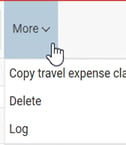
Furthest to the right – under 'More' – you can copy an existing travel expense claim, delete the travel expense claim, and see what has been logged for the specific travel expense claim.
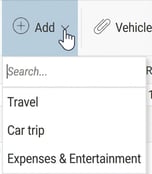
All parts of a travel expense claim are registered using the three function buttons:
Registration can also be done directly via the NEW function button in the transaction view.
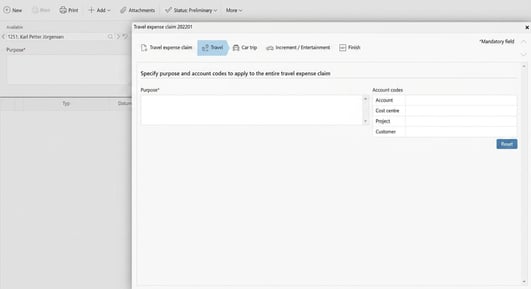
To add transactions to the travel expense claim, click on 'Add'
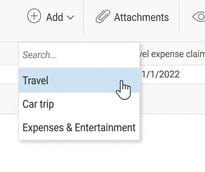
The same functionality is available directly in the transaction view. This makes it easier if you want to register several transactions of different types, as you can do it directly without having to close the popup.

To further facilitate registration – if you first register a travel and then choose to create a new car trip or an expense – the date and time from the travel will be copied to the car trip or the expense. This allows you to register everything belonging to the same trip without having to enter the date or time multiple times.
As you report various items, the summary of the travel expense claim will be updated:
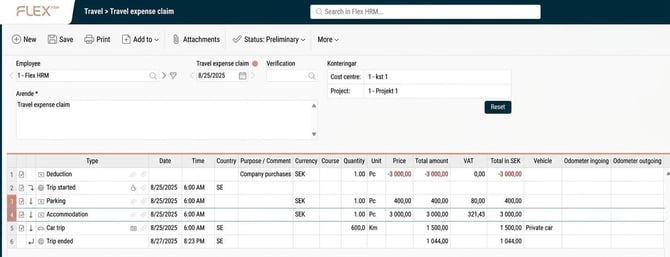
To view total amounts for the travel expense claim, click on Show summaries on the far right.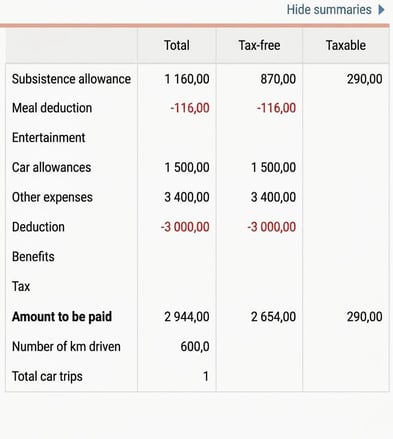

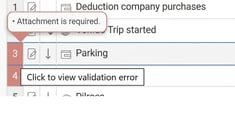
Validation error in the summary
If something is missing, incorrectly completed or there is any other error that prevents an audit from being carried out, it will be highlighted in red in the summary.
By clicking on the red highlight, you'll get information about what might be wrong. Correct the issue and save, and the cell should turn grey and be fine.
Please note: This article is AI-translated. This means that linguistic errors or misunderstandings may occur.