
The immediate manager is shown here
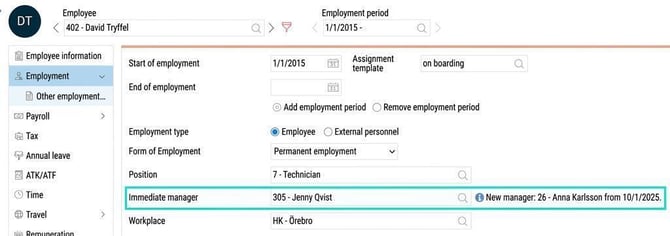
- In the register for Employees > Employment
- Assignments where the responsible person is set to "Immediate manager"
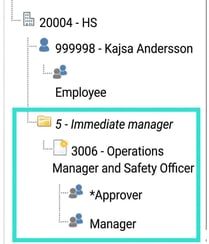
- As the responsible executive in the organizational chart
- Output and reports
- Report generator (data source "Employees")
- Export (export type Employees/users)
- Standard report Employee list
- API
Enable the function for Immediate manager
To use this function, you first need to decide which of your account code dimensions will be used for "Immediate manager." The account code dimension can be named anything, usual examples are "Immediate manager" or "Authorisation code."
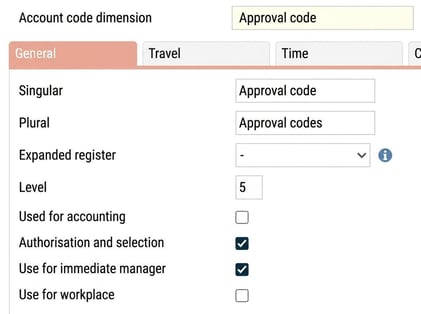
Settings > General > Account code dimensions
Click on the account code dimension you want to use for immediate manager.
Under General tick the checkbox Use for immediate manager to enable the function.
Register
Once you have enabled the setting for the account code dimension as described above, a list is activated in the register. In that list, you specify who the current manager is for each code.
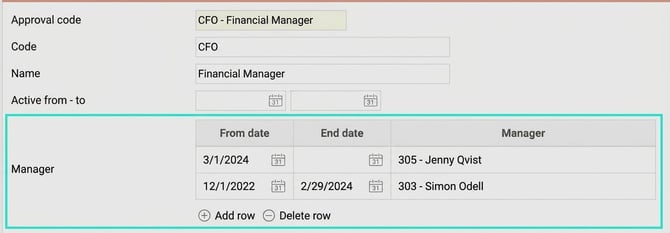
This allows you to easily and in good time prepare for a manager change. The new manager automatically becomes visible to the employees from the date when the manager change occurs according to the register. If there are several upcoming managers in the list, only the current and the next manager for the employee are displayed.
Good to know
-
An employee must be connected to a user in HRM in order to be selected as immediate manager.
- Choose a manager from the whole concern: If you use concern management, you can choose an immediate manager from another company within the same concern.
- This applies to immediate manager in Assignments
-
- In assignments in HRM Mobile and on the front page, you can see who the immediate manager is, making it easy for both managers and employees to quickly find the right person.
-
The system always sets the manager who is the immediate manager at that time. If an employee gets a new immediate manager after an assignment has been created, the person responsible for the assignment does not change.
-
An error message is shown if there is no immediate manager, or if the employee who is to be responsible does not have a connected user when the assignment starts. You see the error message next to the field for main responsible in the assignment view.
- Remember that when you appoint a new manager, it is not enough to only update the list for immediate manager. You also need to add authorisations to the user. This allows the new manager to view and manage their employees.
Please note: This article is AI-translated. This means that linguistic errors or misunderstandings may occur.