
Procedure for the shift of the vacation year on 1 January

Import template and import file for changed annual leave agreement and/or annual leave entitlement

Import template and import file for payment of excess days

Checklist for shift of the vacation year
Procedure for the shift of the vacation year on 1 January
The following procedure applies to you if your vacation year starts on 1 January. Normally, the earning year is from 1 January to 31 December of the present year.
- Create the payroll run for January and enter/register all absence for December. It is common to carry out the shift of the vacation year in the ordinary payroll run for January to include the new holiday days on the payslip; the annual leave calculation is then performed as the last step in the payroll run for January.
Alternatively, the shift of the vacation year can be carried out in an extra payroll run for all employees without importing any payroll transactions, the advantage being extra time for reconciliation and checks before the vacation is applied. - In the ordinary payroll run for January, you generate a New vacation debt under Payroll > Debt management, with calculation type Reconciliation of the shift of the vacation year to prepare and check the shift of the vacation year.
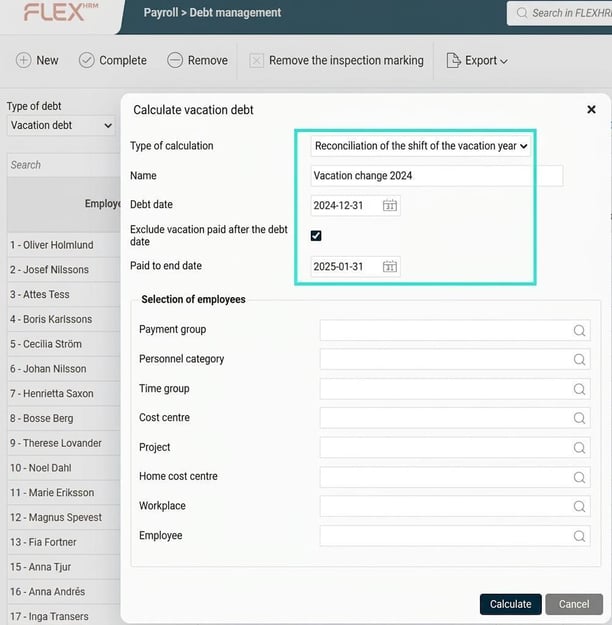
Click on Calculate.
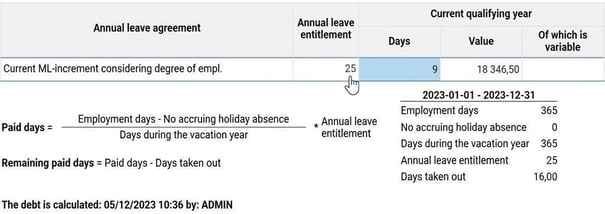
You will then get a specification that you can check. If you click in the field Value or the field Days for each employee, you will see how the calculation was done.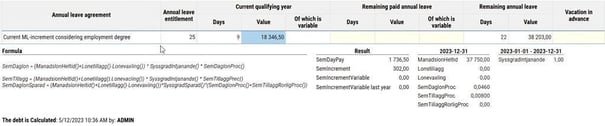
You can also generate the report Vacation balance (via Reports > Payroll > Vacation balance) to get an overview of the employees’ remaining holiday days ahead of the shift of the vacation year. A tip is to retrieve balances from the payroll run with payment in January. - Under Administration > Actions processed > Annual routines > Shift of the vacation year there is a function for carrying out the shift of the vacation year. Here, you first create a specification for the shift of the vacation year.
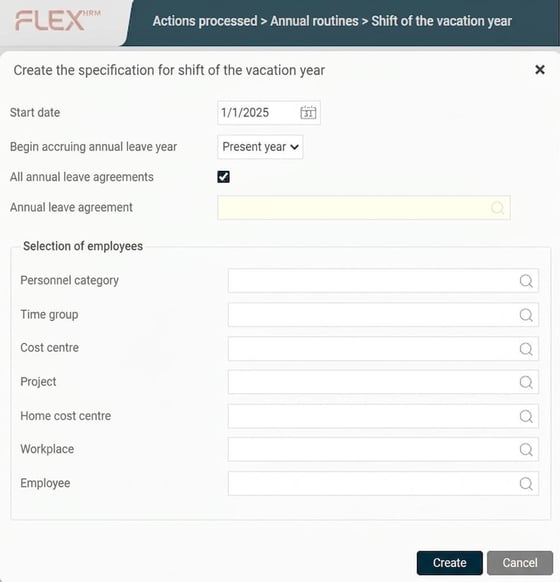
When you click on Create a specification is created which you can then review and check.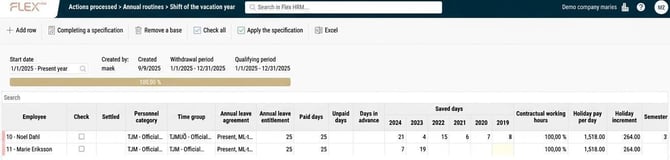
In the overview of the specification, you will find all the parameters for the annual leave calculation.
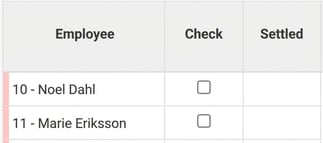
- A red marking on the left edge, to the left of the employee column, indicates if the employee has excess vacation days according to the annual leave agreement.
In the columns on the right side of the view, you can also see which days the system cautions about.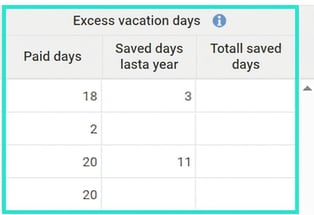
- If there are remaining paid holiday days/saved days from the last year that can no longer be saved, it is common to pay out the value of these before the shift of the vacation year.
This should be done in the ordinary payroll run for January by manually entering the pay code for payment of annual leave in the payroll preparation; alternatively, you can create an import file and upload these into payroll preparation (see section on Import template and import file for payment of excess days later in this article).
If the employee is to receive the year’s paid days paid out, a separate pay code is needed so that these are settled against the correct balance, i.e., paid days of the year instead of saved days.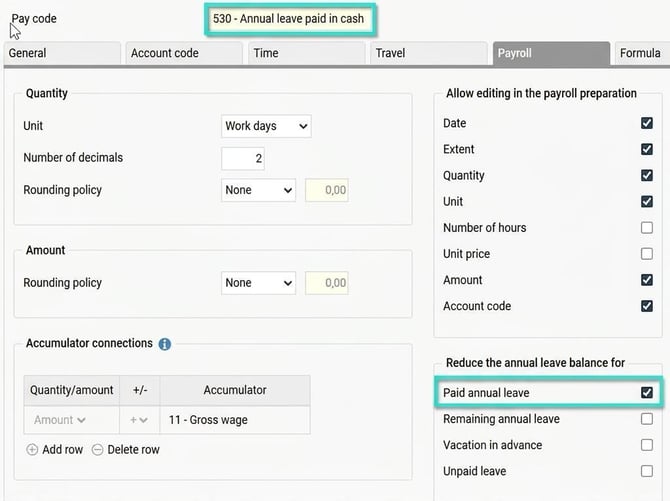
If payment is not made in the ordinary January run, all days will be moved to saved days; the remaining paid days of the year will then be placed on save year 1, and when payment occurs in a later payroll run, saved days from the last save year are paid out first, second last in the next turn, and so on. This means you may need to adjust the balances for saved days before or after payment to ensure correct allocation across the different save years.
Before payment: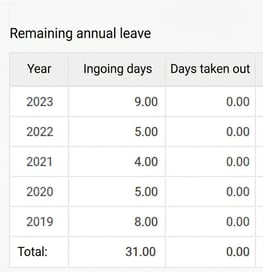
After payment of 4 days belonging to save year 1 (= unused paid days) + 5 days from save year 2018 (all have been settled against save year 2019 and 2020) if no adjustment of balances has been made.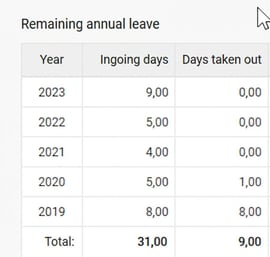
Our recommendation is therefore to at least pay out excess paid days in the ordinary payroll run but to wait with excess saved days until a later payroll run.
Please note! If you have paid out excess holiday days, it is important to update the specification for vacation change by completing the specification. This is important so that the number of holiday days paid out is deducted, and the employee does not receive too many days at application. You can do this for all employees or only those you have paid out for by making a selection at completion.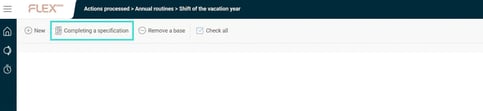
- If the shift of the vacation year is to be done in an extra payroll run, you now settle the ordinary payroll run. Then you create an extra payroll run including all employees but no transactions. (If the shift of the vacation year is done in the ordinary payroll run, payroll should not be settled; continue as per step 7.)
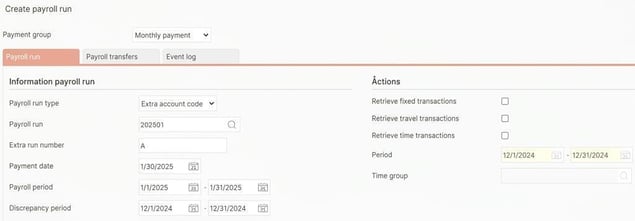
- Now go back to Shift of the vacation year to do the final check and apply the shift of the vacation year.
When you have reviewed the specification, click on Check all, or tick one employee at a time as inspected directly in the list. You can remove the check mark if you want to adjust something as long as the vacation change has not been applied.
When all is done, click on Apply the specification and the shift of the vacation year is completed.
The employees have now received their new days which you can see both in the employee register and in payroll preparation.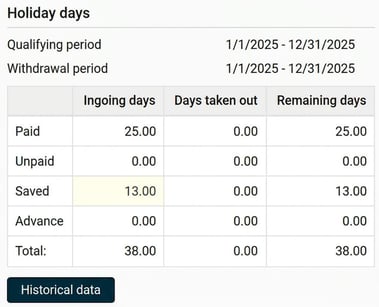
- The last step is to settle the preliminary payroll run. If you use HRM Time, we also recommend exporting the vacation balances there so employees can immediately see their new holiday days in the time report balances. This is usually done directly when the payroll run is settled.
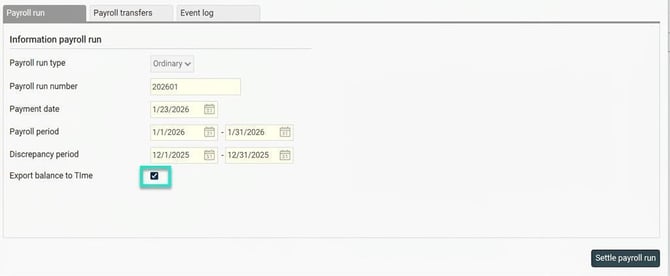
The vacation change is now complete!
Import template and import file for updating annual leave agreement/annual leave entitlement in the employee register
If you have employees who get a changed annual leave agreement/annual leave entitlement at the shift of the vacation year, you can import this change into the employee register using an import template and an import file.
Import template
Set up the import template under Administration > Settings > Import/export > Import templates.
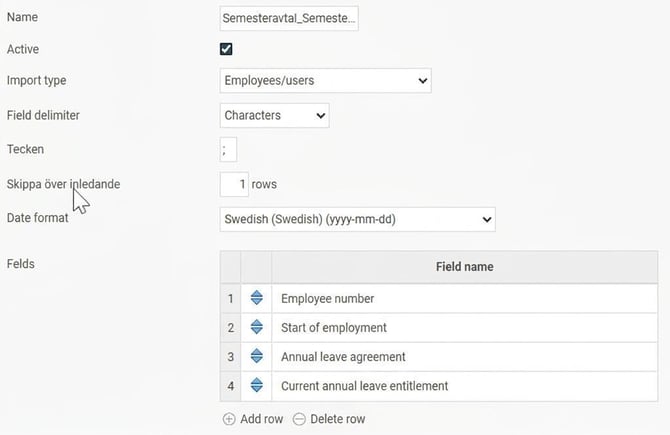
Select Import type: Employees - Users, fill in field delimiter and optional number of rows to skip (= header rows) and select the fields to be read.
Please note: Since the annual leave agreement is date-controlled by employment period, you must first create a new employment period with the date of the change in the employee register. Include this date in the import.
Example showing an import template for reading a comma-separated (csv) file where the top row is a header not to be read:
Import file
Create an import file matching the template and save it in .csv format. In the example, we have an employee who, from the turn of the year 2026, receives new annual leave entitlement of 32 days instead of the previous 30. The annual leave agreement remains the same as previously and does not need to be changed; instead, the new entitlement will create a personal discrepancy on the existing agreement. Therefore, leave the agreement field empty.

Import file
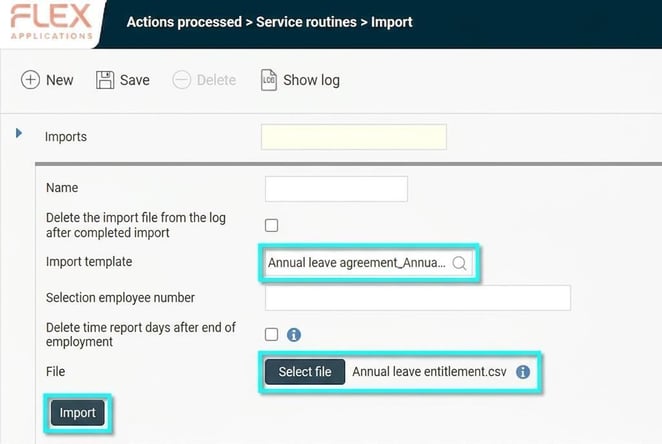
Import your file under Actions processed > Service routines > Import.
Select your import template and the saved import file, and then click Import.
Import template and import file for payment of excess days
To upload a file with the days to be paid out because they can no longer be saved, you need an import template and a file with the number of days to be paid out.
Import template
Set up the import template under Administration > Settings > Import/export > Import templates.
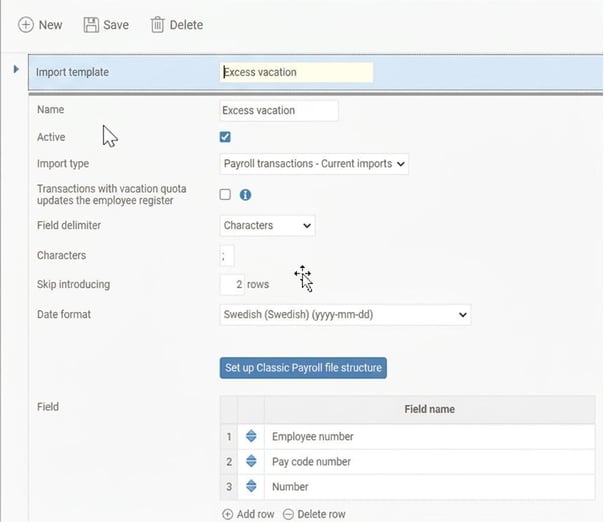
Select Import type: Payroll transactions - ongoing import, fill in field delimiter and optional number of rows to skip (= header rows) and select the fields to be read.
Example showing an import template for reading a comma-separated (csv) file where the top two rows are headers not to be read:
Import file
Download the vacation shift list in Excel to create your import file.

You can now edit the Excel file.
If there are days for payment in all three columns (Paid days, Saved days last year, Total saved days), you will need to create three import files (see below) and upload them into payroll preparation.
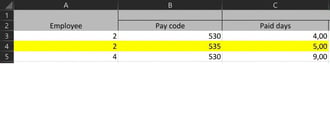
Delete all columns except Employee and the excess holiday days. Leave the two header rows as they are.

Add an empty column before each balance where you will enter the pay code for payment.
Please note! Different pay codes for payment of paid days and saved days for correct settlement if payment is made in the ordinary payroll run BEFORE the vacation change is applied, pay code for saved days if payment is made in a later payroll run AFTER the shift of the vacation year has been applied.

Then remove the employee name in column A so that only employee number remains.

Finally, save the file as a comma-separated file.

Alternatively, you can create a file where you move down Saved days last year and Total saved days on new rows, and add employee number and correct pay code. Then you only need to upload the file once.
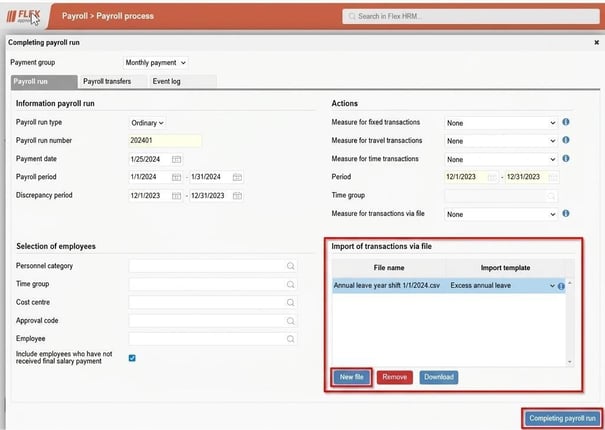
Complete the payroll run where the days are to be paid, click on New file and select your csv file and import template. Then click on Completing payroll run. Paid days in column C are now uploaded into payroll.
To upload the remaining days in columns D-G, you need to create new versions of the file.
Open your import file and delete columns B & C (Paid days) so that the file now contains pay code and number of saved days in columns B & C instead. Resave the file as csv with a new name (e.g. Saved last year) and upload again. Saved days from the last save year are now uploaded.

Open the import file again, and once more, delete columns B & C (Saved days last year) so that the file now contains pay code and number for Total saved days in columns B & C. Resave the file as csv with a new name (e.g. Total saved) and upload again. Saved days in excess of the maximum limit for saved days are now uploaded.
Checklist shift of the vacation year
When the change is applied in the ordinary payroll run:
- Start ordinary payroll run and upload discrepancies
- Create vacation debt "Reconciliation of the shift of the vacation year"
- Create specification for the shift of the vacation year
- Pay out excess days (alternatively, these can be paid out in a later payroll run)
- Complete, check and apply shift of the vacation year
- Settle the payroll run and export balances to Time
When the change is applied in an extra payroll run after the ordinary run:
- Start ordinary payroll run and upload discrepancies
- Create vacation debt "Reconciliation of the shift of the vacation year"
- Create specification for the shift of the vacation year
- Complete, check and apply shift of the vacation year
- Settle the extra payroll run and export balances to Time
Please note: This article is AI-translated. This means that linguistic errors or misunderstandings may occur.