
Prerequisites for using Kivra
To use the function for sending salary specifications to Kivra, you need:
-
A add-on module for the Kivra integration.
-
An agreement with Kivra.
The billing is linked to the number of salary specifications you send to Kivra.
Tip: Contact our sellers for more information and to order the add-on module.
Sending salary specifications to Kivra is easy, secure, and practical. Employees access their salary specifications in Kivra by logging in securely via BankID and have access to all their payslips even after their employment ends and they no longer have access to Flex HRM. This relieves you, as the employer, from having to send payslips to former employees, and all payslips are collected in Kivra in an organised manner.
Enable the Kivra function at company level
Once the add-on module has been activated at system level, you must enable it for the specific companies you wish to use it with:
-
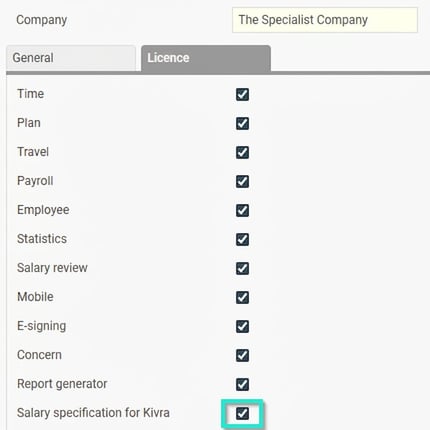
Go to Administration > General > Company.
-
Go to the tab Licence.
-
Enable Salary specifications for Kivra for the wanted company.
Program link – Activation and settings
Before you can send any salary specifications, you must activate and configure the program link to Kivra.
Go to Administration > Settings > General > Program links.
Fill in the following details:
Sender identity (tenant key)
Here you enter the unique key you have received from Kivra when creating your account. This key ensures that the salary specification gets the correct sender (your company) in Kivra.
Send information to
Choose whether salary specifications should be sent to Kivra’s Production Environment or Test environment.
-
Select Production Environment to send actual salary specifications to your employees.
-
Test environment can only be used if you have received a test account from Kivra.
Retroactive delivery
Here you choose how many days the salary specification should remain in Kivra for employees who do not have a digital mailbox at the time of notification. If the employee creates a Kivra account within this period, the salary specification will be available.
Send salary specifications
This setting must be checked for it to be possible to send salary specifications to Kivra.
Please note! When you activate or deactivate this, you will be asked whether you want to enable/disable it for all employees in the register (see the section about settings in the employee register below).
Enable print handling
Print handling is an additional service from Kivra that enables salary specifications to be sent by post to employees who are not connected to Kivra’s digital mailbox when the notification takes place. This requires that the service is included in your agreement with Kivra.
Please note! When you activate or deactivate this, you will be asked whether you want to enable/disable print handling for all employees in the register (see the section about settings in the employee register below).
Active
Choose whether the program link to Kivra should be active or not. In order to send salary specifications, it must be active.
Role settings
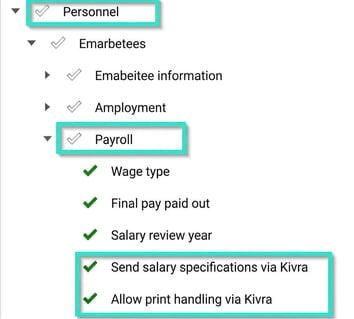
To access the setting in the employee register, the following authorisations must be enabled for the role. Under Personnel > Payroll enable Send salary specifications via Kivra and Allow print handling via Kivra if this additional service is current.
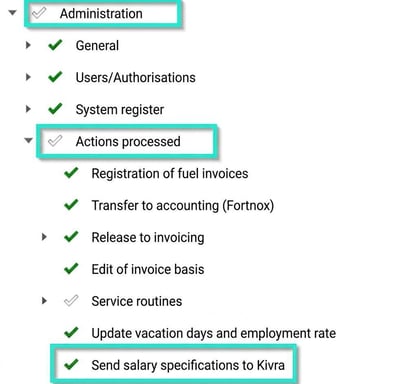
To access the function for sending salary specs, the role must have the following authorisations enabled. Under Administration > Actions processed enable Send salary specifications to Kivra.
Settings in the Employee register
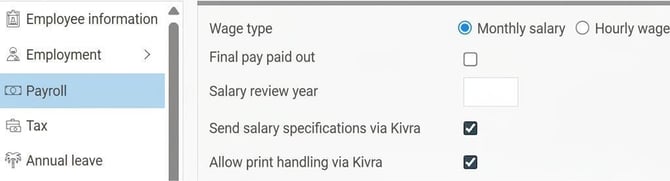
In the employee register, you can control which employees receive their salary specifications via Kivra. Go to the employee's register card and the tab Payroll. Here you will see one or two check boxes, depending on which functions you have enabled in the program link, Send salary specifications via Kivra and Allow print handling via Kivra.
Send salary specifications via Kivra
Salary specifications can only be sent to Kivra for employees who have this box checked.
Allow print handling via Kivra
This check box is shown only if you have enabled the print handling function in the program link to Kivra.
-
If it is checked it is permitted for the salary specification to be sent by post via Kivra’s print handling to the employee if they do not have a digital mailbox connected.
-
The salary specification will then be sent to the address under the tab Employee information.
Send salary specifications to Kivra
When all settings are completed and the payroll run is finished, you can send out the salary specifications:
Go to Administration > Actions processed > Send salary specifications to Kivra.
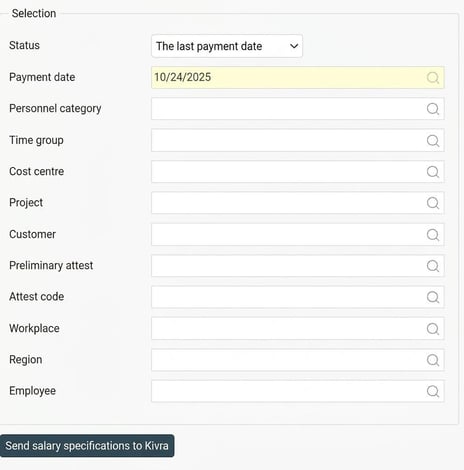
1. Selection (left side)
On the left side of the screen, make your selection:
-
Select payment date.
-
Select the employees you wish to send salary specifications to.
-
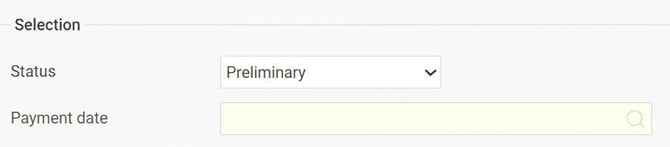
You can choose to send preliminary salary specifications by selecting Status Preliminary.
-
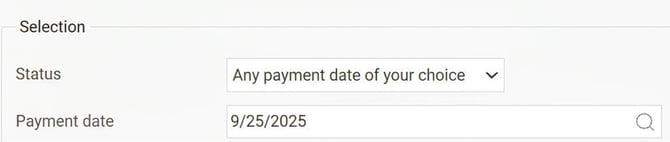
There is also an option to send salary specifications for older periods by choosing Status Any payment date of your choice and the current payment date for which salary specifications will be sent.
2. Send out
Once you’ve made your selection, click the button Send salary specifications to Kivra.
You’ll first receive confirmation that the work has started, and another once the process is complete.
3. Follow status (right side)
On the right side of the screen, you will find a log of notifications that are currently processing or finished:
| Column | Description |
| Status | Shows a green tick if everything went well and a red tick if something went wrong. |
| Info | Here you can see details, including how many payslips were successfully sent and how many failed, as well as which selections were made. |
| Log | Click here to download a detailed log showing which employees and payroll runs salary specifications have been sent for. It also includes error messages if any problems occurred, for example if the national ID number is missing or incorrect. |
Please note: This article is AI-translated. This means that linguistic errors or misunderstandings may occur.