
Checklist before annual leave
Guide to delegating authorities in Flex HRM
Settings for delegation (for administrators)
How to delegate as a user
How to delegate as an administrator
Checklist before annual leave
- Submit your time reports and travel expense claims on time. It might be a good idea to bring the deadline for time reports and travel expense claims forward. That way,the payroll department will have time to handle everything before they go on annual leave themselves.
-
Ensure that absence has been generated. For absence to be created automatically in the time report, the application for absence must be audited. The time report must also be open, and no time may be manually registered on the days the absence applies to.
-
Audit before you leave. Encourage all employees to audit and submit their time reports and travel expense claims before they start their annual leave.
-
Get an overview. Use the reports and the calendar in the system to see who is present and who is on annual leave.
-
Prepare for stand-ins. If the ordinary administrators are not available during annual leave, make sure that any stand-ins have the correct authorities in the system. Also, provide them with customer numbers needed when contacting support.
-
Update contacts. Review and update the list of your appointed contacts for support. If a stand-in needs to contact us, ensure they have their own login to the service portal.
-
Delegate authorities. If a colleague is temporarily taking over your duties, you can easily delegate your authorities in Flex HRM. Read more in our guide below.
Guide to delegating authorities in Flex HRM
Ahead of annual leave or other absence, you may need to give a colleague access to your duties in Flex HRM. With the delegation function, you can temporarily grant another user one or more of your roles under a specified time period.
Settings for delegation (for administrators)
As an administrator, you can configure which roles are possible to delegate.
-
Go to Administration > Users/Authorities > Roles.
-
Select a role in the list.
-
Tick the box Allow delegation of role to another user.
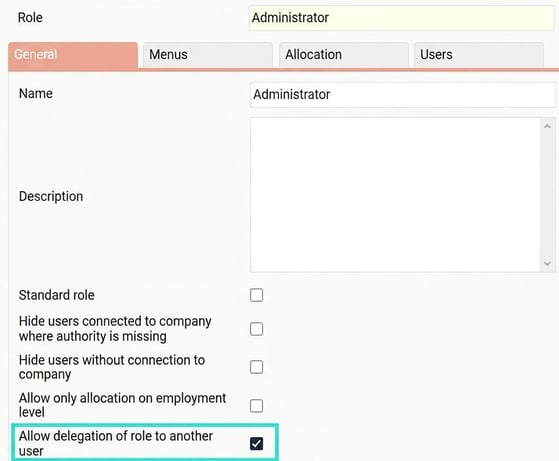
Only the roles where the setting "Allow delegation of role to another user" is active can be delegated by users.
How to delegate as a user
-
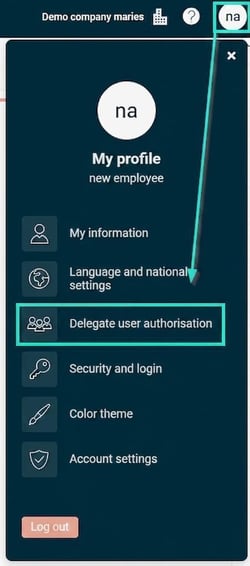
Go to your My profile > Delegate user authorisation.
-
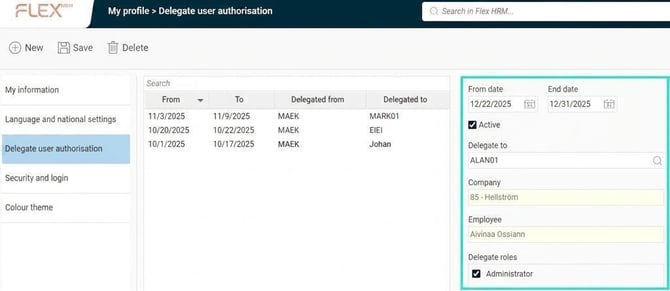
In the list on the left, active delegations appear in bold and upcoming delegations in regular text. Tick Show history to see earlier delegations.
-
To create a new delegation, specify a From date and an End date. If you leave the End date empty, the delegation will continue until it is removed manually.
-
Select who you want to delegate to and which role or roles it concerns.
How to delegate as an administrator
As an administrator, you can view, create and edit delegations for the users you have authority over.
-
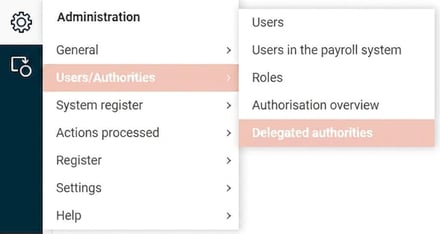
Go to Administration > Users/Authorities > Delegated authorities.
-
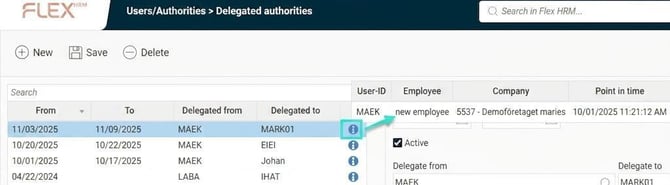
The list shows current delegations, who has delegated, who received the delegation and during which period. Hold your mouse pointer over the in the symbol to see who created or last changed the delegation.
-
To create a new delegation, select which user should delegate from, who should receive the delegation (to) and which roles should be included.
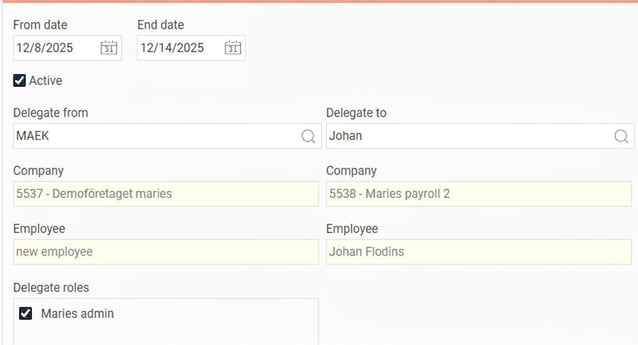
Note! You can only delegate roles that you yourself are authorised to allocate.
Check which roles you can allocate
-
Go to Administration > Users/Authorities > Roles.
-
Select the role your own user has.
-
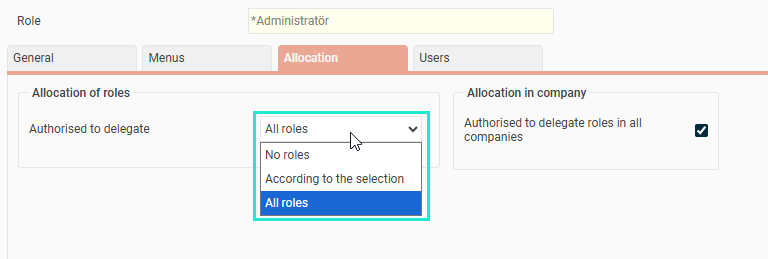
Go to the Allocation tab. Here, you can see if you can allocate No roles, All roles or a specific selection of roles.
Please note: This article is AI-translated. This means that linguistic errors or misunderstandings may occur.