
Absence part time day by day (Collective agreement IF-Metall)
Please note! This function is only used by companies within the IF-Metall collective agreement who have chosen to interpret that absence part time should be handled in a specific way and wish to be able to send the absence part time day by day.
For most payroll systems, absence part time is sent with a date interval and extent, regardless of whether the absence part time is reduced by the same amount each day or intermittent. You can choose for the absence part time to be transferred to payroll per day instead, as if it had been manually entered in the time report.
If the absence part time is sent day by day as if it had been entered in the time report, the absence time will be counted as the difference between number of hours full-time and the schedule time of the absence part time schedule.
Under Settings > Time and Plan > Reason for absence - Time the following options are available:
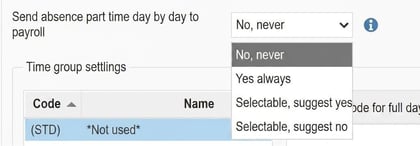

No, never. Means that it behaves as it did earlier and is the default if you make no change.
Yes, always. Means that the absence part time is sent day by day as if it had been entered in the time report.
Selectable, suggest yes. Means that the user can choose and the suggested option is yes.
Selectable, suggest no. Means that the user can choose and the suggested option is no.
If either of the two bottom options is chosen, this setting will be shown in the absence function in HRM when this reason for absence is selected.
Within the same collective agreement, you may also want to choose how to send the holiday quota in connection with an absence part time. Under Settings > Time and Plan > Time reports you have the option to choose whether the absence part time should affect the holiday quota or not.
Always is the default and this is how it has worked earlier, i.e. that the absence part time schedule affects the calculation of the holiday factor.
If you choose Never, the holiday quota will be calculated based on the number of hours full-time instead of the schedule time of the absence part time schedule.
If you choose Selectable, you can open the absence part time schedule in the employee register under Personal schedules and choose whether it should affect the holiday quota or not. You therefore cannot tick the box when you first record the absence part time in the time report and must do this afterwards. By default it is unticked and thus works the same way as Always.
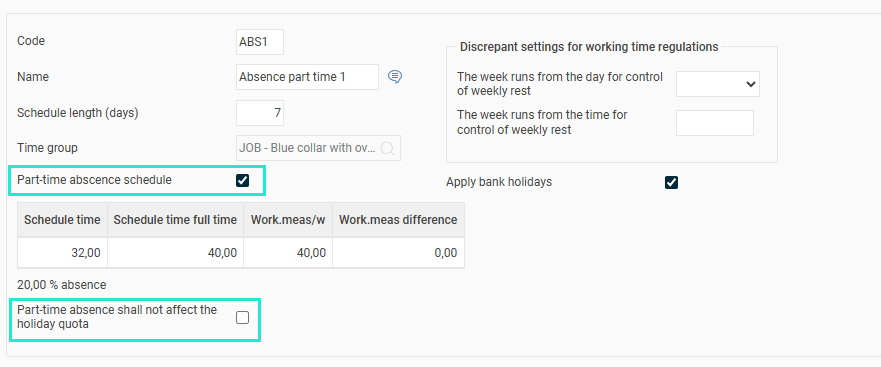
Tip: If you want to read about other settings in the system that concern absence part time then click here.
Please note: This article is AI-translated. This means that linguistic errors or misunderstandings may occur.