
Tax table
Here you enter the company’s general tax table. This table is used if an employee does not have a tax table listed under Personnel > Employees, the tab Tax. The system then deducts tax according to this table and an additional 10% tax, in accordance with standard practice.

Exclude employees without transactions from the payroll run
In some organisations, salary payments are made to certain people only a few times a year. For example, this might be elected representatives or board members who receive a fee or allowance for travel on specific occasions.
If you have many such individuals, the payroll run may include many employees with nothing to pay out. This makes it harder to find those you want to check and also causes unnecessary performance issues in the system.

If you do not tick the box, only employees with transactions for the payroll period are included (e.g. fixed transactions in the employment register, transactions from HRM Time, HRM Travel or a file imported into the payroll run).
If you tick the box, all employees without a mark indicating paid final salary are included. If no payroll transactions are registered for these, they will only appear in the payroll preparation; no payslip is generated.
Allow employment selection when creating an ordinary payroll run
Use this setting if you want to be able to create an ordinary payroll run for only a specific number of employees. NOTE: You will then need to complete the payroll run to include all employees at a later date.

For extra payroll runs, this setting is not required; you can always create the payroll run with a selection of employees.
Calculate holiday days and contractual working hours at period settlement
In HRM Payroll, you can continuously update holiday days and contractual working hours for all employees with matching earning/withdrawal periods for annual leave during the current vacation year, taking into account the transactions calculated in payroll.
You can do this manually via Administration > Actions processed > Update vacation days and employment rate.
You can also do this for individual people in the employment register under the Holiday tab. This is recommended if you wish to adjust employees considering future absence that has not yet been calculated in payroll. The function calculates what has been handled in payroll and manual adjustments can then be made for future absence.
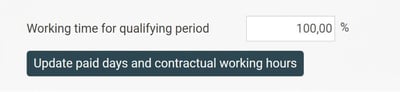
Another alternative is to let the system make the calculation automatically when you settle a payroll run. This saves you from doing it manually each month. Mark this setting to enable automatic calculation of holiday days at period settlement.

The calculation then occurs as a final step just before the settlement is performed. This means the holiday balances are updated in the payroll run before it is settled. If needed, you can check the calculation data in the view under Administration > Actions processed > Update vacation days and employment rate, even when the calculation has been done automatically.
Layout settings
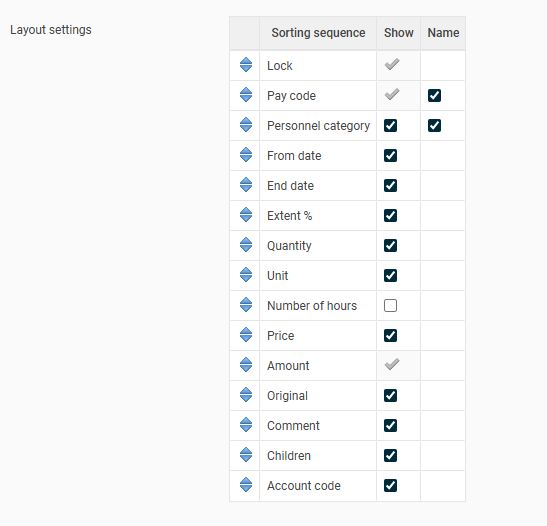
In this function you can customise which fields you see in the payroll preparation. Use the blue arrows to change the sequence of the fields. Click the symbol and drag the field to the row where you want it.
Please note: This article is AI-translated. This means that linguistic errors or misunderstandings may occur.