

Selectable columns in the salary review
Personnel > Salary review
When working with salary setting in a salary review, you often need to take various things into account, for example pay rises, benefits, and flexible pension. To give you a clear overview, you can therefore choose which columns are displayed in the salary review.
Set which columns should be displayed
If you are an Administrator and are authorised to create and edit a salary review, you can choose which columns to display. You make these settings via the button Select columns in the button bar.
The columns you select here will appear for all users working in this particular salary review. The idea is that you as Administrator decide what information salary-setting managers can see, so that everyone gets as fair a picture as possible.
-
The settings are unique for each salary review.
-
When you create a new salary review, the system suggests the same columns that were used in the previous one.
-
You can change the order of the columns using the blue arrows.
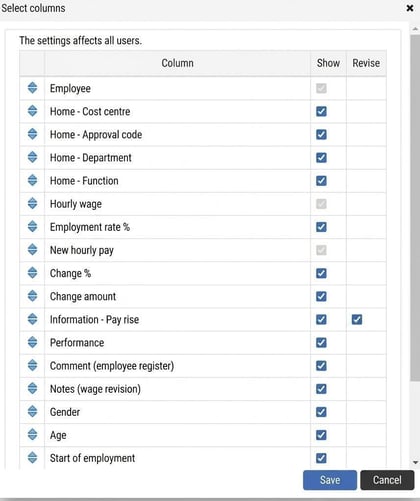
Green columns
Some columns are green in the salary review view. These contain extra information about the employee and always show the current value in the system. This means the value is not necessarily the same as it was when the salary review was carried out.
Available columns
Here are the columns you can choose to activate.
Home account code
Shows which home account code the employee belongs to, for example cost centre or department.
Personnel category
Shows which personnel category the employee belongs to.
Time group
Shows which time group the employee belongs to in HRM Time.
Annual leave entitlement
If you use HRM Payroll, you can also display the employee's annual leave entitlement.
National ID number
Usually, it is best to avoid displaying national ID numbers. However, if you need to include the national ID number in an export to Excel, you can choose to show this column.
Contractual working hours
Shows the contractual working hours applicable to the employee on the salary review's start date.
Important! If an employee's contractual working hours are changed after the salary review has been created, they will not be updated automatically in the review view. To fetch the new working hours, you must remove the employee from the salary review and add them again. Please note that all salary suggestions and changes you have made for the employee will then be lost.
If the employee does not have registered contractual working hours on the salary review date, 100% will be shown.
Additional fields
You can display all additional fields available in field groups, regardless of whether they are date-based or not. For example, these could be fields for different pay rises, benefits, or handling of flexible pension.
To display an own field, go to the settings for Select columns:
-
-
Tick the box Show.
-
If you want to be able to edit a numeric field directly in the salary review, also tick Revise.
-
Please note: This article is AI-translated. This means that linguistic errors or misunderstandings may occur.