
You can find this view in the menu under Payroll > Calendrical.
In this view, you can select which employee and which period you want to look at, for example, a specific holiday accrual period. The system will then show all registered reasons for absence for that employee during the selected time. You can also choose whether to show the employee's schedule time by ticking/unticking the box.

Detailed information per day
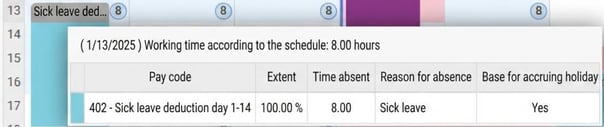
If you hover the mouse pointer over an absence row in the calendrical view, you will see more detailed information for that specific day, such as extent, time absent, and whether the absence is for the base of accruing holiday or not.
The small blue dot shows the employee's schedule time for the day.
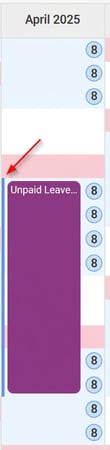
No accruing holiday absence
Absence entries with a blue line next to them have been calculated by the system as no base for accruing holiday.
Summary of the period
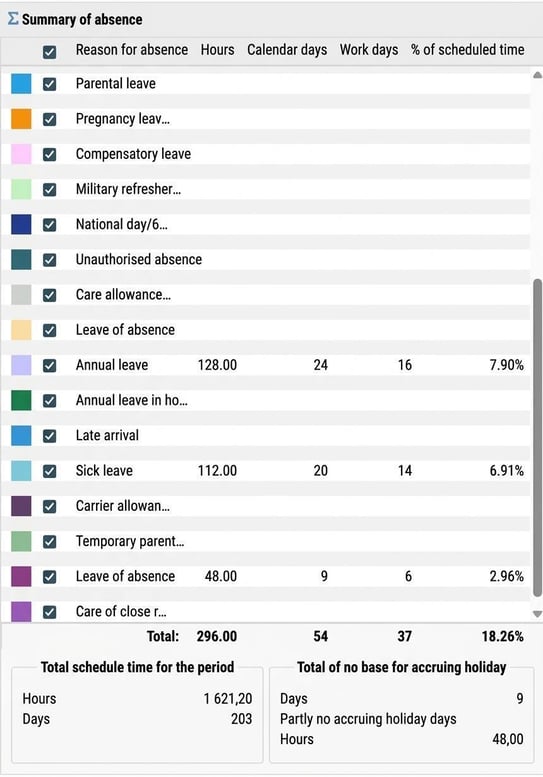
All the way to the right, there is a summary view providing a total for the entire selected period. It is broken down by reason for absence and shows:
-
Hours
-
Calendar days
-
Work days
-
Percentage of schedule time
At the very bottom of the summary view, you will also see a total summary of schedule time and no accruing holiday absence in both hours and days.
Please note: This article is AI-translated. This means that linguistic errors or misunderstandings may occur.