
Setting for audit level
Partial approval in the time report and in the audit view
Authorisation
Please note
Audit per time row is often referred to as partial approval, though the name is configurable. We use the term partial approval in this article. It might be called something else in your system.
Partial approval means auditing per time row. Often, employees submit their time report per day, a manager audits time rows coded with the projects he is responsible for, and another manager approves the time report for the entire month.
It is common to perform partial approval based on the projects of the time rows, but you can choose to do it on any account code level.
Setting for audit level
Under Settings > General > Audit levels > Time reports you set a level for auditing per time row. The level used for each time row must require a different level (often submission). You cannot have partial approval as the first audit level.
The image below shows the setting for a level we have chosen to call partial approval. It is used to audit time rows based on registered project.
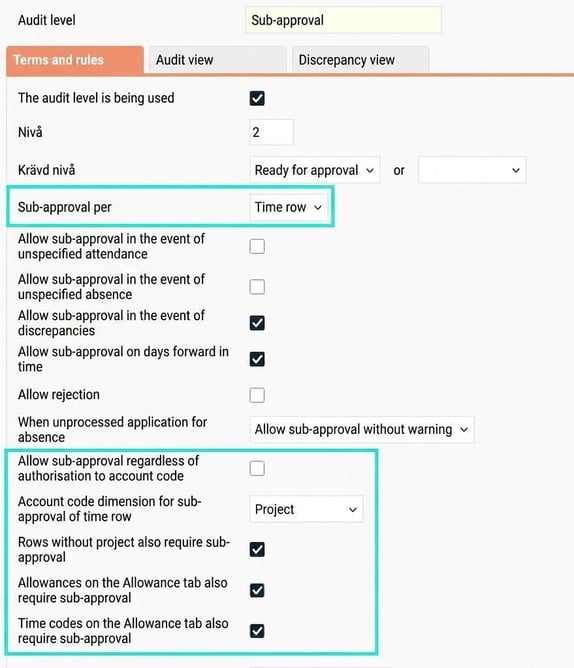
The circled settings are only used for levels that audit per time row and are described below.
Allow partial approval regardless of authorisation to account code
If you tick this setting, users will be authorised to audit all projects. This can be useful if you want employees to submit their time reports per time row and want to avoid setting authorisations for every project.
Rows without project also require partial approval
Avgör whether time rows without project should be partially approved. If partial approval is not required for rows without project, a day is counted as partially approved as soon as it has no unaudited rows where a project is specified.
Allowances/time codes on the allowance tab also require audit
Choose here if allowances/time codes on the time report’s Allowances folder should also be partially approved.
Partial approval in the time report and audit view
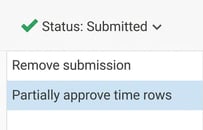
DPartial approval can be done directly in the time report under status.
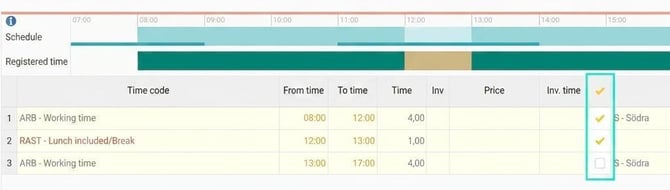
Partial approval can be done directly on each time row in the designated column. If you are missing a column for this, check the layout setting for the time report (this can be done at company, time group, or employee level).
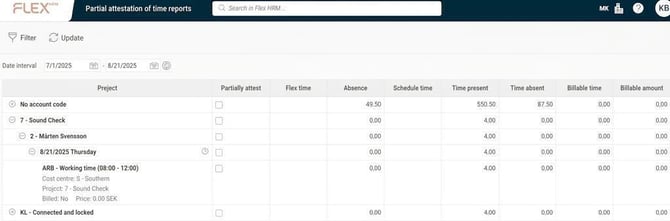
There is also an audit view where you can perform partial approval in an overview of all rows you are authorised for and which are ready for partial approval. You activate this in the settings for the audit level, folder Audit view. There you can also set which columns should be shown in the view.
Good to know
For rows to be shown in the partial approval view, they must be audited at the level required for partial approval (often submission).
Authorisation
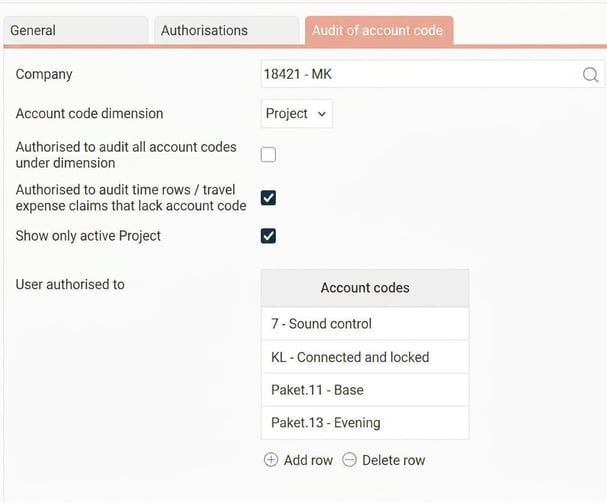
Users who are to perform partial approval need a role granting them authorisation for partial approval and access to the partial approval view. In addition, you must set which projects each user is authorised to partially approve. This is done in the user registry, folder Audit of account code, or in the project registry, folder Audit.
In the user registry, you can specify individual projects, or specify that the user is allowed to audit all the company’s projects. If you audit time rows without project, you can also specify which users may audit such rows.
Please note: This article is AI-translated. This means that linguistic errors or misunderstandings may occur.