
Settings in HRM Time: Show part-time absence as a time code in the time report
How to activate the display:
-
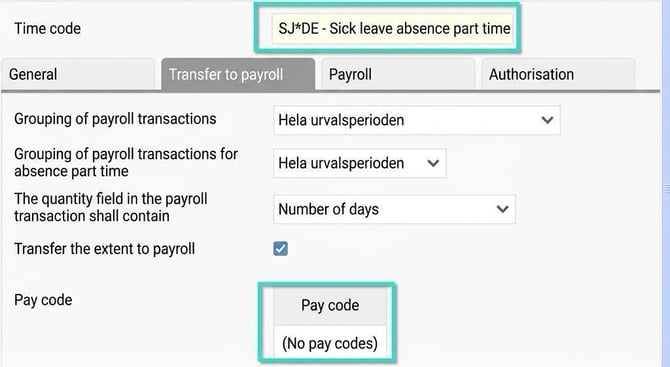
Create a new time code for display purposes only in the time report:
- Copy your existing time code for part-time absence.
- On the new time code, remove the link to the pay code under the “Transfer to payroll” tab (so that no transfer is made to the payroll system).
-
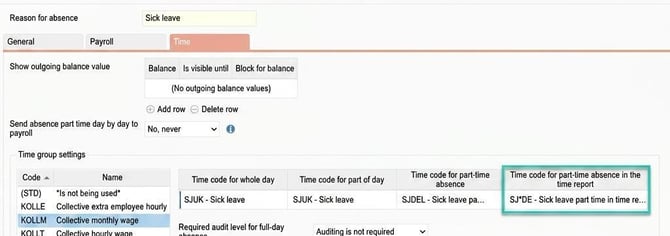
Specify a time code for part-time absence in the time report:
- Go to the current reason for absence.
- Enter the new time code under “Time code for part-time absence in the time report”.
-
Result in the time report:
- The part-time absence will now be displayed as a separate row in the monthly view.
- For fixed percentage (same absence every day), the absence is shown clearly.

- For an intermittent schedule, absence is shown on the relevant days, but there are limitations (see below).
Important limitations with intermittent schedules
Certain combinations of part-time absence and intermittent working time cannot be fully managed:
-
Example 1: Working only 1 day/week (e.g. Monday 8AM–5PM) and has 80% part-time absence.
- The system interprets the full-time measure for Monday as 40 hours. This cannot be distributed correctly in the time report without the time 'spilling over' into times that are not working time, which is not permitted (the maximum limit is up to +23:59 the next day).
- The system interprets the full-time measure for Monday as 40 hours. This cannot be distributed correctly in the time report without the time 'spilling over' into times that are not working time, which is not permitted (the maximum limit is up to +23:59 the next day).
-
Example 2: Working 2 days/week (e.g. Monday 8AM–3PM, Tuesday 8AM–10AM), 80% part-time absence.
- The system may attempt to allocate the remaining hours at times that conflict with actual working time, which means reporting will not work properly.
- Similar problems may occur if the part-time absence overlaps into the working time of the following day for multiple work days.
Please note! Always check the results in the time report after you have made these settings, especially if you have employees with unusual or intermittent work schedules.
Tip: Do you want to read about other settings in the system relating to part-time absence then click here.
Please note: This article is AI-translated. This means that linguistic errors or misunderstandings may occur.