
Overview time report
Buttons
Overview time report
You can partly choose yourself what information is displayed in the time report. To free up more space, you can hide the calendar, day information, period information and the graphical time rows while reporting.
The calendar as well as day and period information slide in from the right-hand side as shown in the picture below.
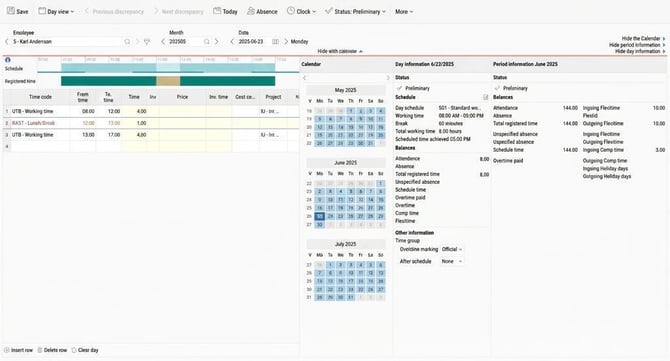
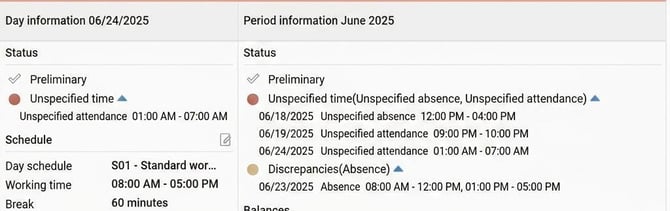
In each information view, you can show or hide information about any unspecified time and discrepancies by clicking on the blue arrows.
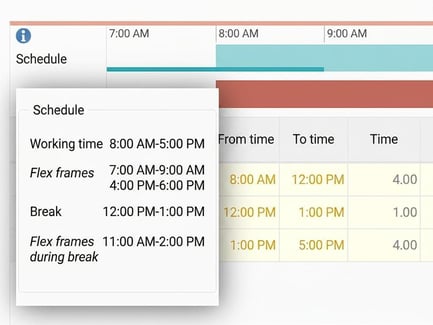
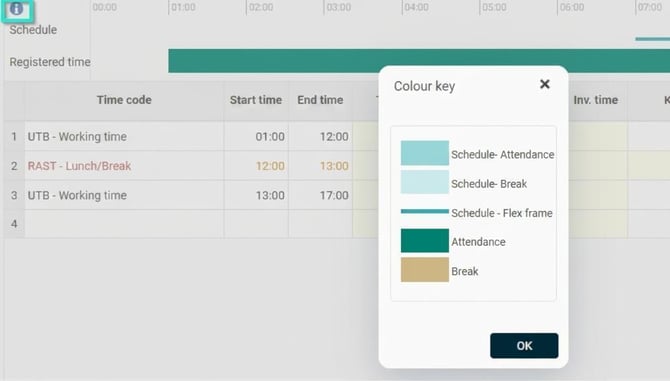
Graphical time rows can be displayed at the top of the time report to provide a more visual overview of the reported time. Hover over Schedule to display the schedule times for the day and click on the information symbol to see an explanation of the different colours.
Buttons
There are several buttons in the menu bar at the top of the time report. Below is a brief description of each button.
Note
Settings for the time report and authorisations may mean that certain buttons are not shown.
The term "Submit" is used below for auditing of time report. It may be called something different in your organisation.
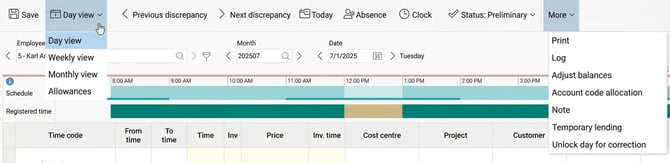
Save – Saves changes to the time report. As soon as a new view is about to be loaded, the changes in the current view must be saved. This also applies when changing the date, meaning each day must be completed and saved before moving on to the next.
Day view – For those reporting time using time, i.e., day reporting, all time reporting is managed in this view. For period reporters, this view is not displayed at all.
Weekly view – Displays and summarises your reported time per week.
Monthly view – An overview of the entire month to get a complete picture of the month's reported time. Grab the Total column and drag it right or left to decrease or increase the number of visible days without needing to scroll.
The highlighted row is clearly marked with a light blue border. At the bottom, there are summaries both per month and per day.
|
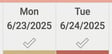
A color-coded indicator for deviations or unassigned time is displayed at the bottom of each date. |
|
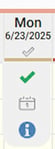
When you click on a date in the weekly or monthly view, you can choose to go to the day view, mark the day as complete, or view the day's information for that specific date. |

|
|
|
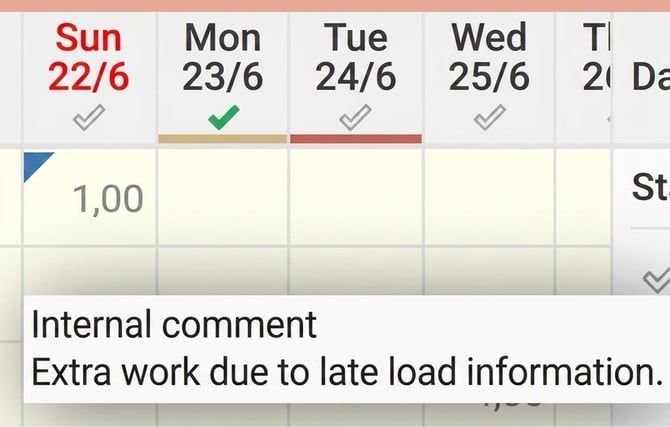
If there is a comment attached to the time entry, this is indicated by a blue triangle in the corner of the cell. |
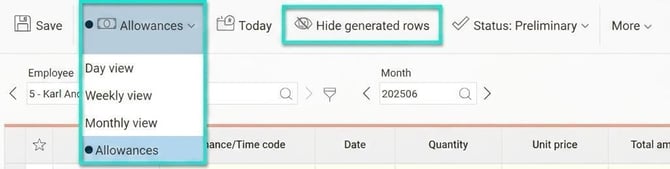
Allowances – Used to register both allowance codes and time codes. In this view, automatically generated rows are shown by default. These can be hidden if they make it difficult to distinguish manually entered allowances or time codes. The marking at Allowances is used to show that something has been registered in the view.
Previous/Next discrepancy - Used to browse between days in the current period that have discrepancies and/or unspecified time.
Today – Takes you to today's date or today's period, depending on the view you are in.
Absence – Used to apply for absence or register absence.
Clock - Used to clock times in real time as an alternative to manually entering them in the time report.
Status - Shows whether the time report/day is audited. Click here to audit the time report.
More > Print - Prints out the monthly view of the time report, which is the same as printing the Monthly report.
More > Log - A log of time rows and clockings. Available only in the day view.
More > Adjust balances - Used to display and manage balance adjustments.
More > Account code allocation - Used to easily allocate time to account codes (project, cost centres, etc.).
More > Note - Used to specify a note for the current day. The note is displayed in Attendance, Calendar, and My colleagues in HRM Mobile.
More > Temporary lending - Used to add account codes (e.g. cost centre) that should temporarily be entered in the time report.
Filter – Options for selecting which people should be visible in the list of employees.

Please note: This article is AI-translated. This means that linguistic errors or misunderstandings may occur.