
Approval of time reports

Approval of travel expense claims

Partial approval of time report transactions

Partial approval of travel expense claim transactions

Authorisation of absence

Register absence for another employee
Curious about our new app?
We have a new Flex HRM app that is currently under development. Here you can see how to get started with the new app.
Administrative functions
If you are responsible for approving time reports, travel expense claims or absences, there are dedicated functions for this.
Approval of time reports
If there are time reports to approve, this is indicated by a number on the icon.
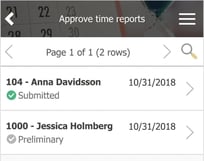
You get an overview of the employees who have a time report that needs to be approved and its status.
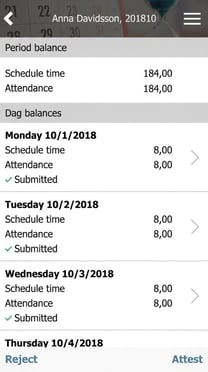
Click on a row to see detailed items for the time report and to approve or reject.
Approval of travel expense claims
In the same way as for the time report, the icon will display a number if there are any travel expense claims to approve.

A list of travel expense claims that need to be approved along with their status is shown when you open the function.
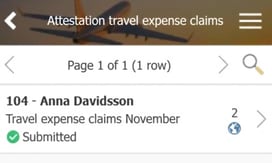
Click on one of the rows to see all details regarding the travel expense claim, including linked attachments, and to approve or reject.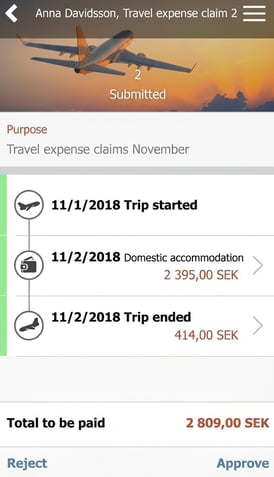
Partial approval of time report transactions
To audit time rows based on their reported account code, i.e. partial auditing, the same function button is used as for approving the time report.

A number in the red circle at the top right corner indicates the number of time reports or time rows to be audited.
If you have more than one audit permission, an option is shown when you click on the icon.
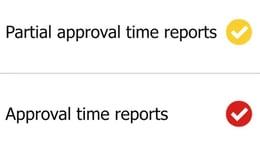
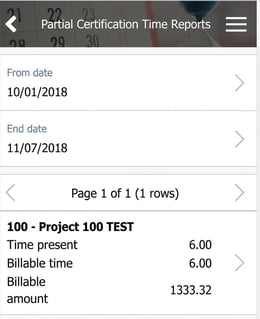
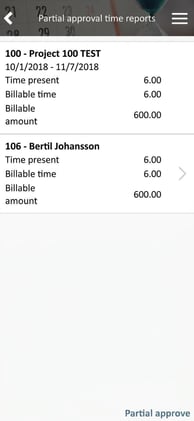
If you click on Partial approval of time reports you are taken to an overview where the hours per project are displayed in a total per project. Only finalised times within the selected date range will be displayed.
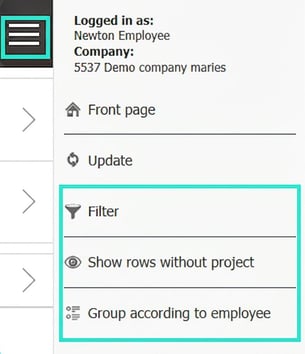
In this mode, under the menu button, you can filter the items you want to see and/or group the view per employee instead of per project.
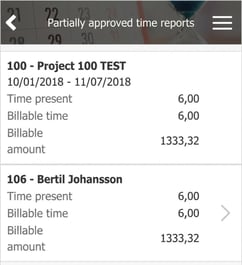
If you click on one of the rows in the summary, the next level is listed—in this example, the employees who have worked on your project. At the very top you still see the total for the selected project.
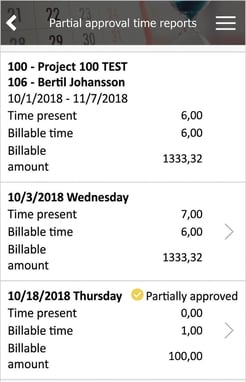
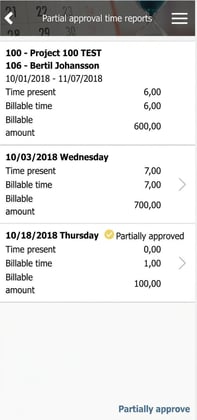
Now you can drill down further for details on each employee. In the example, we click on Bertil and see which days he has reported time on the project. The aggregate at the top now applies to the selected employee, Bertil in this case.
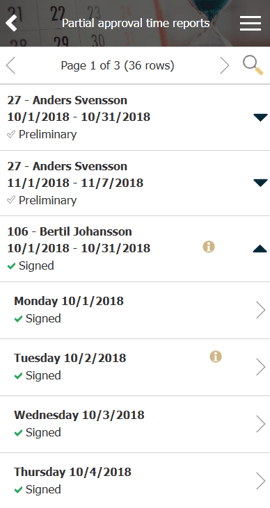
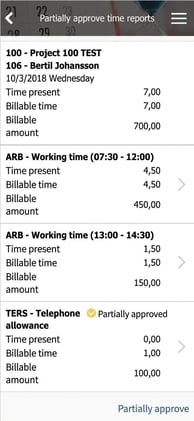
As long as there is an arrow on the row, you can drill down one level further for more details. At this step, you can now see which time rows each day has. In the example, 2018-10-03.
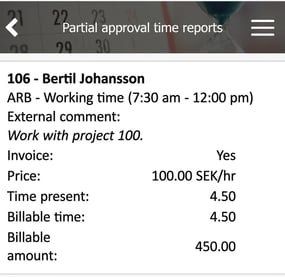
If you need to see all details from the time row, you can now click further into each time row. We take the time 07:30-12:00 in the previous image and arrive at this screen.
At each step, you can choose to partially approve everything underneath. If you are at the lowest level, the time row, only the individual row will be partially approved. If the employee is selected, all time rows on all displayed days will be partially approved. If you want to partially approve all entries at once, you do this from the highest level, where the entire project's hours are summarised and you see the employees who have reported time.
An info box is shown when the partial approval is complete.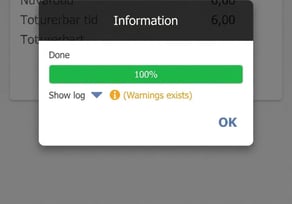
Partial approval of travel expense claim transactions
To audit travel expense claim transactions based on their reported account code, i.e. partial auditing, the same function button is used as for auditing travel expense claims.

A number in the red circle at the top right corner indicates the number of travel expense claims and/or transactions to be audited.
If you have more than one audit permission, an option is shown when you click on the icon.
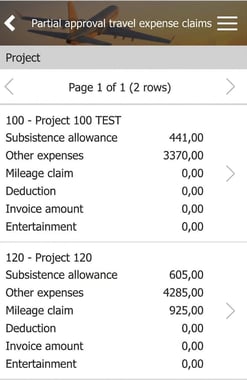
If you click on Partial approval of travel expense claims you will be taken to an overview where each project's hours are displayed as a total per project. Only finalised times within the selected date range will be shown.
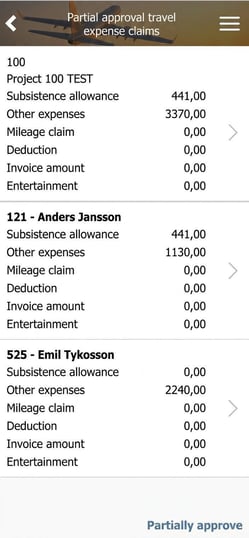
The employees who have reported travel transactions to your project are listed when you click on a project row.
Authorisation of absence
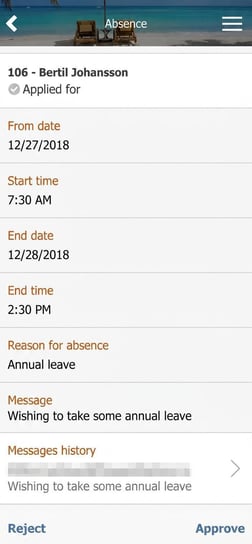
When your employees submit absence applications, you receive push notifications about this directly in HRM Mobile, and you can see it indicated by a number on the icon.

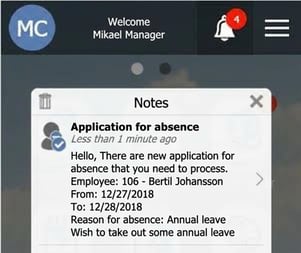
A list of all absence applications is displayed; click on the one you want to process.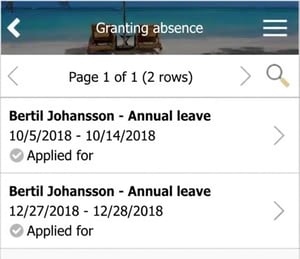
Register absence for another employee
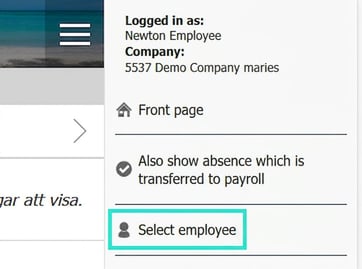
You can also register absence for another employee via HRM Mobile.

Under the menu button, you can select employee.
Then just enter the absence as usual.
Please note: This article is AI-translated. This means that linguistic errors or misunderstandings may occur.