
To obtain more information about what it means for you as a customer of Teamtailor to activate the integration, please contact Teamtailor.
Partner integration Flex HRM
Contents
To do in HRM
To do in Teamtailor
Teamtailor Integration
Below is a step-by-step guide on how to configure the settings to get started with the integration to HRM.
Activation – step by step
To do in HRM
1. Create an API user in HRM
We recommend that you create a new user, suggested name 'Teamtailor API', with the authorisation (role) that grants access to the API.
-
Set the permissions for the role
-
Set a password for the user to specify later in Teamtailor.
💡More information on how the authorisations should be set up is available to you as a customer via our Customer Delivery team. Here you can find information on how to contact the team, who can provide you with API documentation explaining the settings in Flex HRM.
2. As the customer, you need to retrieve and provide Teamtailor with information from HRM regarding:
- The URL address for your HRM in the following format:
https://companyname.flexhosting.se/webapi/api/
alternatively https://api.flexhrm.com/ - HRM customer number (found at the bottom right in HRM), which should be specified as Instance in Teamtailor
- User name and password for the API user you will use for Teamtailor (see above point).
3. In HRM, you create the Employment templates and New hire flows that are current for your company. The employment template relevant to each recruitment is connected in Teamtailor for the current business.
We recommend that you as HR/Admin have a first step in HRM's new hire flow to connect the current manager early in the process. All to ensure the manager becomes an active participant in the hiring process in HRM.
The process can vary for different companies, feel free to consult an HRM consultant for advice on how you can proceed in the best way for your business.
To do in Teamtailor
1. Click on Settings at the top right in the view: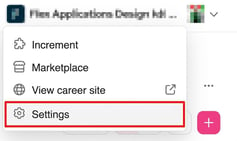
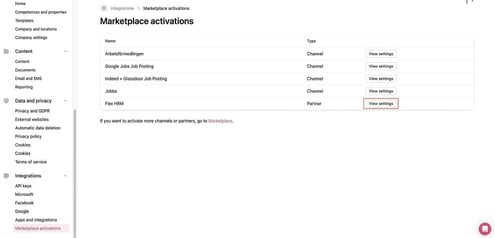
2. Select Marketplace activations at the very bottom under Integrations, find Flex HRM and click on Show settings.
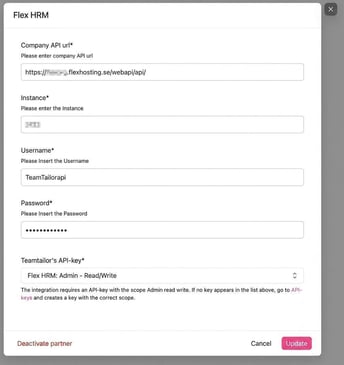
3. Fill in the details as below, where Instance is the customer number in HRM and Username and Password are from the user that was created in HRM (see above heading To do in HRM).
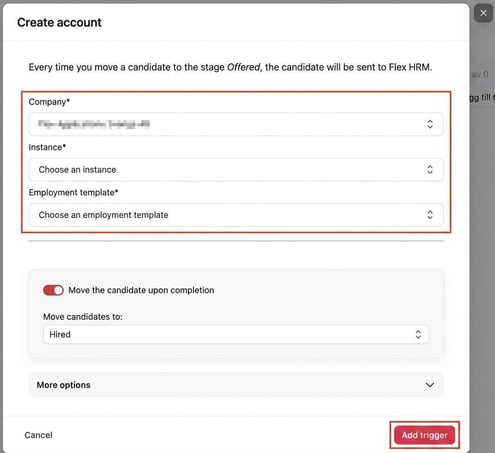
4. You add a trigger to a job advertisement as shown in the following example.
There, you choose which employment template from HRM (Employment template) is to be activated when the employee is transferred from Teamtailor to HRM. You can thus select different employment templates for different job adverts. 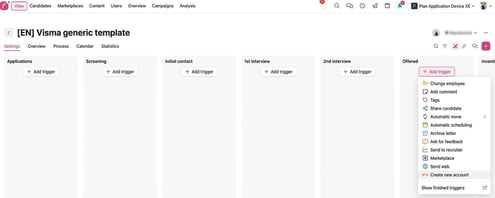
Please note: This article is AI-translated. This means that linguistic errors or misunderstandings may occur.