

Work with the salary review
Personnel > Salary review
At the very top left of the salary review view, select which salary review you wish to work with. You can easily bring up the previous year's salary review if you want to have a look at it.

The selected salary review is loaded and you now see the employees
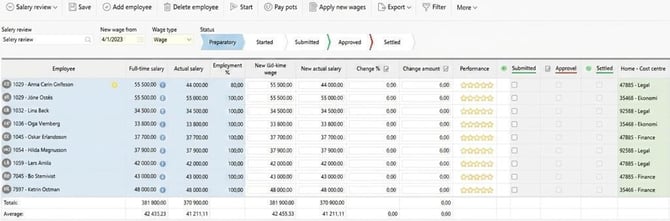
- Blue columns: Display information about the employee, current wage and contractual working hours. Click on the blue info icon to view historical wage data.
-
White columns: Editable fields. Here you enter the new salary.
-
Green columns: Contain inquiries such as home account code, position and start of employment.
Enter new salary
The white columns are the ones you use to enter the new salary. Here, the new full-time salary, the new actual salary, and the change in percent and amount are shown. You can adjust any of these values and the other details are calculated based on that.
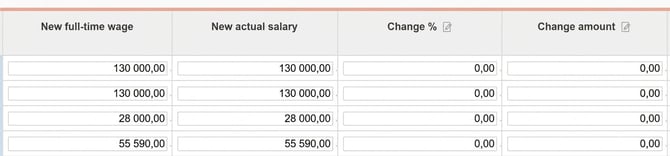
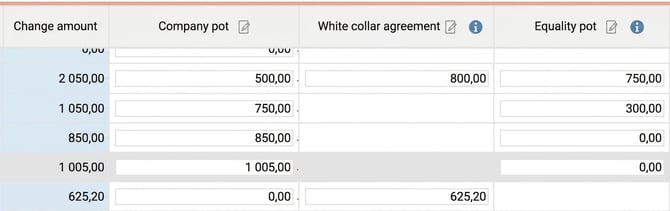
If you work with “extended pot handling” the view will look a bit different and you enter the change amount for each pot in its respective column.
In the example below, employee no 1 receives 500 SEK from the general 'Company pot', 800 SEK from the 'White-collar agreement' pot, and 750 SEK from 'Equality pot'. In total, this results in an increase for the employee of 2050 SEK.
Performance, comments and notes
-
Performance: You can perform a performance assessment using stars, which are only shown in the salary review.
-
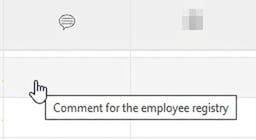
Comment: The text you write here will be carried with the new salary to the employee register when it is settled.
-
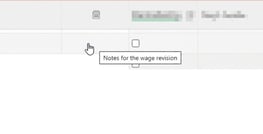
Notes: Notes are only visible in the salary review and serve as a dialogue between those working with salary setting. You can only edit and remove your own notes.
Shortcut to the employee register
Since all information about an employee is not displayed in the salary review, there is a shortcut to easily view all the details. You open the employee register by clicking on the employee’s name in the list.
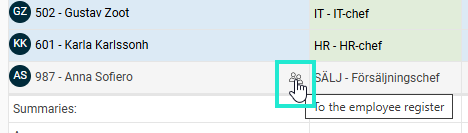
When you are in the employee register, there is a button in the button row that you can click, Back to the salary review, to return to the salary review.

Batch prepare new salaries
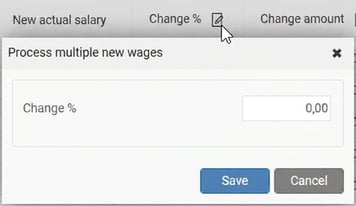
If you want to set the same salary increase for several employees at once, you can use batch preparation.
Click the icon in the column header for Change % or Change amount to specify a value that will apply to all employees currently shown in the list. Use the filter if you want to apply this to a specific group.
Analyse and follow up
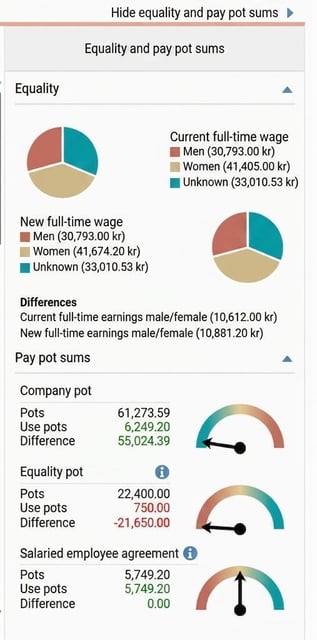 Pay pot sums: To the right in the view you can view pay pot sums. Here you see how much of each
pot has been used. A gauge indicates visually whether you are within or exceeding the pot’s limits.
Here you can see the proportion of the pot used for the employees shown in the list.
Any pots with red numbers need to be addressed, as they are above or below the reference mark/limit. Those with green numbers have not yet crossed the reference mark/limit.
Note that different pots can turn red if they exceed or fall short of the target. This is to help you see whether you are meeting the collective agreement’s requirement for the lowest salary increase (lower limit), or whether you have exceeded the company's salary review budget (upper limit).
For pots with a lower limit,
the difference is calculated as Use pots minus Pots. For pots with an upper limit, the difference is calculated as Pots minus Used pots.
You can also hover your mouse over the numbers or the gauge to see how much you have left to use and how much the distributed amount exceeds the pot.
-
Graph for equality: Shows a comparison of the average salary for women and men, both before and after the salary review, to facilitate equality work.
-
Summary: At the bottom of the list, totals and averages for both current and new salaries are displayed.
Audit and approve new salaries
Audit the new salaries
Once the new salaries are filled in, it is time to follow the auditing process that has been set up. Users with the correct authorisation mark their audit step (e.g. Mark as ready or Approval) by ticking the box for each employee.
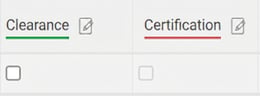
You can audit multiple employees at the same time by clicking the icon in the column header. 
As a final step in the salary review, the new salaries are settled. This is normally done by a payroll administrator. How do I settle new salaries in the salary review?
Warnings
Table lock per employee
Locking occurs per employee. This means several managers can be working at the same time as long as they are not working with the same employee.
When another user makes a change on an employee, the employee is locked for editing in the salary review. When that user then saves an amended salary, an information message will appear at the top of the salary review informing you that a change has occurred. You can then choose to reload the information in the salary review to retrieve the latest set salaries. If you have unsaved changes, it is enough to save these so all new data will be loaded after saving.
Warning symbol
The system may show a warning symbol for an employee if there is something particular to note, for example if the employment will be completed or if the employee already has another planned salary change after the salary review date.
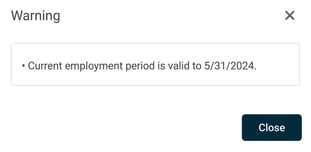
If an employee has a new salary after the salary review date, the revised salary from the salary review will be placed as a row between the old and the upcoming salary.
Before the salary review is settled
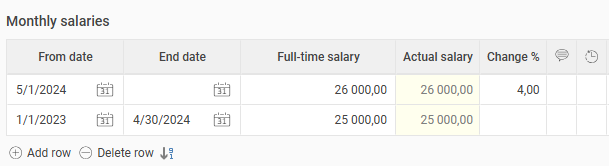
After the salary is settled
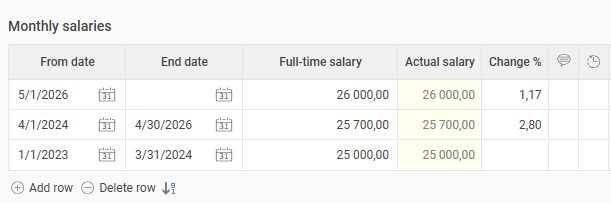
Please note that if the new upcoming salary after the salary review date also needs to be increased, this must be managed manually in the employee register.
Related articles
Employee included in active Salary review
Please note: This article is AI-translated. This means that linguistic errors or misunderstandings may occur.