

Work with salary review – Settle wages
Personnel > Salary review
Once all steps in the review are completed for an employee, you can settle the wage. This means the new wage is saved in the Employee register and will take effect throughout the system. Usually, an Administrator performs this step to maintain control over the flow for payment of retro active pay in the Payroll system.
How to apply new wages
- To apply all wages that have been reviewed, click the button Apply new wages.

- You then need to confirm your choice.
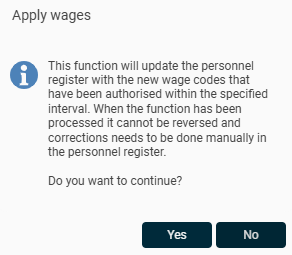
If you only want to apply wages for a selection of employees, you first need to filter the list. Make sure that only the employees for whom you want to apply the wage are shown, and then click Apply new wages.
After the wage is applied
Once the wage has been applied, you can see the point in time and signature by clicking on the information icon in the column Settled.
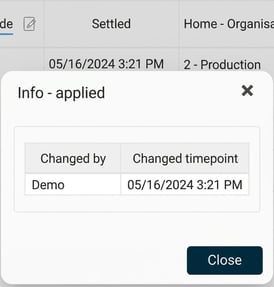
The new wage will then be displayed in Personnel in the side menu under Payroll. The salary review year will also be updated, which shows that the salary review is complete for the employee for this year.
Was the salary review completed late this year? You can find information about retro active pay calculation here.
If you are using Flex Payroll as your Payroll system, you can read how to transfer the new wages to the Payroll system here.
Please note: This article is AI-translated. This means that linguistic errors or misunderstandings may occur.