
Required settings
To enable automatic management, you first need to prepare accumulators and pay codes.
1. Create accumulators
You need to set up two specific accumulators in the system, accumulator types:
- Debt to next payroll run - Gross
- Debt to next payroll run - Net
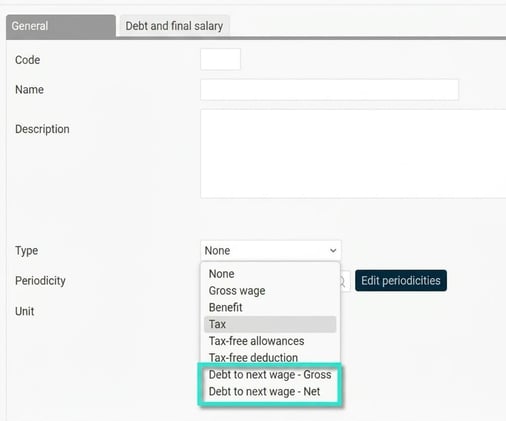
- Periodicity: Rolling
- Unit: Amount

2. Create pay codes
You need to have pay codes ready for the following four scenarios:
- Gross debt to next payroll run
- Gross debt from previous payroll run
- Net debt to next payroll run
- Net debt from previous payroll run
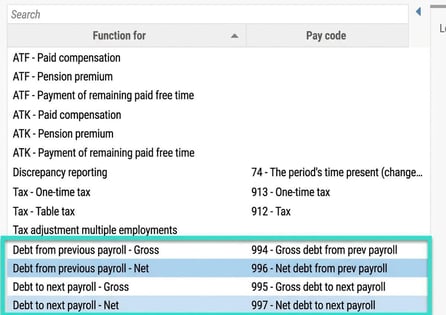
3. Connect pay codes in the system settings
Once the pay codes are created, you should connect them under system fixed pay codes. Go to: Settings > Payroll > System fixed pay codes.
There you connect your pay codes to the corresponding setting:
- Debt to next payroll run - Gross
- Debt from previous payroll run - Gross
- Debt to next payroll run - Net
- Debt from previous payroll run - Net
4. Enter ingoing debt values
Before the first payroll run, you need to add any existing debt as an ingoing debt value in each accumulator. You do this under Payroll > Accumulator values.
In the field for ingoing value on the correct accumulator (Debt to next payroll run - Gross or Debt to previous payroll run - Net) enter the current debt amount.
In the example in the image, we have entered an ingoing gross debt of 1,500 SEK.

How it works in the payroll process
Once you have made the settings, HRM Payroll handles the rest of the flow for you:
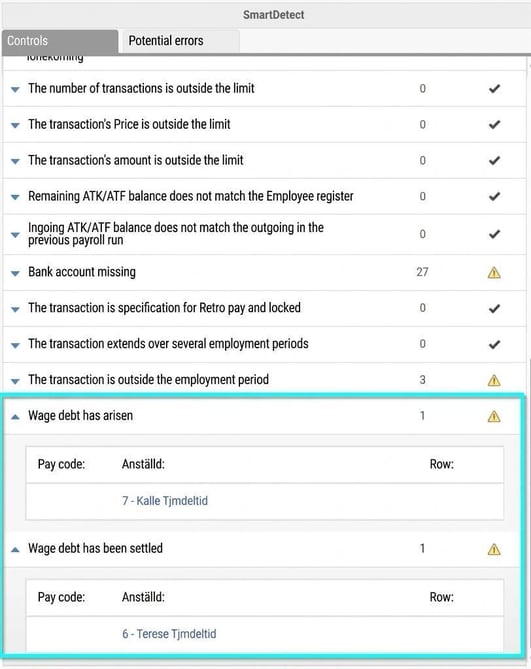
- When a debt arises: The system automatically adds the pay code for gross or net debt to next payroll run in the payroll process. This simultaneously updates the value in your accumulator.

- In the next payroll run: When you open the next payroll run, the system detects the value in the accumulator. This means a pay code for gross or net debt from the previous payroll run is automatically added to the current run.
To see which employees the system has managed a debt for, go to Discrepancies – the Controls tab.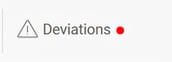
If an employee's debt is to be partially paid, simply amend the amount on the auto-generated pay code to your chosen value instead of the amount added by the system. Provided the pay codes are linked to the correct accumulator, only the selected amount will be deducted from the debt and the remainder carried forward to the next payroll run.
Please note: This article is AI-translated. This means that linguistic errors or misunderstandings may occur.