
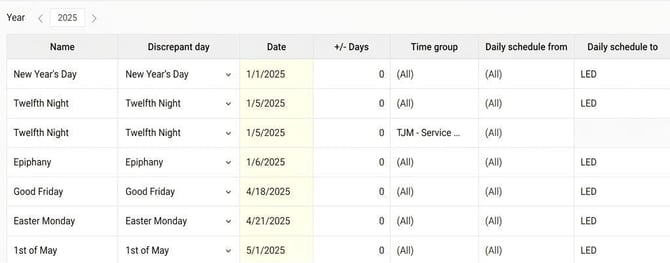
Bank holidays are used to set the discrepant days that occur during the year, for example if schedules should automatically switch to Day off on public holidays that fall on weekdays.
Below is an explanation of the settings in the view.
- Name. The name you want to give the bank holiday. If you use a fixed day in the column Discrepant day the bank holiday will automatically be named after this.
- Discrepant day. Here you can choose to set a date or select from a list of bank holidays and commonly occurring discrepant days.
The list depends on the company’s base country. National Day falls on June 6 for a Swedish company, June 5 for a Danish company, May 17 for a Norwegian company, and December 6 for a Finnish company. For companies based in Denmark, Great Day of Prayer (Store Bededag) is also included as a discrepant day. - Date. If you have chosen a fixed day in the column Discrepant day the date will be set automatically for all years. If you have chosen date in the column Discrepant day you specify the date. If you enter only the month and year, the bank holiday will apply every year.
- +/- Days. Used to set, for example, Boxing Day + 1 day, which would give a bank holiday for 27 December each year.
- Time group. If you want different rules to apply for different time groups, create one row for each time group. You can also have a row for All employees, and a discrepant row for a time group. Everyone in that time group will then follow the discrepant row, and everyone else will follow the row for All employees.
- Daily schedule from. Used to specify if only certain day schedules should be changed on the bank holiday.
- Daily schedule to. Specify the day schedule that should apply on the bank holiday.
- Also replace free days. Tick this if you want all employees to change schedule on the bank holiday. If you want employees with a day off to be excluded, leave it unticked.
- Shorten the schedule with (%. Instead of changing the daily schedule you can specify a percentage. 25% would mean that anyone with a working time 8-17 (one hour lunch) would have working time 8-15, anyone with working time 8-12 would have working time 8-11.
- Dis. time. Use this if you want manually entered times in the schedule to remain, instead of being overwritten by the bank holiday. You can read more about this setting in a separate article: What does "Dis. time" mean in the Bank holidays view?
- Bank holiday. Tick this if you want the day's name to be displayed in red in the time report and in the public schedule.
- Bank holiday travel time. Used by travel in HRM Travel. If your company uses division of travel time between weekday and bank holiday, you can mark that a bank holiday is to be treated as a bank holiday for travel time here.
- Public holiday arbg-certificate. Used by employers certificate (HRM Payroll). For those with a fixed working time and monthly salary, non-working public holidays and bridging days are counted as Work, if salary deductions are not made for the time off. To process this you need to specify which bank holidays should be counted as public holidays in the employers certificate. If you have different groups of personnel and not all are included in the rules for public holidays, you need to specify per time group which are to be counted as public holidays by creating several rows with different settings. A day marked as a public holiday will be counted as Worked time according to what the schedule would have been if it had not been a bank holiday.
- Events. It's possible to connect events to specific bank holidays. For example, an allowance can be generated for work on a public holiday.
- From year and To year. Here you can specify between which years a specific row should be valid. If you need to change the settings for a bank holiday from 2022, for example, you can specify 2021 as To year on the existing row and create a new row with 2022 as From year.
Example
On Twelfth Night, all employees should have the daily schedule LED (a schedule for Day off), except in time group TJM. There the working time should instead be decreased by 50%.
In the view for bank holidays, we need two rows for Twelfth Night. One applies to All employees, one applies to time group TJM. "All employees" then means "All employees not affected by another row for the same day".

Please note: This article is AI-translated. This means that linguistic errors or misunderstandings may occur.