
To facilitate this work, there is an authorisation overview. Here you can easily see which users have a role for an employee and thereby have access to that person's details.
Go to Users/Authorities > Authorisation overview to open the view.
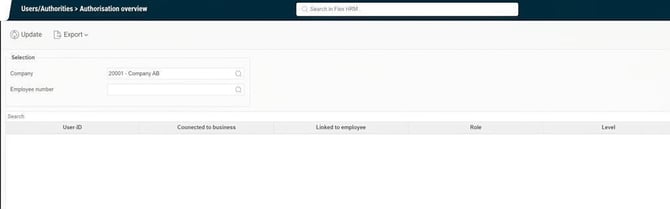
Make your selection
At the top of the view, you can select company and which employee you want to display the authorisation overview for. You can also select several employees, or leave the field blank if you wish to show all employees in the company.
By using role authorisations, you can control which companies and employees a user has access to in this view. This is useful, for example, if you want a manager to only be able to see who has access to the employees in their own group.
Information in the list
The list shows information about the employee based on your choices. The columns contain the following details:
- User-ID: The user who has authorisation for the employee.
- Linked to employee: User's name if the user is linked to an employee.
- Connected to business: User's company, if the user is linked to an employee.
- Role: The role the user has for the employee. The role determines what details the user can access. If the user has multiple roles for the same employee, one row is displayed for each role in the list. You can hover over the field and click on the icon next to the role name to view the role's settings.
- Level: Shows at which level the role exists according to the following options:
- Customer instance: Means that the user has the role for all companies.
- Customer instance (API): Means that the role is authorized to access API, which provides access to all information available via API.
- Company: Means the user has the role for the entire company.
- Account code: Means here that the user has the role for an account code, normally a department or another grouping of personnel.
- Employment: Means the user has the role directly assigned to the employee.
- Has authorization as an employee: The employee whom the user has authorization as an employee for.
Search, sort and export
Above the list, there is a search function where you can search for any information contained in the list. You can also sort the list by any column you wish.
If you wish to export the contents of the list to Excel as a file, click the button Exported.
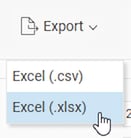
Once you have exported, you can open the file in Excel and filter and select. For easy viewing of who has authorisation for which employee and with which role.
Please note: This article is AI-translated. This means that linguistic errors or misunderstandings may occur.