
Register time in the time report – day reporting
By day reporting it means that time is registered using time.
An alternative is period reporting, where you only report number of hours, not time. Read more about registering time with period reporting.
Register attendance.
Register absence.
Register overtime.
Register attendance
- Place the cursor in the Time code field. Press Tab and the work code is retrieved automatically. Enter arrival time in Start time and departure time in End time.
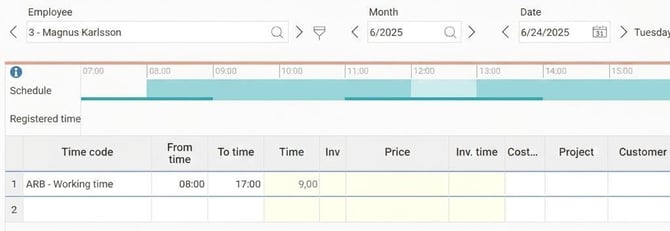
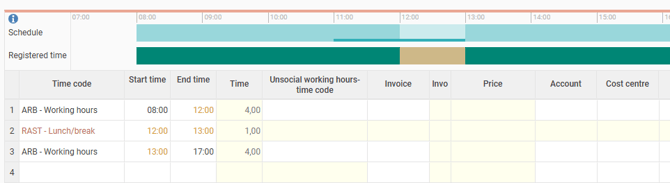
- When you save, registered time is displayed and the standard break is inserted into the time report.
- If the length of your break for the day does not match, you can adjust by changing the times for the break. Remember to also adjust the times for worked time.
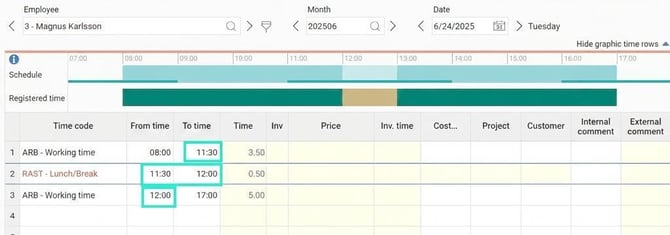
-
Save.
Register absence
- Click on the absence manager:
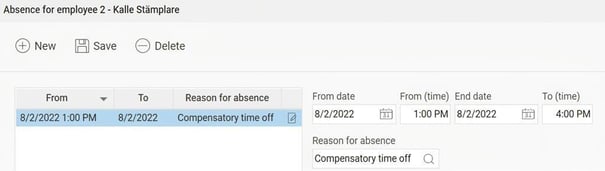
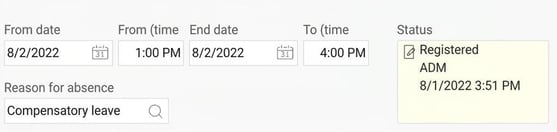
- If absence is part of day, specify date and time and select reason for absence.
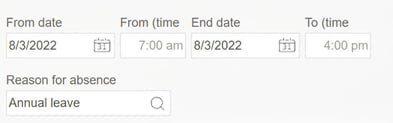
- For full days only date is entered, and the system suggests the schedule times that apply:
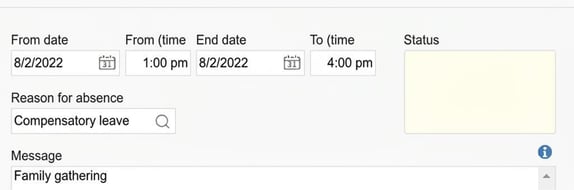
- There is an option to leave a message to explain the absence:
- Save.
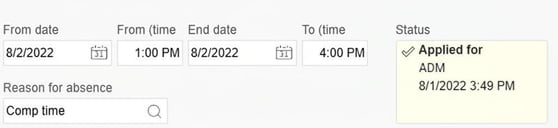
- If the absence first needs to be approved, it will have status Applied for and will be forwarded to your manager. Once the absence is approved, it will be generated in the time report.
- If the absence does not need approval, it will have status Registered and will be shown in your time report immediately.
Register overtime
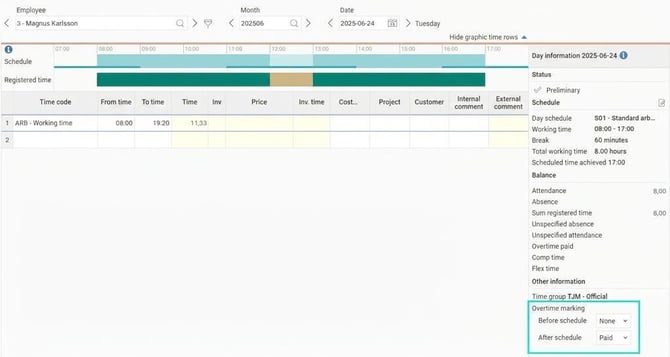
- Specify worked time. Choose the desired compensation method under Overtime marking in the day information.
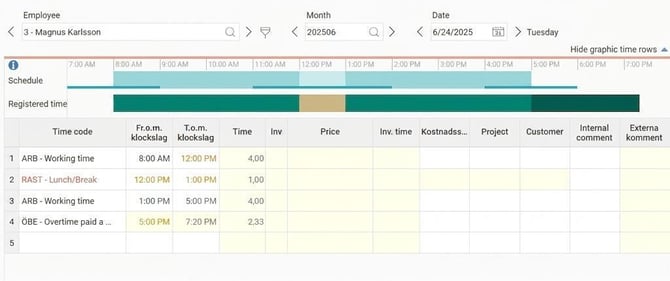
- Overtime is recorded according to applicable rules when you save the day.
Please note: This article is AI-translated. This means that linguistic errors or misunderstandings may occur.