
Content
Assignments overview
Assignment template
Responsible for assignments
Copy template or tasks
Authorisations
Create reminders
Create and manage assignments and assignment templates
With the function Assignments you can create and allocate workflows, such as checklists for new employment or other processes. You can assign tasks to employees with a set deadline and subsequently monitor how the work progresses.
The employee can view their assigned tasks directly on the front page and mark when a task is started or completed. To simplify the process, you can create templates for recurring assignments. There is also the option to attach documents to tasks and to build a tree structure to facilitate follow-up.
Assignments overview
Under Administration > Register > Assignments you manage all assignments you have created or are responsible for.

You can structure assignments in a tree structure for a better overview. In the list to the left, you can see all assignments, their status, who is responsible, and their deadlines. Assignments that have passed their deadline without being marked as completed will be highlighted in red in the list.
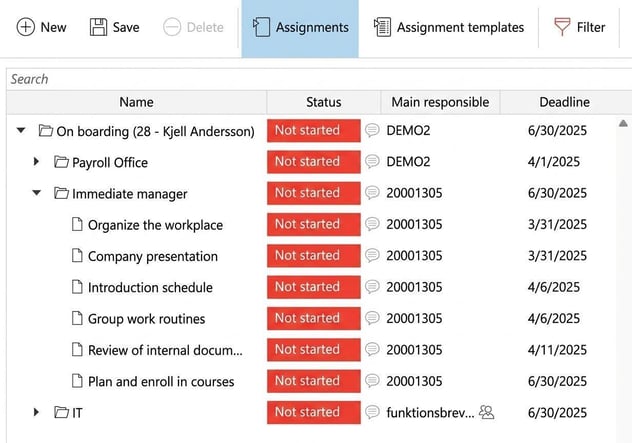
Assignments can be created as main themes and sub-themes (shown as folders) or as tasks (the lowest level of the structure). You can specify start date, deadline, responsible person and a description for all levels. You can also attach files to both themes and individual tasks.
You can read more about how to start new assignments HERE.
Assignment templates
To make it easier when creating new assignments, you can use a assignment template. You switch between assignments and assignment templates using the buttons in the menu bar.

You create assignment templates almost in the same way as regular assignments, with the difference that templates have no start or end date. All information you add to the template, such as responsible person or attached files, will follow when you later use the template to create a new assignment.
Create templates for new employment and termination
We will now go through how to create assignment templates that include the tasks to be carried out during new employment (onboarding) or termination (off boarding). You do this under Administration > Register > Assignments using the Assignment templates button.
We recommend dividing each template into subfolders to create a clear structure, for example based on who is responsible for different tasks. Consider which tasks are relevant for your organisation and who should do what. For example, if it is always the same person who orders a new computer, you can add that person as the responsible one directly in the template.
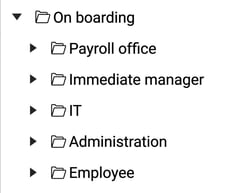
Click New and create your template.
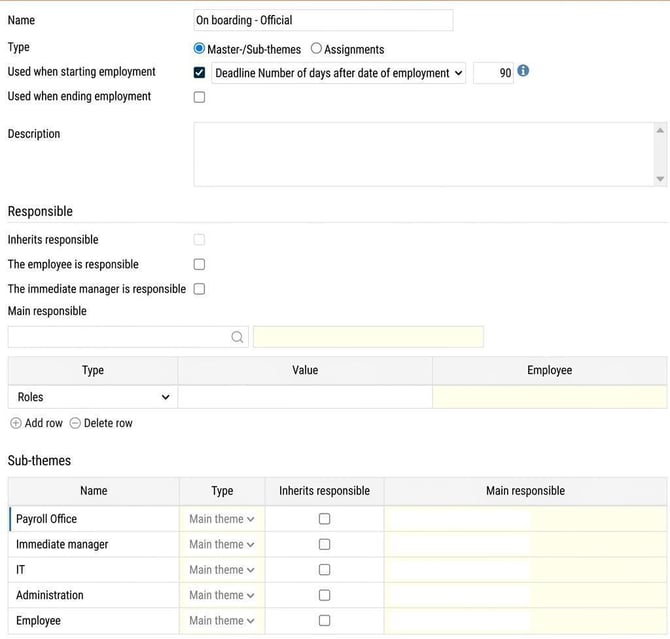
To make the template usable for new employment and end of employment, tick the check box for Used when starting employment or Used when ending employment.

Here you also specify when the assignment should be completed, relative to the employment or end of employment date. You can also set different dates for various parts of the assignment, for example to ensure that necessary equipment is in place when the employee begins.

Keep in mind that the date for Deadline for a main theme controls which dates you can specify for underlying tasks and sub-themes.
Base it on when the entire process, such as the whole onboarding or off boarding, should be completed. If the last step is a follow-up meeting with the employee 90 days after the employment start date, 90 days is what you should enter as the Deadline on the main theme.
Create main themes/folders
Then create the main themes you require. Click Add row, enter the name and save.
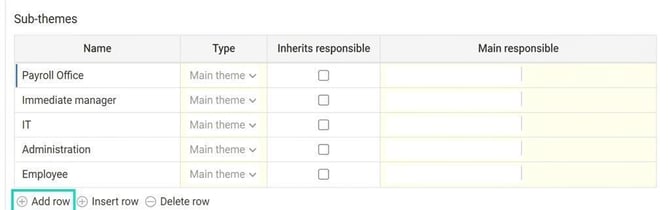
Create the tasks for the checklist
Once the main themes are created it’s time to add the actual tasks. Click the folder in the tree structure to the left.
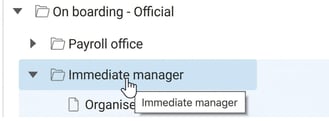
Under Sub-themes click Add row to add tasks. In the sample image below, the tasks shown have been added under the main theme Immediate manager.
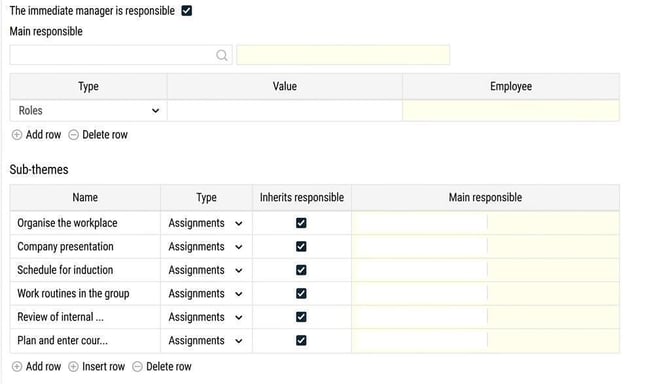
After you've created your tasks with names and saved, click into the task via the menu to the left.
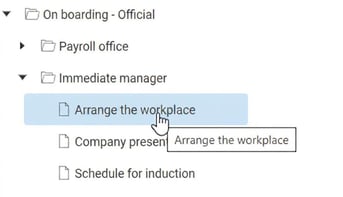
In the task you then set the desired deadline for the Deadline, Description, Responsible and attach any files. Save.
Responsible for assignments
A responsible person is set for the tasks to carry them out.
- If you create an assignment based on a template, the responsible person or persons in the template are automatically set as responsible in the assignment.
- If there is no responsible person in the template, no responsible will be set in the assignment. You will then need to add them manually for the actual started assignment in the view Assignments.
- A responsible can be a specific user, a role, or an entire home account code. If the responsible is set to a role or account code, everyone who has that role or is linked to that account code will be responsible for the task.
Note that if you add responsibles to roles, everyone with that role will receive the task. Then, one of those with the role needs to submit the task; anyone with that role can do this. A common example of when this may be used is for an IT department where it's not defined who will carry out the task each time; it varies, and the first one to handle the task becomes responsible. - A Main responsible can be specified both for the entire assignment (main theme) and for individual tasks or sub-themes.
- You can add several responsibles, but the main responsible is the one who is clearly designated as responsible for the task.
- All responsibles, including the main responsible, can view and submit the task provided they have the correct authorisation. If several people are responsible, you need to agree internally who will actually carry out the task.
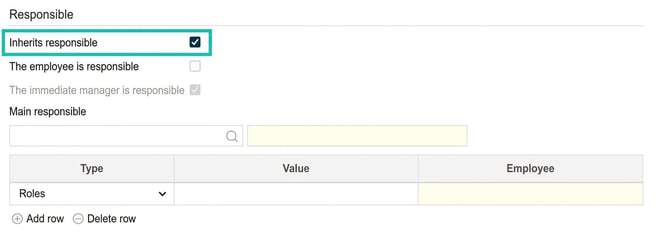
- There is a special feature in assignments for setting that the immediate manager or employee is responsible for the task. If you use The employee is responsible or The immediate manager is responsible the responsible is set from the register. You can read more about Immediate manager here.
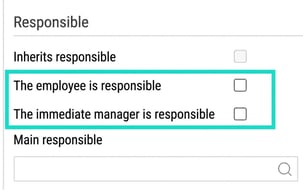
- If you tick that responsible should be inherited, then underlying tasks or sub-themes will automatically be assigned the same responsible as the main theme (the top folder). If the box for immediate manager or employee is ticked, that setting will be inherited from the previous level. If you wish to change at any level, you must first untick inherit to choose manager/employee instead.
Is the list empty when you try to select Main responsible or responsible user?
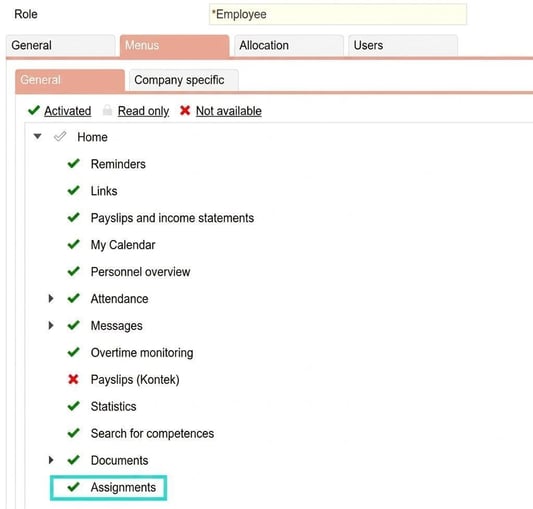
That’s because the role/roles don’t have the correct authorisation. To be able to receive and manage tasks, the user must have a role that includes the Assignments panel on the front page (Home). Usually, this is activated on the employee role so all employees can receive tasks. See more under Authorisations.
Copy assignment templates
You can copy entire assignment templates or individual parts, such as a sub-theme or a specific task.
-
Select the part of the template (node) you wish to copy in the list.
-
Click the Copy button.
-
Choose where to paste the copied part and click Paste. If you do not select a specific place, it will be pasted as a new main template.
You can also copy or move parts by dragging and dropping them in the tree structure. When you release, a dialogue box will appear where you confirm whether you want to copy, move or cancel the action.
Authorisations
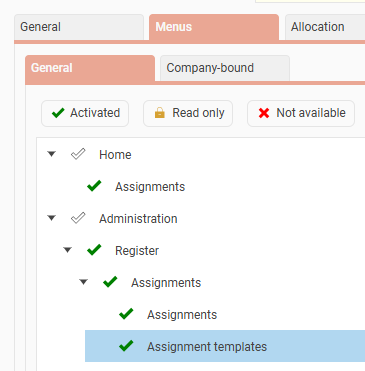
In order to use the function, you need to assign the correct authorisations. This is done under Administration > Users/Authorities > Roles.
-
Users who should be able to view their tasks on the front page need authorisation for the Assignments panel.
-
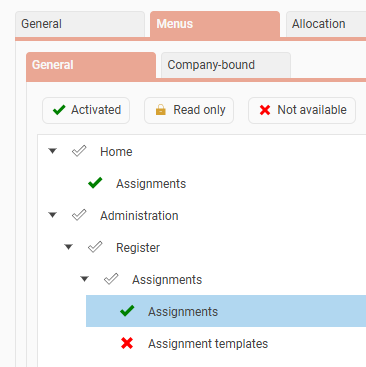
Users who should be able to allocate and follow up assignments need authorisation for Administration > Register > Assignments.
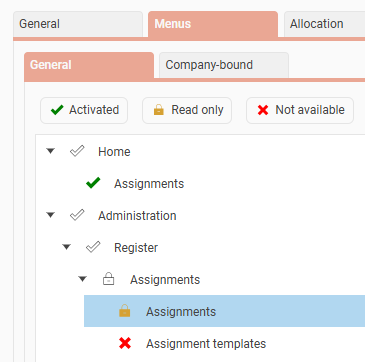
- If users should only be able to view the assignments, but not change, allocate, or delegate the tasks, "read only" is sufficient.
-
Users who also need to create and edit assignment templates require authorisation for Administration > Register > Assignments > Assignment templates.
Set reminders for tasks
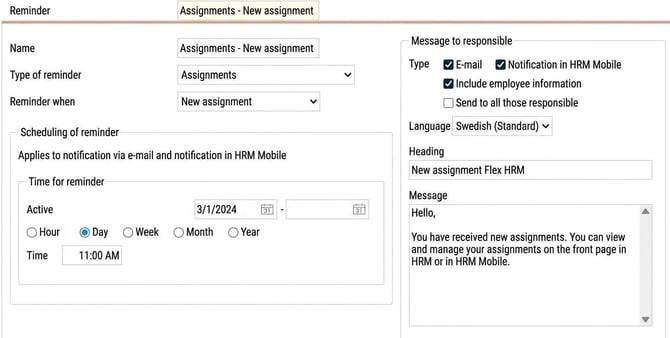
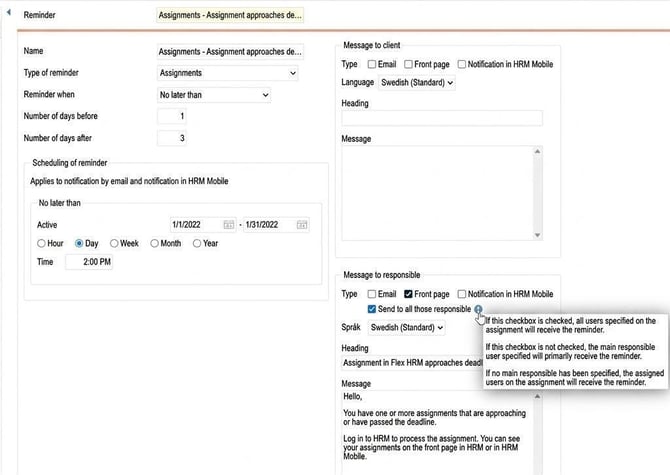
To activate automatic reminders for new tasks, go to Administration > Settings > General > Reminders.
Here you create a reminder of the type Assignments and specify when it should be sent.
New assignment
Task deadline
Related articles
How do I manage assignments and tasks in HRM?
How do I create new tasks and assignments in HRM?
How does HRM Employee handle employee onboarding?
How does HRM Employee handle employee offboarding?
Please note: This article is AI-translated. This means that linguistic errors or misunderstandings may occur.