
Which app should I use?
The mobile app HRM Mobile has been available for some time now. We are now developing a new, flexible and fast Flex HRM app with a completely new design.
The new app is being developed and continuously gets more functions. You can read more about this in the article What is the Flex HRM app and why are there two apps?
Does the app follow the language setting of my mobile device?
Yes. Regardless of the language setting in Flex HRM, the app follows the setting you have chosen on your mobile device. If you select a language not supported in Flex HRM, English is used.
Under My Profile, you can set a language preference that only applies to the Flex HRM app, which will override your mobile device's language setting.
Connection to employee
The user must be linked to an Employee in order to log in to the Flex HRM app.
An unlinked user can find the button Log out under My profile, but otherwise cannot use the app.
Logging
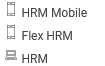
Logs (for example user log and time report log) are shown in the Flex HRM app as “Flex HRM” together with a mobile icon.
| Row 1: HRM Mobile Row 2: Flex HRM (app) Row 3: Flex HRM (web) |
 |
How do notifications work?
Notes in the Flex HRM app can be triggered from the Presence board and are triggered by reminders set up in HRM, but only for those functions that have been built in the app.
For the Flex HRM app to show notes, the following is required:
- The user must approve notes for the app in their phone settings.
- A reminder set to be sent as a note in the mobile app must exist.
Language in note: Is controlled by the mobile device's language – regardless of the user's setting in HRM, just like language elsewhere in the app.
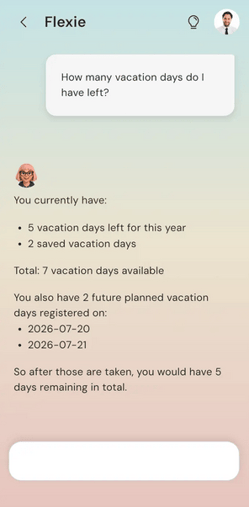
How can Flexie help you?Flexie can answer questions about Flex HRM and help you with your registration. When you ask Flexie a question, a stop button appears in the input box. Click it if you want to cancel. Your question will then be displayed again so you can adjust it and ask again. |
 |
How does the authority for the Flex HRM app work?
For our earlier app, HRM Mobile, there is a node in the role tree (Users/Authorities > Roles) which controls which views a user sees in HRM Mobile. For the new Flex HRM app, such a separate node does not exist, but instead follows Flex HRM's authorisations.
The authorisations for HRM Mobile have no impact in the new Flex HRM app.
An exception to this is the Presence Board. Access to the app's Presence Board is governed by the access rights to the Presence Board in Flex HRM and the access rights to My Colleagues in HRM Mobile. This means that, if you wish, you can disable the permission to view photos of employees in the app's Presence Board.
You can read what determines access to specific functions in the Flex HRM app in articles such as How does time clocking work in the Flex HRM app? and Scan receipts in the Flex HRM app.
Please note: This article is AI-translated. This means that linguistic errors or misunderstandings may occur.