
Which app should I use?
The mobile app HRM Mobile has been available for some time now. We are currently developing a brand new, fast, and user-friendly Flex HRM app with a completely fresh design.
The new app is being developed and will continuously gain more functions. You can read more about it in the article What is the Flex HRM app and why are there two apps?
Please note: Here we use the term submit for the first audit level of the time report. It may be called something else in your system.
Here's how to submit
What do the different colours in the overview mean?
Who can use the function?
How do reminders under To do work?
Here's how to submit
- In the Flex HRM app, you can see that submission needs to be done under the heading To do.
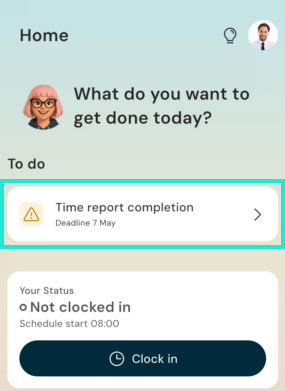
- Click on Submit.
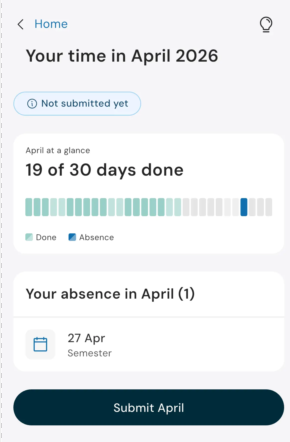
- If you report your time daily, you can click on a day under Needs attention to open it in the daily view. There you can edit and/or mark the day as completed.
In the app, submission can be marked up to and including today's date. Future days cannot be marked as complete, even if your settings send you a reminder before the end of the month.
Once you have submitted, the task disappears from the front page of the app.
What do the different colours mean in the overview?
|
The example on the right shows a time report where 1-19 April have been submitted, except 7 April which contains unspecified absence. Different colours are used in the overview so you can easily find your way:
|
|
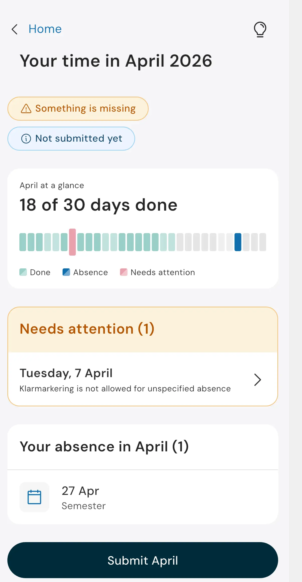
When a day is shown in red:
- If it concerns unreported absence, you can use the absence function directly in the app to register it. You can then submit.
- If it concerns other adjustments, such as registering overtime, period-based reporters need to log in and do this in the web version of Flex HRM. Daily reporters can click on such a day and adjust it directly in the app.
Who can use this function?
In order for time sheet approval to be available in the Flex HRM app, you must have an approval reminder configured to display as a mobile notification.
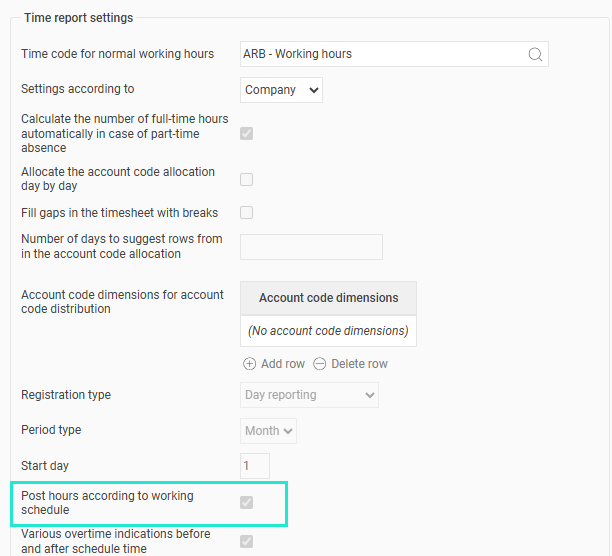
The feature for reviewing your time sheet in an overview in the Flex HRM app is available if you are authorized to approve your time sheet. It is displayed for all daily reporters, as well as period-based reporters who use the function Post hours according to working schedule. This means your time report has time rows entered based on your schedule, and that you mostly report discrepancies from the schedule (usually absence, but this can also include overtime, project entries and comments).
How do I know if I’m a daily or period reporter?
You can check in HRM Time:
- If you see the tab Day view in your time report and record your time with specific times, you are a daily reporter.
- If you only see the tabs Weekly view and Monthly view and record your time in number of hours, you are a period reporter.
The setting Post hours according to schedule can be configured per company (Settings > Time and Plan > Time reports), time group (Settings > Time and Plan > Time groups) or employee (Employees > Employee information > Time).
How do reminders work under To do?
The task under To do is based on your set reminder for submission of time report.
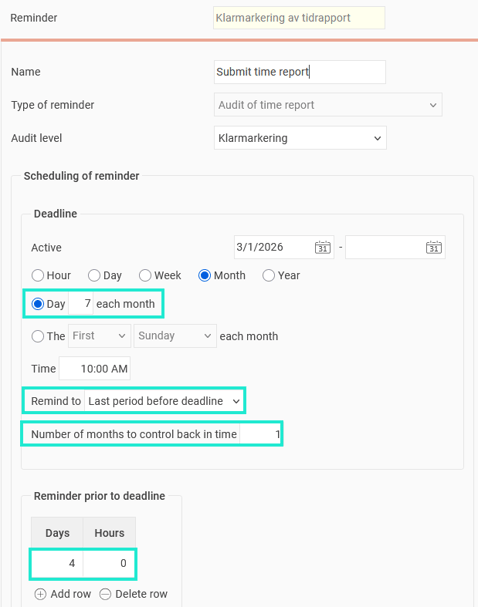
Number of months to control back in time
- If you have set the number to 1, the app will ask for submission for April when you are in May.
- If you have set the number to 3, the app will in May ask for submission for April, March and February.
Remind to
This setting also affects which days are displayed:
- If the reminder should be given until the period before the deadline, and the deadline is 7 May, days are displayed up until 30 April when you are in May.
- If the reminder should be given until the week before the deadline, and the deadline is 7 May, days are displayed up until 3 May when you are on 7 May.
Reminders prior to deadline
Controls when the previous period becomes visible for approval. For example, if the deadline is on the 7th at 10:00 AM each month and the reminder is set to 4 days before the deadline, the period will appear under "To Do" starting from the 3rd at 10:00 AM. In other words: the reminder for May's timesheet will start showing on June 3rd at 10:00 AM.
Notifications
For the submit option to be available, you must also have a reminder for submission set to appear as a notification in the mobile app. You will also receive a notification directly to your phone from the Flex HRM app.
Can I mark my time report as completed even if I don't have a reminder under To Do?
If you submit time daily, you can report time and mark each day as completed in the calendar view in the Flex HRM app. Read more about this in this article: Time reporting in the Flex HRM app
Please note: This article is AI-translated. This means that linguistic errors or misunderstandings may occur.