
On the tab Annual leave you can view and enter the employee's annual leave details.
To access this, click on Employees and then select the tab Annual leave.
Annual leave agreement
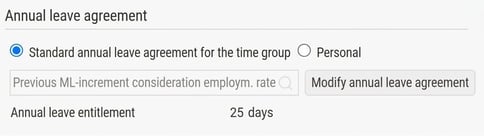
Here you can see or enter which annual leave agreement applies to the employee:
- Standard annual leave agreement for the time group: Fetches the definition of the annual leave agreement from Settings > Personnel categories.
- Personal: Allows you to select among the annual leave agreements that are available under Administration > Settings > Annual leave agreements.
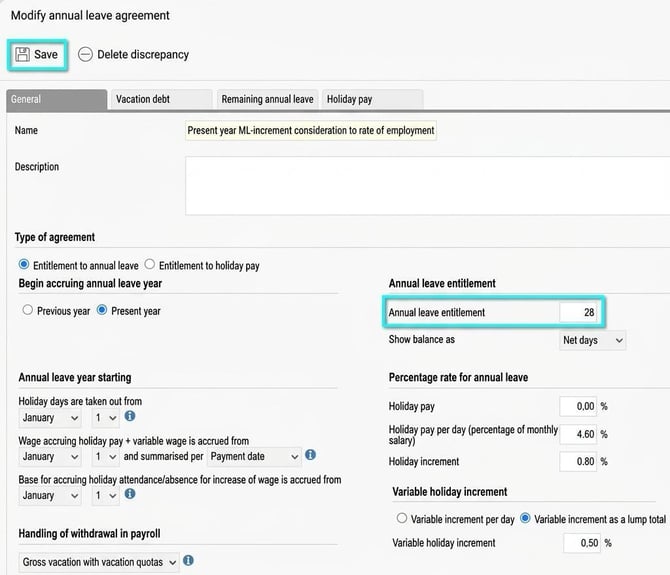
Modify annual leave agreement
If you have selected a personal annual leave agreement, you can modify it directly for the current employee, e.g. change the annual leave entitlement. The change applies to this person only.
You must first tick Personal and save before you can click the button Modify annual leave agreement and make the adjustment.
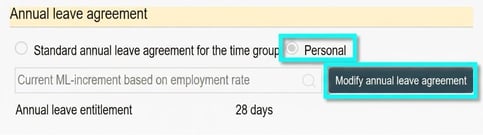
The deviation is shown in yellow.
Holiday days
Displays the current holiday days for the given qualifying period. The system is updated automatically when you perform a holiday calculation or for example register a withdrawal of days in a payroll run.
For annual leave agreements with coinciding begin accruing annual leave year, you can also update the holiday days via the button Update paid days and contractual working hours, for example, if you add a new employment period.
-
- Paid and Unpaid ingoing days: Shows the days the employee has accrued during the qualifying period according to their annual leave agreement.
- Saved ingoing days: Shows days that were accrued in earlier annual leave periods. If you need to change the saved ingoing days, do this under Remaining annual leave for each period.
- Days in advance: Specify the number of days in advance that you have agreed with the employee in the column Ingoing.
- Remaining annual leave: Displays saved vacation days, contractual working hours, and any holiday pay per day for each begin accruing annual leave year according to the settings of the annual leave agreement. The fields are updated during the holiday calculation. You set how many years of remaining annual leave should be displayed under Administration > Settings > Payroll > Annual leave agreements.
-
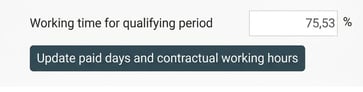
- Working time for qualifying period: Shows the contractual working hours for the latest qualifying period.
- Amounts and increments
- Holiday pay per day: Shows or enters the employee's calculated holiday pay per day. The system updates the field automatically during holiday calculation or when annual leave is taken (depending on which setting is made under Administration > Settings > Payroll > Annual leave agreements, tab Holiday pay) according to the formula for the current annual leave agreement.
- Holiday increment: Shows the actual value for the holiday increment in kronor, calculated based on the formula in the current annual leave agreement.
- Holiday increment on variable wage: Shows or enters the holiday increment for variable wage. The field is updated automatically during holiday calculation or when annual leave is taken according to the formula for the current annual leave agreement.
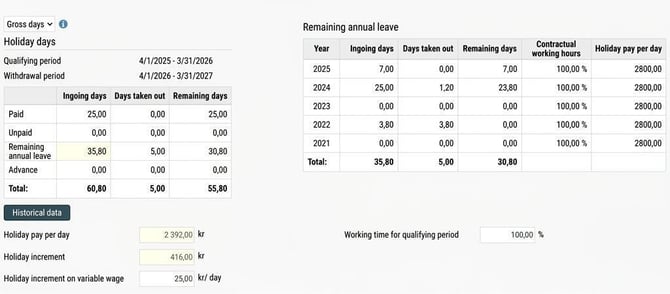
Click the button Historical data to view the employee's historical data for holiday days. The number of years displayed is updated based on how long the person has been employed.
Debts for withdrawn vacation in advance
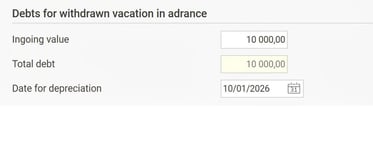
Here you can see the total debt for withdrawn vacation in advance for the selected employee.
- Ingoing value: If you are starting up payroll management in Flex HRM and have an existing debt from earlier, you can enter it as an ingoing value that is added to the total debt.
- Depreciation: You can see the date the debt will be depreciated. This happens automatically five years after the employment start date. If the date has passed, the text Depreciated is shown in the total debt box.
Note: Only employees who have an annual leave agreement with Previous year as the begin accruing annual leave year can have vacation in advance.
Update vacation-days (for coinciding begin accruing annual leave/withdrawal year)
With the button Update paid days and contractual working hours you can directly recalculate and update the vacation days and average contractual working hours for a separate employee who has an annual leave agreement with coinciding begin accruing annual leave/withdrawal year. This is useful, for example, when you onboard a new employee or enter an end date for someone leaving.
If you want to update vacation days and contractual working hours for all employees with the current qualifying period, you can use one of the following methods:
- Manual updating: Go to Administration > Service routines > Update vacation days and employment rate. You can also go to this view if you want to see what has been updated automatically during payroll run settlement.
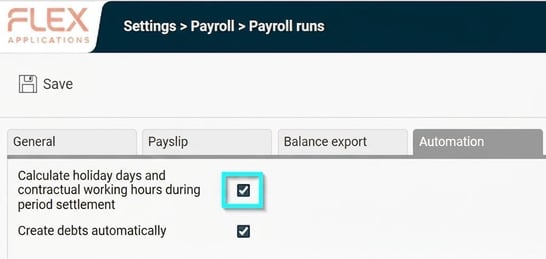
- Automatic updating: Activate automatic calculation in conjunction with payroll run settlement under Administration > Settings > Payroll > Payroll runs, Automation tab.
Updates to vacation days in the Employee register are not automatically transferred to Balances in Time. Automatic transfer of balances occurs only during payroll run settlement for the balances that have been linked under Administration > Settings > Payroll > Payroll runs, Balance export tab.
For manual adjustment of balances in Time, see How does balance adjustment work in the time report
Please note: This article is AI-translated. This means that linguistic errors or misunderstandings may occur.