
Assignments required from SEB before set-up in Flex HRM.
Once you have a signed agreement with the bank to send credit card transactions to Flex HRM, the bank sends an email with a so-called "Secure mail" containing details that need to be entered in Flex HRM. The email contains the following details:
- Delivery label
- Host
- Gate
- User name and password
- Remote search path
- customer's agreement number with the bank
- Card type:
FöretagskortFöretagsupphandlat Privatkort
- File format:
Eurocard600NonBilledXML-PrivatkortXML-Företagskort
Set-up in Flex HRM
Retrieve the details you received from AirPlus/SEB.
- Go to System register > Credit card settings and select the AirPlus or SEB.
- Click on Add row.
- Tick Active
- Specify Delivery label.
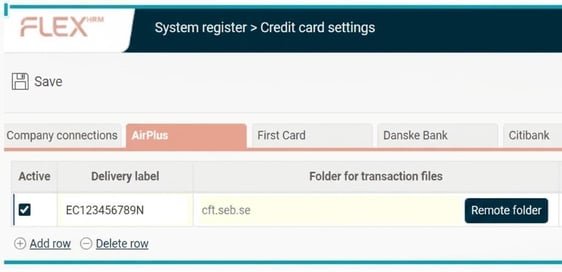
- Click on Remote folder.
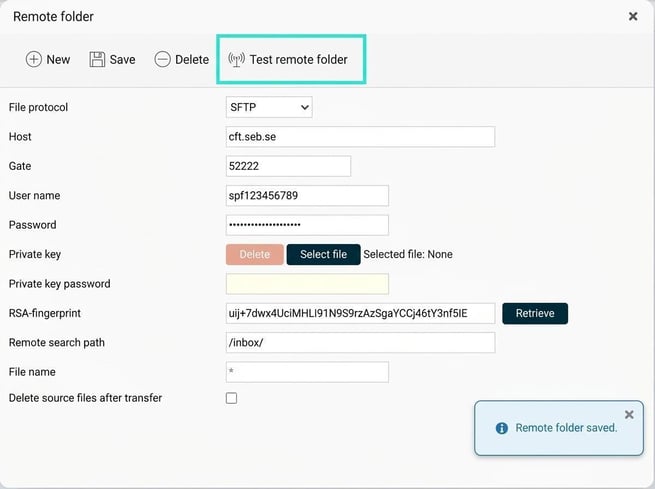
- Set File protocol to SFTP.
- Host cft.seb.se
- Gate 52222
- User name and password as specified in SEB's Secure Mail.
- Click on Retrieve to retrieve RSA-fingerprint.
- Specify Remote search path to /inbox/
- File name is set to *
- Delete source files after transfer should not be activated
- Click on Save. Then click on Test remote folder.
- Check the result in the Result.
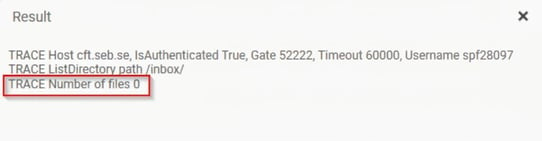
If the connection is set up correctly, you should see one row with:
TRACE Number of files
The number of files can be 0 or more. The important thing is that there is a number after the text. This means the connection is working.
NOTE!! If you receive an error message
If the test returns an error message, you need to troubleshoot based on the information in the message. The most common cause is that a detail in the connection has been entered incorrectly.
13. Close or minimise the windows Result and Remote folder.
14. Set File format to Eurocard600NonBilled or xml-Company card/private card according to the service you ordered from the bank .
15. Specify Time of import to any time. Recommendation: early in the morning 04:00.
16 . Import user is automatically set to the user who is logged in when the connection is created.
17. In the Comments field you can enter any information. Recommendation: specify which company the connection applies to, especially if the environment contains several companies with their own connections.
18. Click on Save.

Add Agreement ID
Agreement ID is provided by the bank and this ID must be entered for the relevant company in Flex HRM.
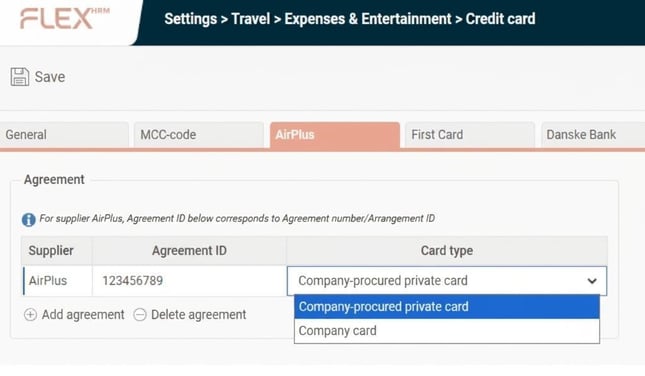
Go to: Administration > Settings > Travel > Expenses & Entertainment > Credit card > AirPlus tab
Click on Add row and specify:
- Specify Agreement ID
- Select Company card or Company-procured private card as agreed with the bank
Once this is done, the connection is ready.
Please note: This article is AI-translated. This means that linguistic errors or misunderstandings may occur.