
Limitations to be aware of
Currently, we only support wage payments within Sweden. The following banks are connected to the service via Autopay:
- Danske Bank
- DNB
- Handelsbanken
- Nordea
- SEB
Important: For an employee to receive their wage payment, you must specify IBAN in the Employee register instead of a Swedish bank account number.
Getting started
Important: To complete the guide, you first need an Autopay licence.
1. Activate the service in Flex HRM
First, a user must be authorised for the settings view for Autopay. Do this via the authorisation system, in the same way as for other menu options.
- Go to Users/Authorities > Roles
- Activate the menu option System register > Autopay for the user under Menus - General.
2. Set authorisations in Flex HRM
Once you have opened the new view you activate Autopay.

After that, add individual users and grant them permission to use AutoPay.
You can choose from three different authorisations for the users:
- Administrator (AutoPayAdministrator): Required to set up banking agreements and manage two-factor authentication (2FA) settings in Autopay.
- Approver (AutoPayPayrollApprover): Grants authorisation to approve payments in Autopay.
- Uploader (AutoPayUploader): Grants authorisation to export information about wage payments from HRM Payroll to Autopay.
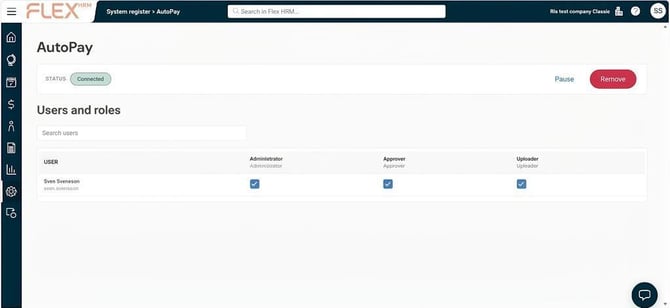
You can read more about all roles in Visma Autopay here.
Should you for any reason wish to pause your connection with Autopay, you can do so using the Pause button.
3. Activate wage payment via Autopay
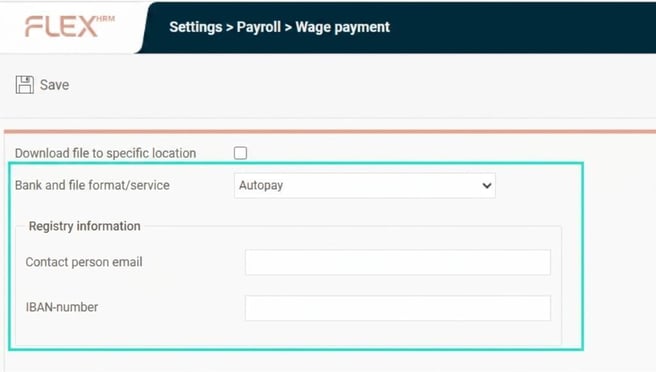
Go to Settings > Payroll > Wage payment to activate Autopay as the option for Banking service.
- Select Autopay under Bank and file format/service.
- Enter registry information: email address and bank account number.
4. Activate and enter bank account number IBAN
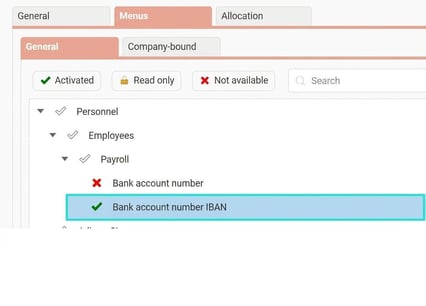
When bank payment via Autopay is being used, all employees must have IBAN entered as their bank account number. Check which option for bank account number you currently use in Flex HRM. If IBAN is not already used, do the following:
- Activate Bank account number IBAN on the employee’s role under Users/Authorities > Roles.
- Inform employees to enter their bank account number IBAN in the Employee register.
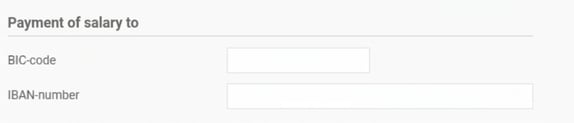
Go to Employees select Payroll > Wage payment and enter IBAN-number.
You need to fill in both fields: BIC-code and IBAN-number.
Once you are finished, it’s time to finalise the settings in Visma Autopay.
Related articles
Guide: How do I get started with Visma Autopay
Please note: This article is AI-translated. This means that linguistic errors or misunderstandings may occur.