
Prerequisites
To facilitate part-time absence, you should ensure that the basic settings are correctly configured.
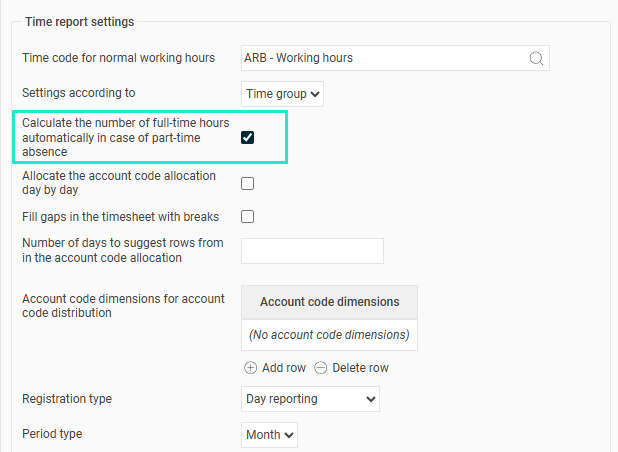
Check the following in the time reporting settings (at company or time group level):
-
The setting Automatically calculate number of hours full-time in case of absence part time should be ticked.
Scenario 1: Part-time equally every day (fixed percentage)
This scenario applies when an employee has a part-time absence with a fixed percentage and should be off the same amount each day. The schedule is then reduced at the end of each day.
Prerequisites:
- Default schedule: From staffing plan with 40 hours per week, distributed 08:00–17:00 each day.
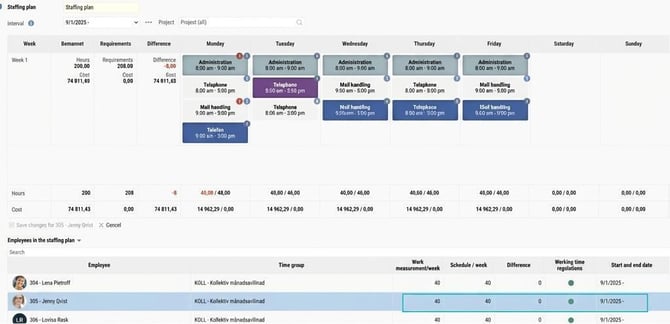
- Absence part time: 2 0 percent with fixed percentage
- Working time: Off the same amount every day.
Here's how to do it:
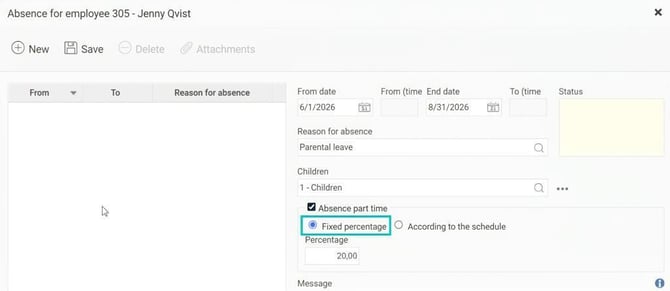
- Register the absence for the employee and select the option Fixed percentage.
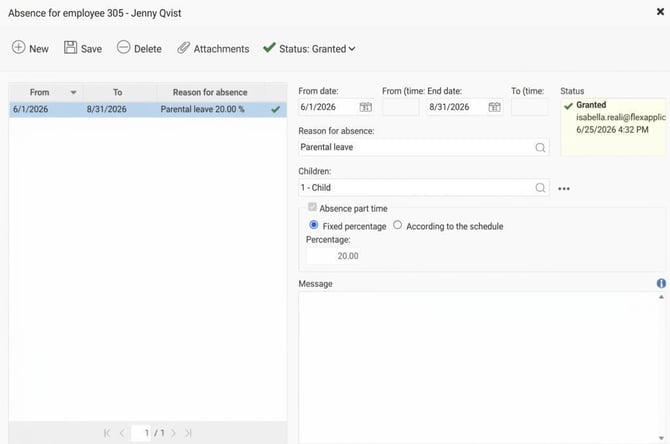
- Set the percentage to 20.00.
- When you save (or when the absence is approved in audit), you may get a question if there are manual schedule changes during the period:
- "Do you want schedules for these days to be adjusted according to the absence percentage?"
- "Do you want schedules for these days to be adjusted according to the absence percentage?"
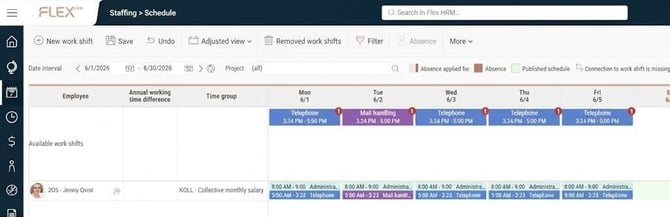
- If you answer Yes the work shifts are reduced at the end of each day.
The remaining part of the shift is placed under Available work shifts. You can either staff these shifts with extra personnel or move them to Removed work shifts if you do not require any resource during those times.
Scenario 2: Off a full day a week (according to the schedule)
This scenario applies when an employee has a part-time absence and will be completely off on a specific day each week, for example, every Friday.
Prerequisites:
- Default schedule: From staffing plan with 40 hours per week, distributed 08:00–17:00 each day.
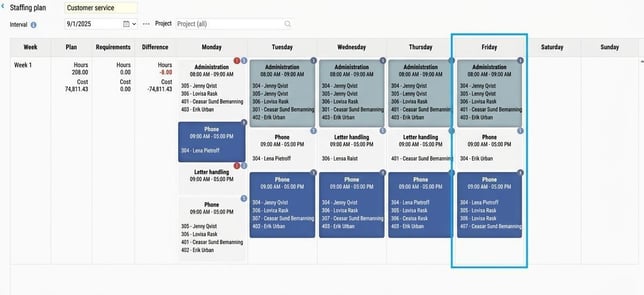
- Absence part time: 20 percent.
- Working time: Off every Friday.
Here's how to do it:
- Register the absence and select the option According to the schedule.
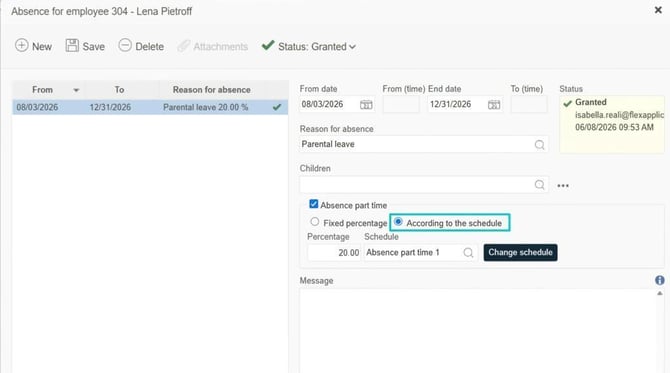
- In the part-time absence schedule, you can do this in two ways:
- Propose times: Fill in how the employee should work during the period.
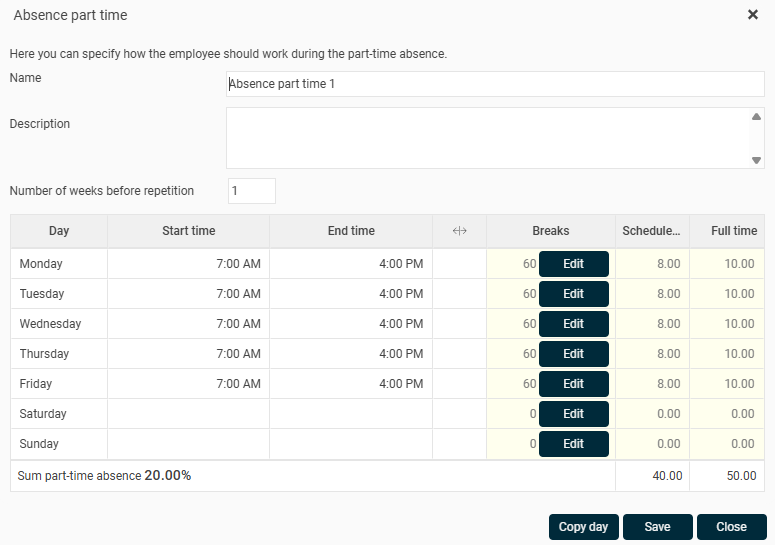
- Leave the schedule empty: Leave the part-time absence schedule empty and staff directly in the schedule view.
- Propose times: Fill in how the employee should work during the period.
Please note! The shifts that the employee was previously staffed on from the staffing plan will not remain. Whether you specify times in the part-time absence schedule or leave it empty, you must therefore restaff the employee with the current work shifts in the schedule view.
If there are manual schedule changes, you will be asked:
- "Do you want schedules for these days to be replaced with the part-time absence schedule?" You then choose whether the new schedule should also replace manually changed days or not.
- Example:
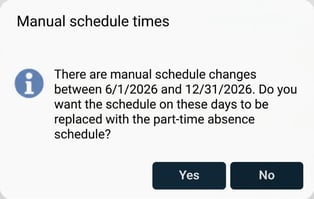

The effect of creating a separate part-time absence schedule is that what was staffed from the staffing plan is "lost". We need to manually restaff the person day by day. When the default schedule comes from staffing plans, staffing of the part-time absence must be done in the schedule view. If we had the default schedule from work shifts and default schedule, we could restaff the part-time absence in the default schedule view.
Scenario 3: Different times on different days
This scenario applies when an employee has a more irregular base schedule plus part-time absence with varying times and days.
Prerequisites:
- Default schedule: From staffing plan with e.g. 35.5 hours per week distributed over various shifts in a four-week cycle.
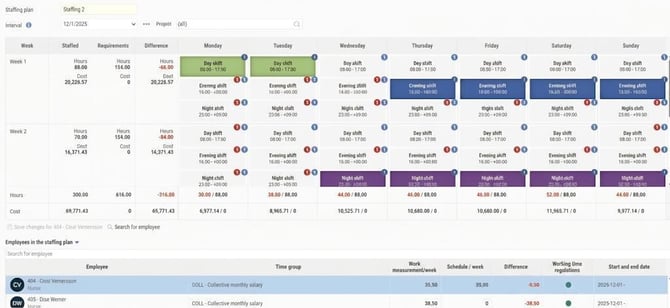
- Absence part time: 20 percent absence at varying times and days.
Here's how to do it:
- Register the absence and choose According to the schedule.
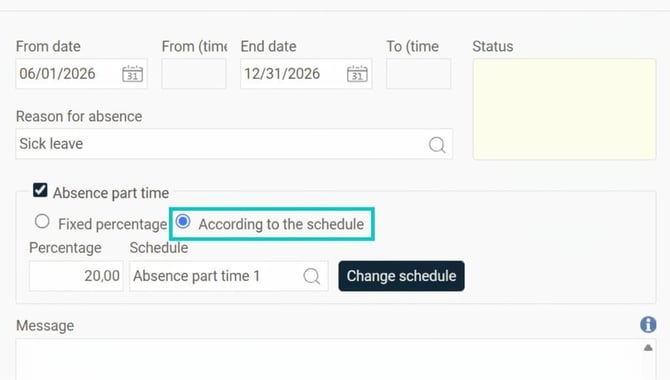
- Create a part-time absence schedule. We can leave the part-time absence schedule empty and then staff in the schedule view, but it is important to know what measure to use to staff so the hours for absence are correct. When you enter times in the schedule, you get a control that the schedule contains the correct time based on contractual working hours and absence percentage.
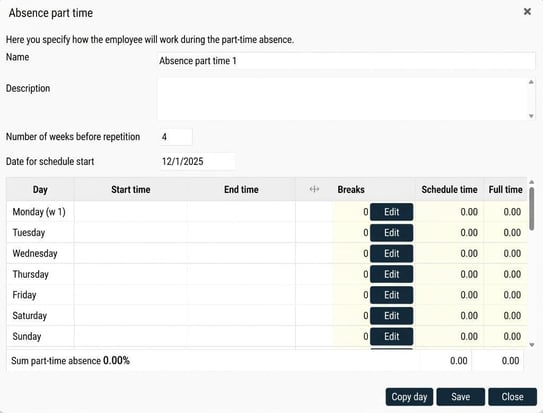
- If we create a schedule with times entered, we get a control that the schedule contains the right time according to contractual working hours and absence percentage. We also have something to relate to when scheduling later.
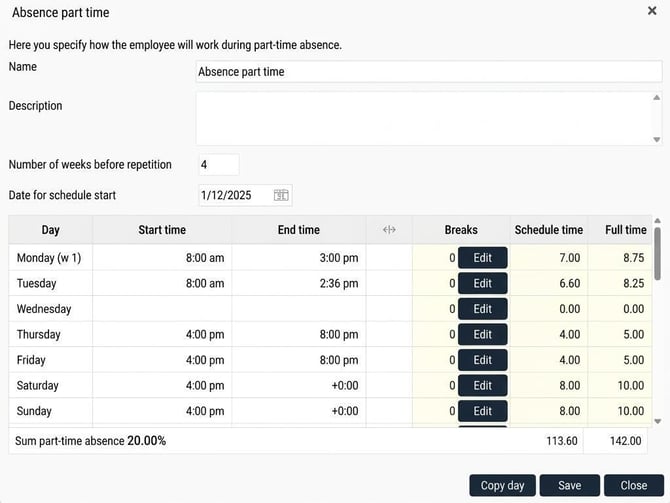
If the times entered in the part-time absence schedule do not match the work shifts, manual intervention is required for staffing in the schedule view: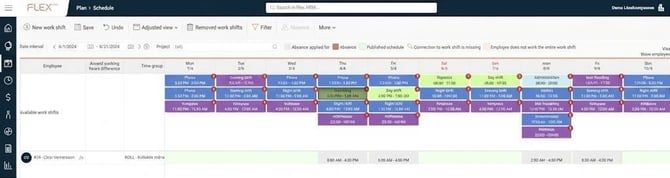
Steps for staffing in the schedule view:
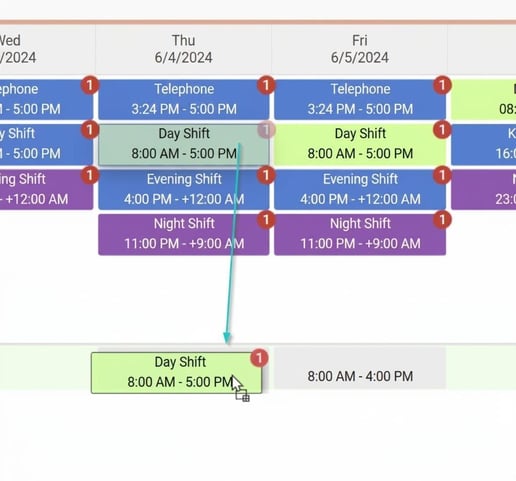
- Drag the shift down from Open shift to the row for the employee.
- Pop-up with Proposed staffing opens. Choose one of the proposals suggested. (Please note that none of the proposals at this stage are exactly right according to how the person should actually work).
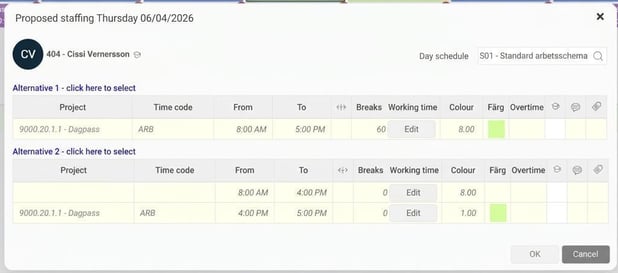
- Adjust the working time (for example, the finish time from 17:00 to 16:00) so it matches how the employee should work during the part-time absence.
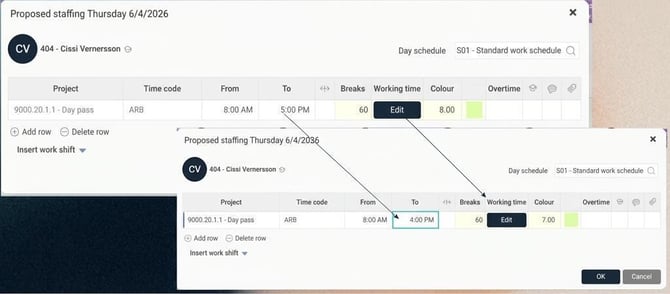
- Click on OK.
- You are now asked: "Do you want to remove the remaining part of the shift?".
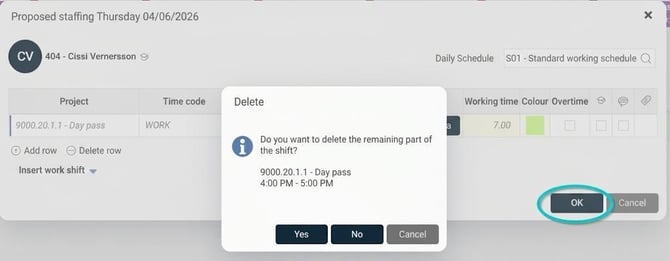
- If you answer Yes the remaining part goes under Removed work shifts.
- If you answer No the remaining part becomes an Open shift.
When we have answered the question about whether to remove the remaining part, scheduling for that day is complete.A work shift has been placed on the day according to the time the employee should work during part-time absence.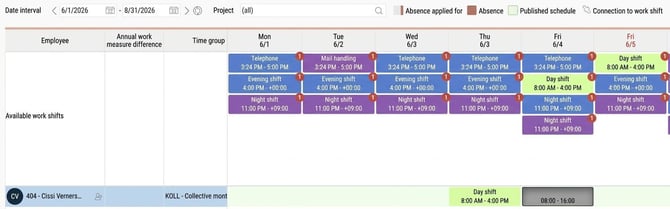
6. Repeat the actions for all days.
Important: You cannot copy planning from one day to another, even if the days should be identical. If you copy, the connection to work shifts is lost. You must therefore redo the steps manually for each day.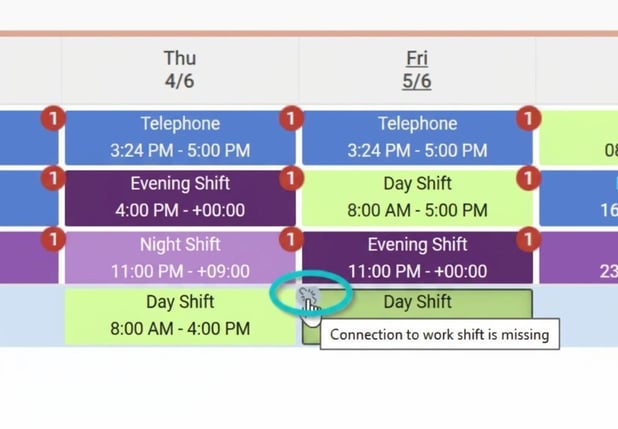
Scenario 4: Empty default schedule
This scenario applies if the employee basically has an empty personal schedule, which is then staffed directly in the schedule view.
Prerequisites:
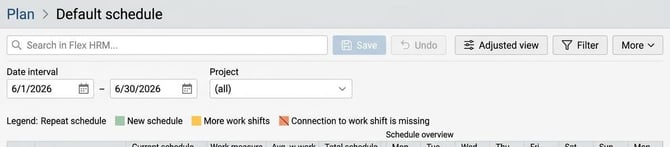
- Default schedule: Empty personal schedule.
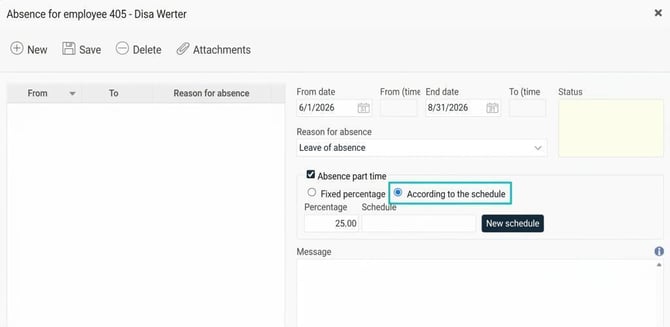
- Absence part time: "According to the schedule" regardless of percentage (for example, 25 or 50 percent).
Here's how to do it:
1. When registering part-time absence, you must select the option According to the schedule for a schedule to be created.
Please note! If you accidentally select Fixed percentage, no schedule is created and the transfer to HRM Payroll/payroll system will be incorrect.
2. You can now staff the employee with current shifts in the schedule view in the same way as described in previous sections.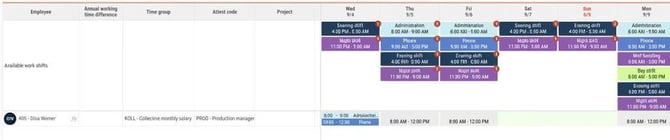
Summary:
The process for part-time absence in Plan depends on the employee’s default schedule and prerequisites:
-
- Use Fixed percentage when the absence should be deducted evenly across all work days.
- Use According to the schedule when the absence is set to specific days or times, or when the default schedule is empty.
- Remember to adjust working times and answer questions about remaining shifts when manually staffing in the schedule view.
Please note: This article is AI-translated. This means that linguistic errors or misunderstandings may occur.