
In the view Documents & actions the documentation for the pay equity navigator is gathered.
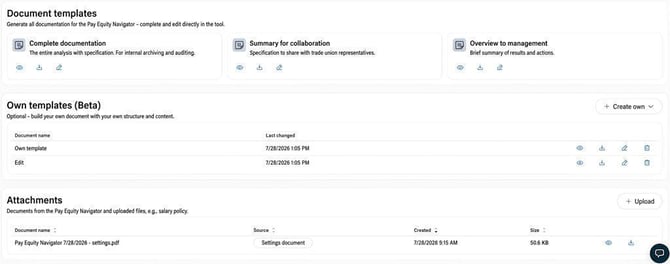
Document templates
You can use ready-made document templates to create documentation for the pay equity navigator. The documents are dynamic and update automatically when the pay equity navigator changes. The available templates are:
- Full documentation. A complete and detailed total covering the entire process – from analysis method to action plan.
- Summary for cooperation. For cooperation with trade union representatives. The document's layout ensures it is not possible to discern individual employees' salaries.
- Overview for management. A brief summary customised for the management team's needs, with outcomes and actions.
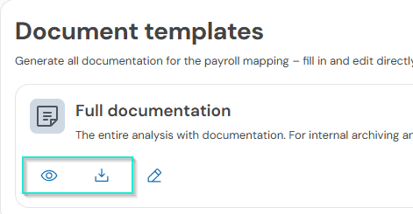
Click on the icon showing a pencil to specify details not included in Pay Equity Compass.
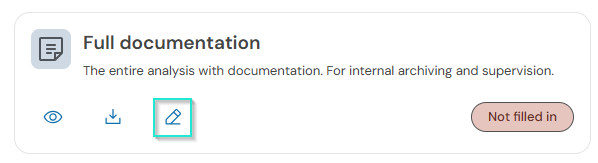
The details are saved in the template and used in the document. You can click on Add row when you wish to add a row, and on the cross to remove a row.
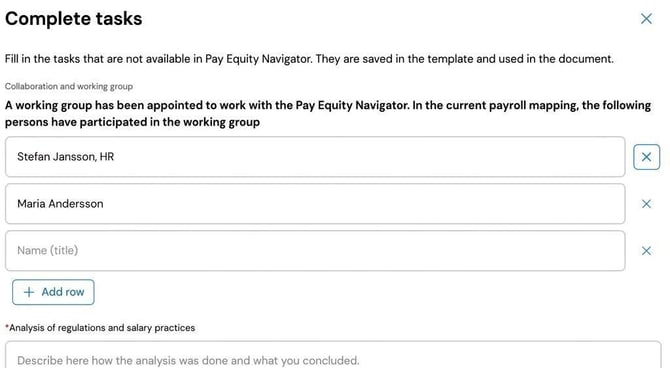
If not all details have been specified, this is indicated with the tag Not filled in. To specify these, or edit already completed details, click the pencil.
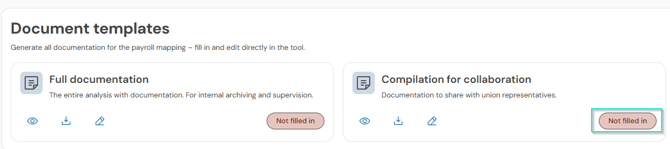
You can click on the icon with an eye to preview a document, and on the download icon to download it as a PDF or Word file.
If you have saved an image for Company logotype for reports under General > Company, the logotype will be displayed on the document's front page and at the top of the following pages.
Dates are shown in the documents in Swedish date format (YYYY-MM-DD), even if the rest of the views follow the logged-in user's date format setting.
Custom templates
You can build documents with your own structure and content under Custom templates.
Attachments
If you have other documents, you can upload them under Attachments.
You can click on the eye icon to preview a finished document, click the download icon to download it, and click on the bin icon to remove it.

Settings documents are saved automatically
When you start a new pay equity navigator, your settings are saved. This means you can later view the prerequisites that applied when the pay equity navigator was begun and verify the basis of the analysis, even if you have updated your settings afterwards. Information about when the pay equity navigator was created, settings for intervals, pay rise, variable allowances, the factor plan and work evaluation per work is saved and shown in a PDF file under Attachments, with source Settings documents. This document cannot be deleted.
What happens to the documents when the pay equity navigator is completed?
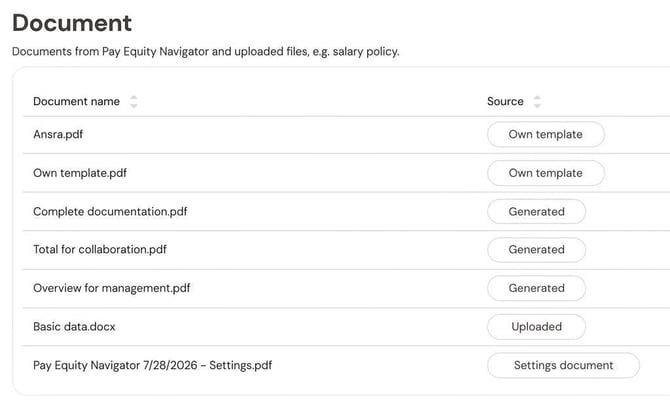
In an ongoing pay equity navigator, the active documents are dynamic. This means they update automatically when the pay equity navigator changes. A pay equity navigator that is completed can no longer be changed, which means its documentation is also locked. For a completed pay equity navigator, you will find all documentation under Documents. In the column Source tags show the documents' origin (Generated, Custom template, Uploaded, Settings document).
It is not possible to delete documents in a completed pay equity navigator.
Please note: This article is AI-translated. This means that linguistic errors or misunderstandings may occur.