

How to export one or more reports
When you export reports, they are downloaded as a file to your computer.

- Go to the upper button bar and select the report or reports you want to export by ticking them.
- Click on Export.
- A file will now be downloaded to your computer:
- If you have selected one report, the file will have the same name as the report.
- If you have selected several reports, the file will be named "Report templates" followed by the date and time of export.
How to import a report file
When you want to import a report into a company, do as follows:
- Click on Import.
- A popup will appear. Here you can either drag and drop the report file, or click on Select file to browse to it.
- Once you have selected the file, a list will be displayed showing the reports included in the file, together with their names and statuses.
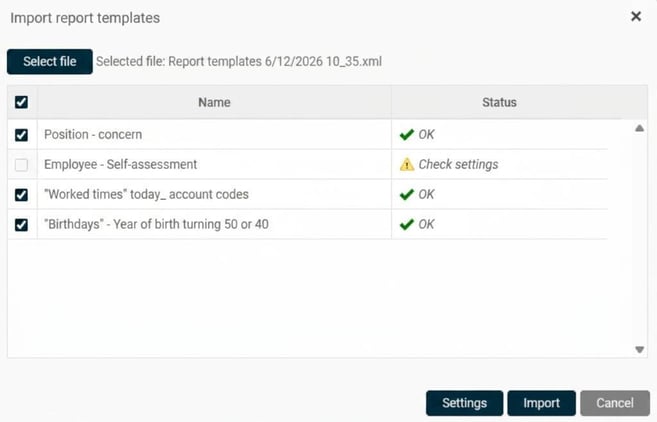
The status of the report determines what you need to do next:
Status: OK
Reports that can be imported directly without any changes will have the status OK.
- Tick the reports and click on Import to save them.
Status: Check settings
If the report contains fields that cannot be automatically mapped to the fields available in the current company, it will have the status Check settings. You then need to create a manual connection:
- Click the button Settings.
- You will now see a list of the fields that are dynamic. Account code dimensions already have suggested connections, while, for example, additional fields will need to be mapped manually.
- Go to the column Value in company and select which field in the current company the report’s field should be mapped to.
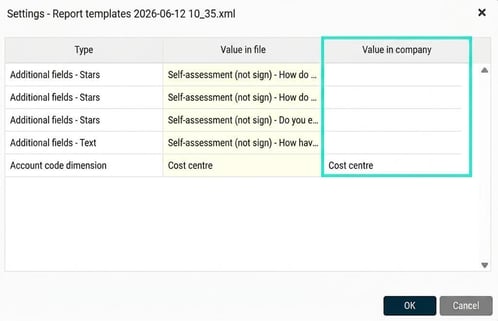
Good to know: The settings apply to all reports included in the selected file. So you only need to do this once per import. Once all the fields have been mapped, the status will change to OK and you can click on Import.
Status: Licence is missing
If a report contains fields that require a licence that the company does not have, the report will have the status Licence is missing. You cannot import the report until the required licence has been added to the company.
Important to keep in mind after importing
When you import reports, they are automatically saved in the system. Note that publishing and sharing settings are not included in the file during export. You will therefore need to set these manually in the new company after the import is complete.
Please note: This article is AI-translated. This means that linguistic errors or misunderstandings may occur.