
Interface – Colour Schemes
With this function, as a system administrator you can create your own colour schemes to customise the appearance of Flex HRM. This allows you to adapt the application so it matches your company’s visual identity. You can also give users the option to choose from the colour schemes you have created.
To set which colour scheme should be the default in the system, or for a specific company, go to Administration > General > Interface > Theme. There you can also decide which alternative schemes users are allowed to choose from.
Find and manage colour schemes
You’ll find the function under General > Interface > Colour Schemes.
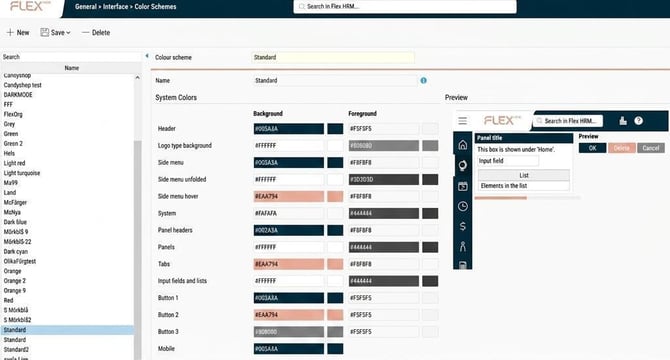
In the view that opens, you’ll see a list of existing colour schemes on the left. Some of these are standard in the system and cannot be changed. You’ll recognise them because they’re shown in italics and have an information symbol next to the name.
Create a new colour scheme
You can create a new colour scheme in two ways:
-
Click on the New button to start from scratch.
-
Select an existing schedule in the list and click on Save as to create a copy to use as a starting point.
System Colors
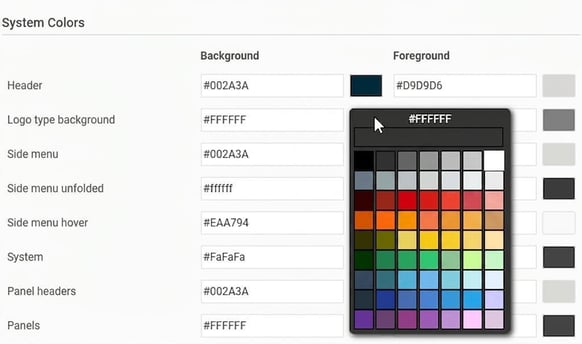
Here you select the background and foreground colour for general areas of the system, such as menus, panels, and other elements. You choose the colour either by clicking on the colour box to the right of each field and selecting from the colour selector, or if you know the exact colour code (hex code), you can also enter it directly in the text field.
Subsystem-specific main colors
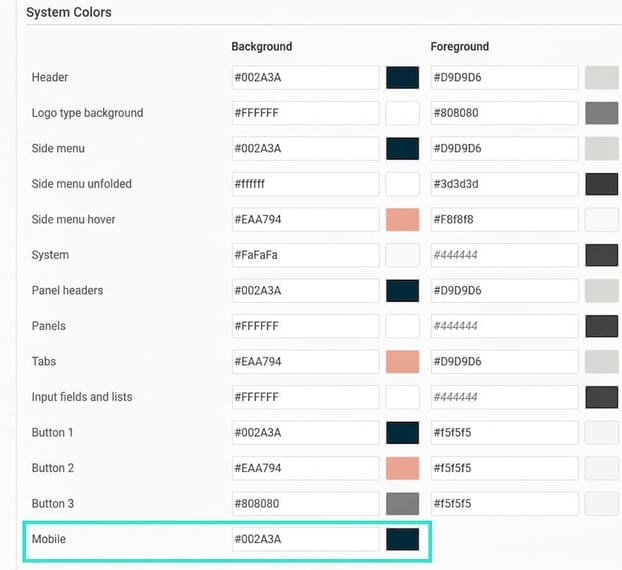
You can also choose a deviating main colour for HRM Mobile. If your company wishes to use a different main colour for HRM Mobile you can set it here.
Preview audit
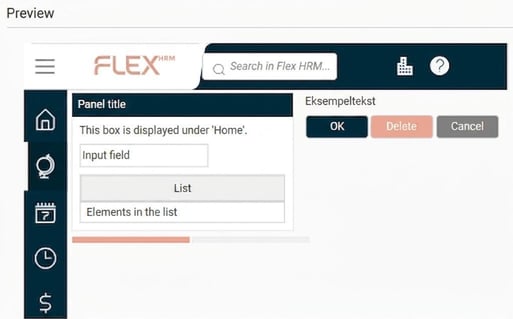
On the right of the page you’ll find a preview audit where you can see the result of your colour choices in real time.
Related articles:

How can I use themes in Flex HRM?
Please note: This article is AI-translated. This means that linguistic errors or misunderstandings may occur.