
Customise the appearance in Flex HRM with themes
With the theme feature, you can adapt the visual appearance of Flex HRM. Among other things, you can change the colour scheme, add a custom company logo, and customise the login page.
You will find the settings under General > Interface – Theme.
Level
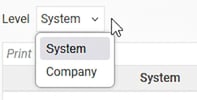
Here you select whether the settings should apply to the entire system or to a specific company. Choose between the options System and Company.
General settings for themes
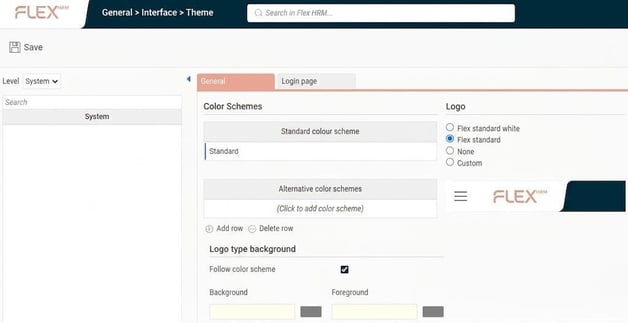
Under the tab General you make the basic settings for the appearance of the system or the selected company.
Colour Schemes
Here you decide which colour scheme will be used.
-
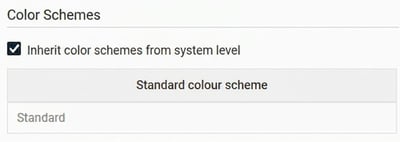
Inherit color schemes from system level: If you tick this box, the company will use the same colour scheme as is set for the whole system. This setting is only visible when you have selected the level Company.
-
Select a specific colour scheme: If you do not inherit the colour scheme, you can instead choose a standard colour scheme and add alternative schemes. If you add alternative colour schemes, users can choose between them themselves under My profile. Click on the magnifying glass to see a list of available colour schemes.
For more information on how to create and edit colour schemes, see the manual for [CLARIFY: Correct manual/section name].
Logo
Here you can select which logo will be displayed in the upper left corner in Flex HRM.
-
The top two options in the list are Flex Applications' standard logo, either with white or pink text.
-
Inherit logo from system level: If you tick this box, the company will use the same logo as is set for the whole system. This setting is only visible when you have selected the level Company.
-
Custom logo: To use a custom logo, select the option Custom and click on Select image. Explorer will then open where you can locate and choose the image file. Save by clicking on the save button.

Note that the image size must not exceed 300 x 60 pixels.
Logo type background
You can select a fixed background colour for the logo. This is useful if you allow users to change the colour theme but want to ensure the logo is always displayed correctly. It also makes it possible to use the same colour theme in several companies but have different background colours on the logo to distinguish them.
Tick Follow color scheme or select a specific background and foreground colour by clicking in the fields and picking a colour from the colour palette.
Customise the login page
Under the tab Login page you can customise the appearance of the page where users log in. This tab is only available at the System level.
Background images
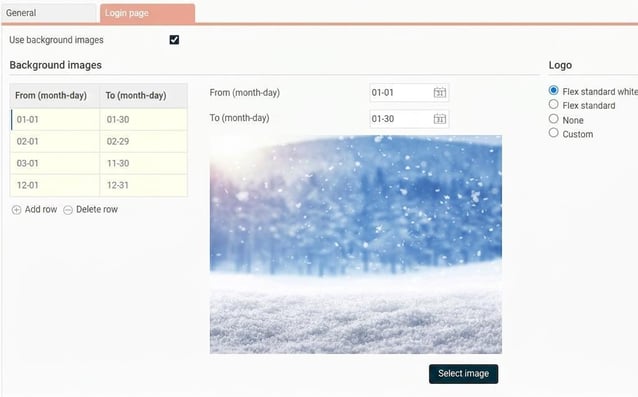
To display background images on the login page, tick the box Use background images. You can schedule different images for different periods, for example, to match the seasons.
-
Click on Select image to see which images are available.
-
To preview an image for a specific date interval, click on the relevant interval in the list.
Related articles:

How do colour schemes work in Flex HRM?
Please note: This article is AI-translated. This means that linguistic errors or misunderstandings may occur.