
On the front page in Flex HRM, there is a panel where you can send messages to individual employees or entire goups. You may be authorised to both send and receive messages, or only to receive them.
You manage messages on the front page in Flex HRM and in the view Messages in HRM Mobile.
Filter messages
You can filter the message panel to view:
-
Received messages (read and unread)
-
Read messages
-
Unread messages
-
Sent messages
-
Scheduled messages (displayed as scheduled until they are sent)
Reading messages
When you filter by received messages, unread messages are marked with a stripe on the left edge.
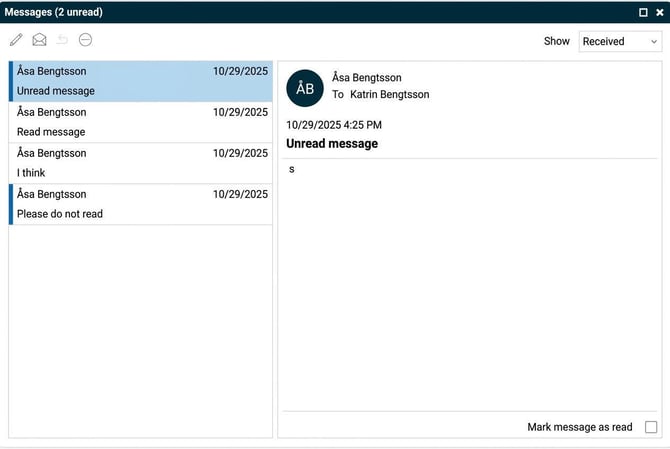
You can open a message in three ways:
-
Double-click on the message. It will then open in a new window and be automatically marked as read.
- Select the message and click the envelope icon. It will then open in a new window and be automatically marked as read.
-
Click once on the message. It will then appear in a panel on the right.
To mark a message as read when it is shown on the right, tick Mark message as read. The text then changes to Read. You can untick the box again if you want the message to be marked as unread.
Send messages
If you are authorised to send messages, you will see a pen icon for creating new messages in the panel. Click the icon to open the window where you compose your message.
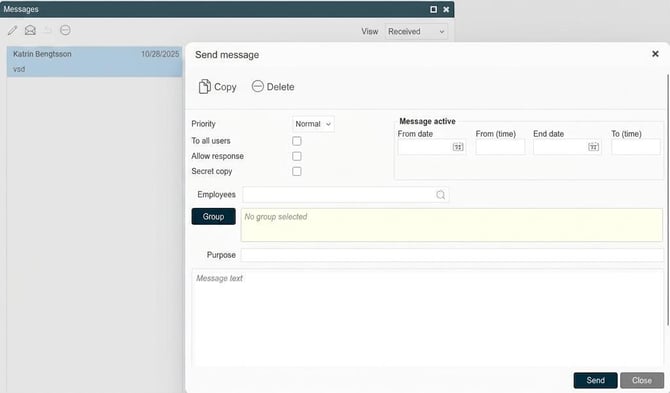
When you create the message, there are several settings to configure:
-
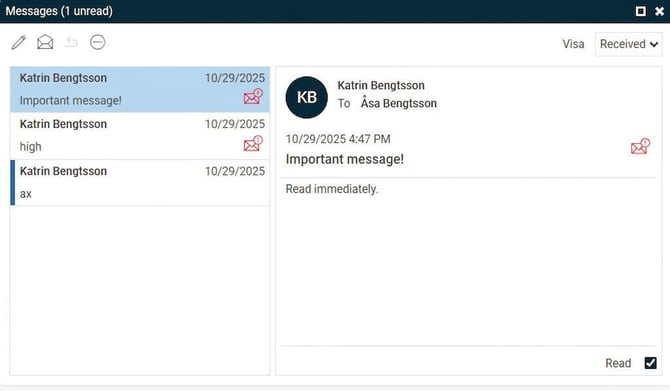
Priority You can choose between Normal or High priority. Messages with high priority automatically appear in a pop-up window for recipients in Flex HRM and HRM Mobile, and are marked with a red icon in the panel on the front page.
-
To all users If you are authorised to send messages to all users in Flex HRM, you can tick the box to select this. When you choose this, the options to send to employees or goups are disabled.
-
Allow answer Here you choose if recipients should be able to respond to the message. If answers are permitted, even users who otherwise are not authorised to send messages can respond.
-
Secret copy Is being used if you do not want recipients to see which other people have received the same message. If you do not select secret copy, recipients can see a list of all those who have received the message.
-
Message active This function is only shown for users authorized to send scheduled messages. Here you specify a From date and time as well as an Until date and time for which the message should be displayed. The message will then be sent to the selected recipients on the chosen from date and will be automatically deleted on the until date. This is useful, for example, to prevent users returning from leave of absence from receiving old messages.
-
Employees/Group Here you select the recipients of the message. You can choose:
-
Individual employees.
-
All employees in a company.
-
Users with a certain role.
-
Users with a certain account code as home account code.
-
Delete messages
To delete a message, select the message and click the icon for Delete.
If you, as the sender, delete a sent message, it will also be removed for all recipients.
Related articles
How do messages work in HRM Mobile?
Please note: This article is AI-translated. This means that linguistic errors or misunderstandings may occur.