
Curious about our new app?
We have a new Flex HRM app currently under development. Here you can see how to get started with the new app.
Messages

The messaging function available through HRM Mobile is a system-bound function, meaning you can only send and reply to messages from other Flex HRM users. This feature should not be confused with the automatic reminders sent out by the system; these are user-to-user messages.
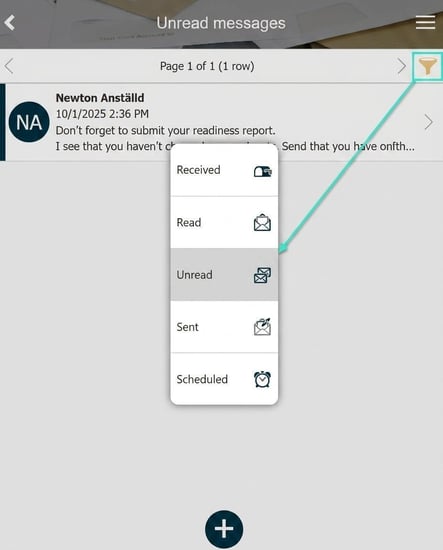
If there are unread messages, this is indicated by a number in a circle above the envelope icon.

You will also receive a note when there are messages.

In the example below, the unread message is marked with a bold line on the left. If you want to view all received, read or sent messages, you do so using the filter function (the 'funnel' icon).
Send your own messages from Flex HRM Mobile
- To send a message via Flex HRM Mobile, first go in via Messages and select the plus icon.

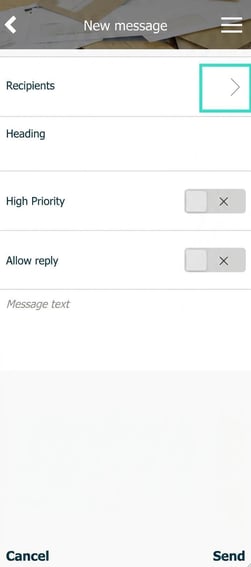
- In the next step, you will need to specify recipients, which you do by clicking on the field Recipients.
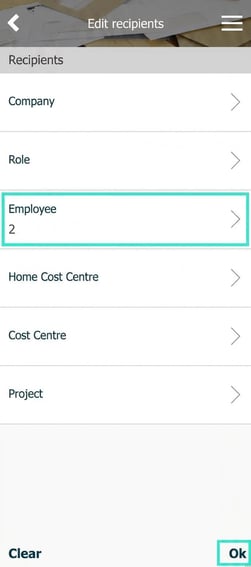
- You select Add recipient and then make a selection of recipients and then press Ok.
- You select Ok again to confirm the recipient, and you can then continue to specify a heading for the message, whether it should have high priority or not, and enter the message you want to send.
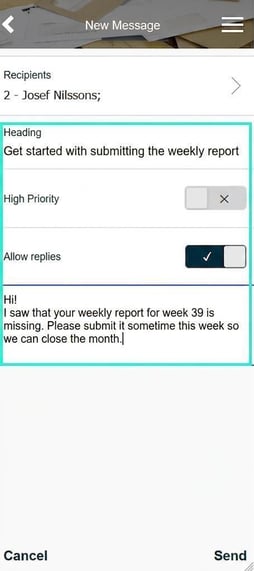
- The message can now be sent to the specified user by clicking on Send.
Scheduled messages
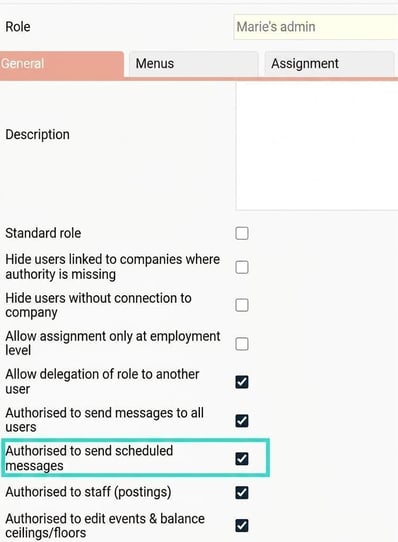
If you are authorised to send scheduled messages, you can schedule a message you wish to send. To obtain this authority, it needs to be activated on the role. You do this by marking B authorised to send scheduled messages.
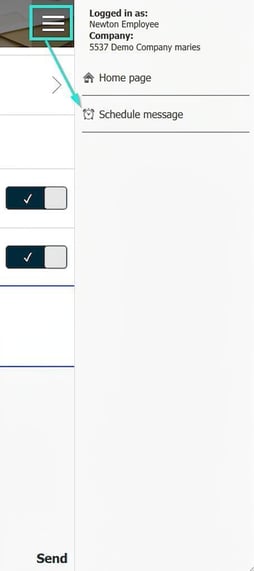
After that, in Flex HRM Mobile, you can choose to schedule a message. You do this when you have specified the recipient and filled in all the information you wish to include in the message in Flex HRM Mobile, via the menu button (the button with three lines in Mobile). This gives you the option to schedule the message.
Please note: This article is AI-translated. This means that linguistic errors or misunderstandings may occur.