
Create unsocial working hours-regulations
Day types
Time code settings
Allocate unsocial working hours-regulations to employees
Unsocial working hours-regulations are usednto control when unsocial working hours (OB) should be paid out. When you set up a regulation, employees do not need to keep track of which rules apply, as the system automatically enters the correct unsocial working hours-time codes in the time report based on the reported working time.
You create unsocial working hours-regulations under Settings > Time and Plan > Time rules > Unsocial working hours-regulations. You can also copy existing regulations.
Create unsocial working hours-regulations
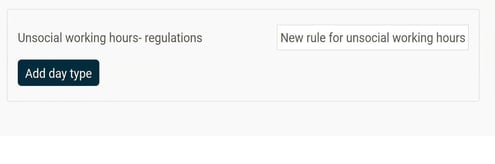
Start by giving your unsocial working hours-regulation a name. Then create various Day types.
Day types
You can create day types for, for example, Weekday and Weekend. Specify which weekdays they should apply to. You can also create day types for special days that require their own rules, such as Major bank holiday or Day before bank holiday.
If you enter a discrepant day, for example that Major bank holiday should apply on Christmas Eve, this overrides the weekday rule and the major bank holiday rule applies instead. Read more about specifying discrepant days: How to adjust discrepant days in regulations in HRM Time?
Time code settings
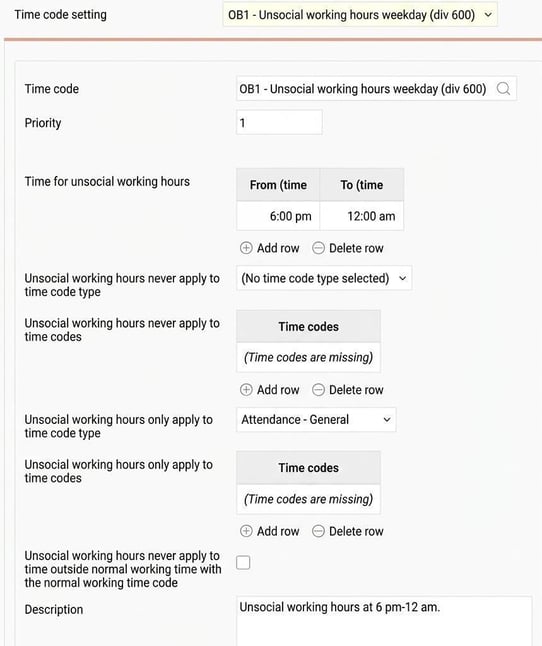
For each day type, you need to set time code settings. Here you set the conditions for when the various unsocial working hours-time codes should be applied.
-
Time code: Select the time code to be applied. You can choose from time codes that in the time code register use the code type Attendance - Unsocial working hours or Absence - Unsocial working hours.
-
Priority: If several time codes overlap, you can set a priority. The system then selects the time code with the minimum priority, which means it is the time code that should be used first.
-
Time for unsocial working hours: Specify the times when the unsocial working hours-time code should be applied.
-
Unsocial working hours never applies to time code type: Here you select a time code type for which this unsocial working hours-time code should never apply.
-
Unsocial working hours never applies to time codes: Here you select one or more specific time codes that should not give an unsocial working hours allowance.
-
Unsocial working hours only applies to time code type: If unsocial working hours should only apply to a certain time code type, select it here.
-
Unsocial working hours only applies to time codes: If unsocial working hours should only apply to one or more specific time codes, select them here.
-
Unsocial working hours never applies to time outside normal working time with the normal working time code: Use this setting to prevent unsocial working hours from being paid for time outside the ordinary working time, even if the employee has flexi-time.
Example
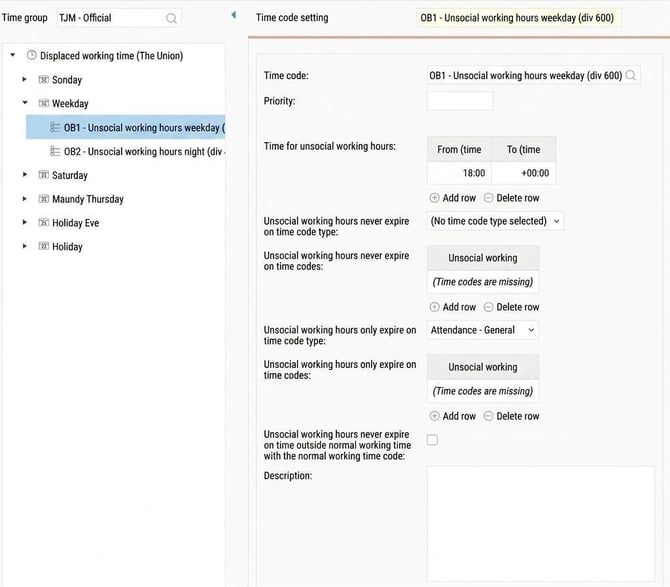
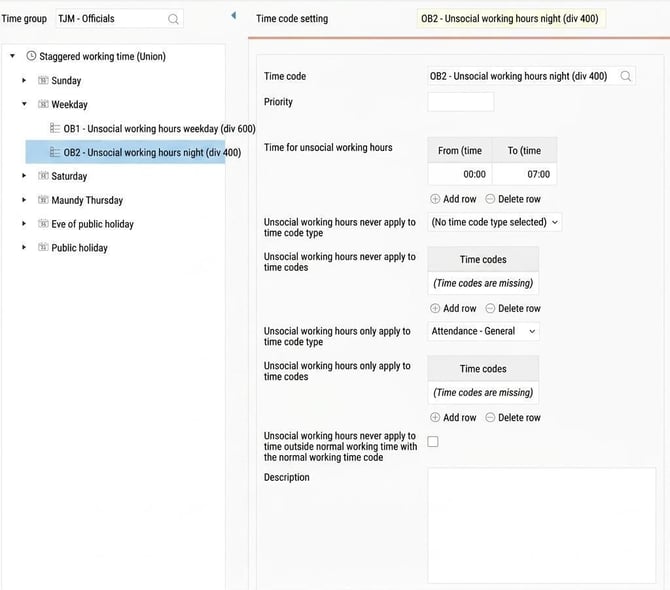
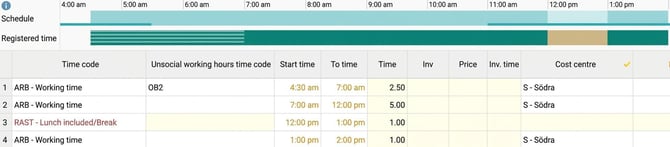
We want the unsocial working hours-time code OB1 (OB weekday) to apply for work between 18:00-24:00, and OB2 (OB night) to apply between 00:00-07:00, Monday to Friday.
We create two rules under the day type Weekday. We set that the rules should only apply to time codes with the code type Attendance - General. This way, we avoid unsocial working hours being paid for, for example, overtime work.
Allocate unsocial working hours-regulations to employees
You can allocate a standard regulation for unsocial working hours per time group. This is done under Settings > Time and Plan > Time groups > tab Time.
If an employee should not follow the time group's standard regulation, you can specify a deviating regulation. You will find the setting in the employee register on the Employment row for Schedule.
|
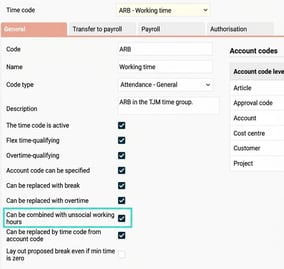
Tip: If unsocial working hours are not shown in the time report If the unsocial working hours regulation appears to be set up correctly but no unsocial working hours are shown in the time report, you need to check that the main time code on the time entry is set to allow combination with unsocial working hours. If this setting is not enabled, the unsocial working hours time code will not be generated, regardless of what the regulation says. |
|
Please note: This article is AI-translated. This means that linguistic errors or misunderstandings may occur.