
Set up an overtime rules set
Explanation of time code settings
Assign overtime rules set
Mark overtime in the time report
Wor is an overtime rules set?
An overtime rules set is used to establish rules that control when overtime should be paid. When an employee is covered by a rules set, they do not need to keep track of the applicable rules themselves; it is enough to mark in the time report that they have worked overtime. The system will then automatically assign the correct overtime time codes in the time report.
Please note
Overtime rules sets are complex. We recommend that you seek assistance from a Flex Applications consultant when setting up overtime rules.
Set up an overtime rules set
You set up overtime rules sets per time group under Settings > Time and Plan > Time rules > Overtime rules set. It is also possible to copy existing rules sets.
-
Start by setting up which overtime markings should be used in the rules set, for example Paid and Comp. These markings will then be available as options in the time report.
-
Next, create day types, for instance for weekdays and weekends. You specify which weekdays they should apply to. You can also create day types for special days that require their own rules, for example Major Holiday or Day before bank holiday.
If you add a discrepant day, for example that Major Holiday should apply on Christmas Eve, this overrides the weekday rule and the major holiday rule applies instead. Read more about specifying discrepant days: How do you adjust discrepant days in rules sets in HRM Time?
-
For each day type, you need to create time code settings. Here you specify the conditions under which different time codes should be triggered.
Example
Day type Weekday should have two rules for paid overtime. OBE should apply for overtime between 06:00 and 20:00. For overtime before 06:00 or after 20:00, OBK should be used.
The schedule's normal working time must be fulfilled for overtime to be triggered, and it cannot occur during the schedule's ordinary time.
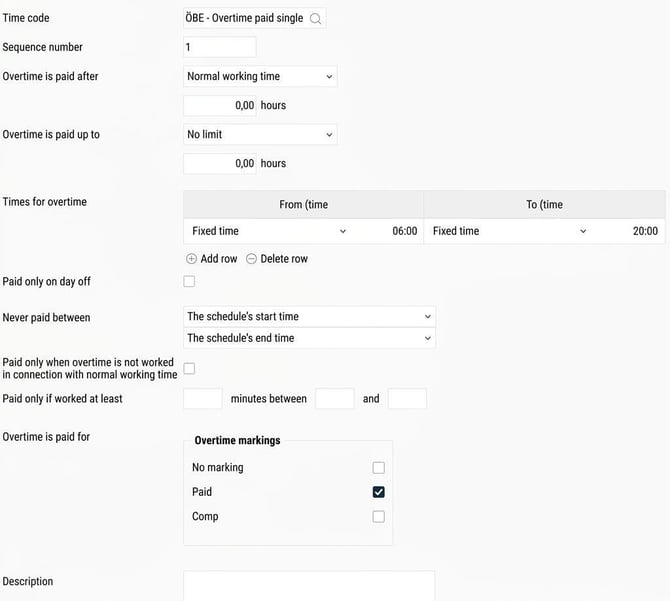
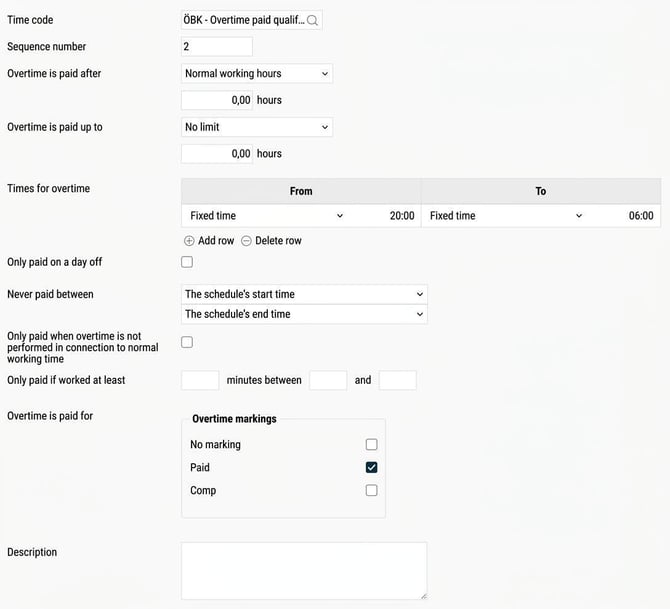
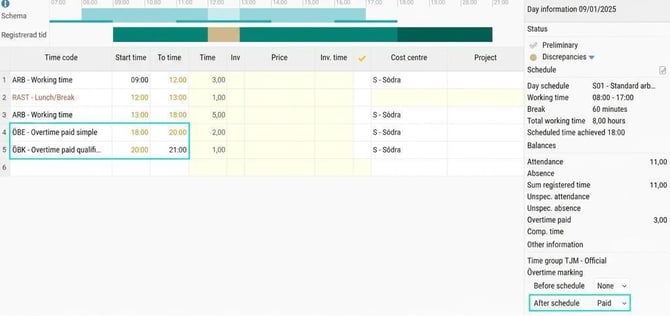
If you are scheduled for eight hours, 08:00-17:00, and record working time + overtime marking 09:00-21:00, OBE applies 18:00-20:00 and OBK 20:00-21:00.
That OBE only applies from 18:00, when the scheduled time ends at 17:00, is due to the fact that you need to work the day’s eight hours before overtime can be triggered.
Explanation of time code settings
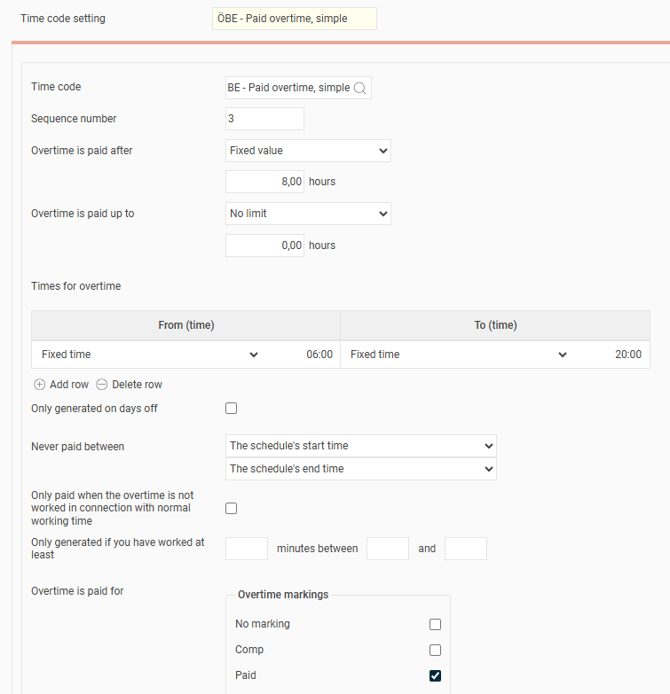
In the view for time code settings, there are several options to choose from to adapt the rules.
-
Time code: The time code to be assigned. Here you can select time codes that in the time code register are set up with code type Attendance - Overtime or Attendance - Additional time/Other.
-
Sequence number: Controls how rules are managed if they overlap. The rule with the lowest number is applied first and cannot be overridden by another rule.
-
Overtime is paid after: Here you decide when overtime should begin to apply.
-
Fixed value: Overtime is paid after a fixed number of hours.
-
Normal working hours: Overtime is paid after the schedule’s normal working hours.
-
Normal work- and flextime: Overtime is paid after normal working hours plus flextime.
-
Weekly working measure / 5: Overtime is paid based on the employee’s weekly working measure divided by five. This means the same rules set can be used for employees with different working measures.
-
-
Hours: Specifies how many hours should be added to the setting under Overtime is paid after. Example: If you select Normal working hours and enter + 2.00 in the field Hours, the time code can be assigned after the schedule’s normal working hours plus an additional two hours have been worked.
-
Overtime is paid up to: Here you can specify how many hours a particular overtime rule should apply for. If you want overtime to be used until ten hours of working time have been reached, choose Fixed value and enter 10.00 in the field Hours.
-
Times for overtime: Here you can specify specific times for when overtime should apply, either as fixed hours or in relation to the schedule’s start and end times as well as flex frames. For example, simple overtime should apply for the first two hours before schedule start and the first two hours after schedule end.
-
Only paid on a day off: Check this box if the overtime rule should only apply on days off.
-
Never paid between: Set a time interval when overtime cannot be applied.
-
Only applies when overtime is not performed in direct succession to ordinary working time: Check this box if overtime should only be paid for work not carried out immediately after normal working time.
-
Only applies if at least: Here you can specify that an overtime rule should only apply if at least a certain number of hours have been worked within a certain time period. Useful for certain agreements where the rule is that in the morning you get qualified overtime up to 06:00 except if you have worked the night shift and then continue with overtime. Then, it is qualified overtime for all overtime even if it extends past 06:00.
-
Overtime is paid for: Indicate here for which overtime markings the overtime rule should apply.
-
Description: You can add a description for each rule to explain its purpose to other users.
|
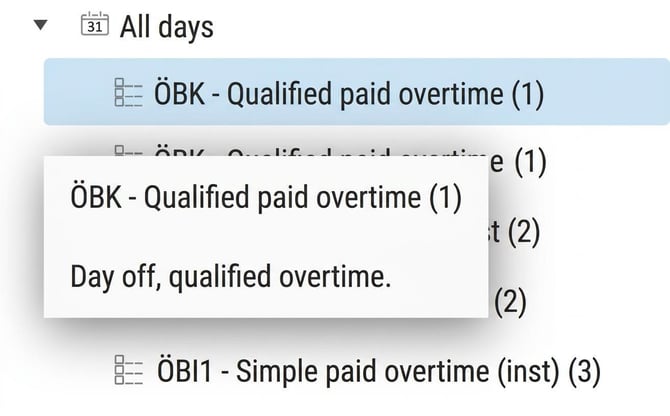
Tip You can also see the application order there (the number in brackets). |
|
Assign overtime rules set
You can set a standard rules set for overtime per time group under Settings > Time and Plan > Time groups > the tab Time.
In the employee register, under the tab Employment, the current rules set is shown on the row for Schedule. Here you can also assign a different rules set for employees who should not follow the time group’s standard rules set.
Mark overtime in the time report
In the time report in HRM and HRM Mobile, or when clocking in/out, you can mark that you have worked overtime. You will then get the options set up in the rules set, for example Paid or Comp. The option you choose determines which rules will apply to your overtime.
On days with working time, it is possible to use different overtime markings for overtime before and after working time. This setting is called Different overtime markings before and after schedule time and can be set at company, time group, or employee level. This can be useful if, for example, you want paid overtime for overtime worked before the schedule, but comp for overtime after the schedule.

Please note: This article is AI-translated. This means that linguistic errors or misunderstandings may occur.