
Create a specification

Complete and remove specification

Check the specification

Create file for reporting

Send the file to Collectum

What is not supported in the file
Ongoing work for reporting to Collectum
Once a month, you must report pensionable salary and started and terminated employments for ITP1 and ITP2 to Collectum. You do this in Flex HRM Payroll under Payroll > Pension.
Read more about what settings are required to report to Collectum by clicking the link: How do you configure settings for reporting to Collectum in HRM Payroll?
Create a specification
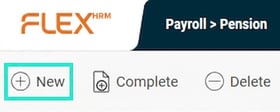
The first step in reporting is to create a specification for the month's reporting. You do this by clicking the New button in the button row.
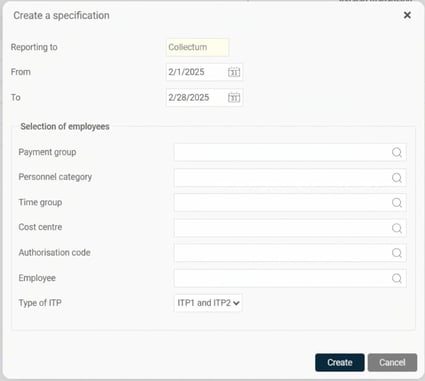
Here you select Reporting to Collectum and the dates for the month you want the payroll specification for. You can also make a selection of employees if you wish.
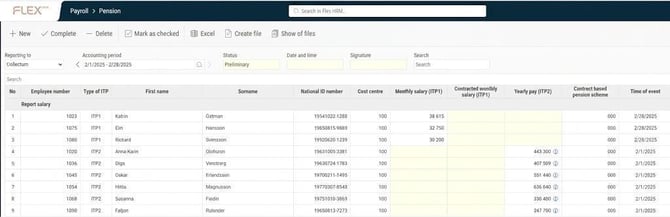
When you click the Create button, the process of creating a specification begins. Once the specification is created, you will see it with the status set to Preliminary in the view.
Complete and remove specification
If you have found an error in the specification, you can recalculate it for all or a selection of employees by clicking the Complete button and there make the desired selection.
You can also remove a specification if you want to start from scratch or no longer wish to keep it saved.
Check the specification
The next step is to audit the specification before submitting the details to Collectum. You do this by auditing the specification in the view.
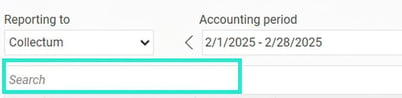
At the top of the view, you select which reporting (if you have more than Collectum) and which accounting period you want to see. Earlier reports remain and are easily accessible.

The overview shows all specification data that has been compiled and will be included in the file to Collectum. The list is divided by event type (re-notification, un-subscription and registration of salary).
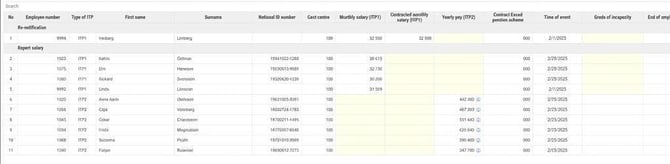
Above the overview there is a search field where you can search for various details, such as name, National ID number, and reported salary.
Once the specification has been audited, you mark it as checked by clicking the respective button in the button row.

The status of the specification then changes to Inspected, which means the specification is now locked for changes. The date, time, and user signature for who marked the specification as checked are saved on the specification.

If you find an error in an inspected specification, you can remove the inspection marking again. The status will then revert to Preliminary, and you can now complete the specification again. When you then mark the specification as checked again, a new point in time will be saved to show whether the file sent to Collectum was created from the latest updated specification.
Create file for reporting
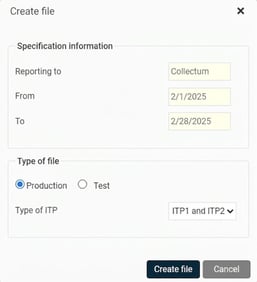
Once the specification has been marked as checked, you can create the file for reporting to Collectum. You do this using the Create file button in the button row.
In the dialog that opens, you get a clear overview of which period is included in the reporting file. Under the option Type of file you select whether the file should be used for Production or Test. The test file is especially useful for the first reporting after implementation and is recommended together with Collectum, so that you can ensure the process works correctly before final reporting.
Here, you also have the option to choose which Type of ITP should be included in the file; you can select both ITP1 and ITP2, or only one of them, depending on which agreements are relevant within the company. This gives flexibility to adapt the reporting according to your organisation's specific pension solutions and ensures correct information in the reporting to Collectum.
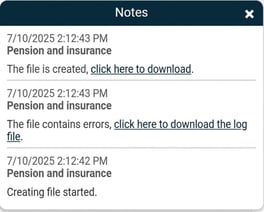
Once the file has been created, information about this is shown at the top of the page. If something wrong is detected when the file is created, information about it is displayed. You can see more details about what is wrong by opening the log file. For example, if a National ID number is missing for an employee. You can download the file for reporting by clicking the link as shown below.
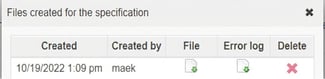
You can also view and download the file for reporting and error logs by clicking the Show of files button in the button row.

The file remains here until you choose to remove it from the list. The files are shown for the specification you are standing on in the view.
Send the file to Collectum
When the file has been created in Flex HRM, download it as described above and send it to Collectum. You do this by logging in to Collectum's website and following the instructions for reporting via file.
What is missing support in the file from Flex HRM Payroll?
There are some details that can be reported in the file to Collectum that are not yet possible to report from Flex HRM Payroll.
Salary change for ITP2 where you wish to report double annual salaries
See information in the section Salary change for ITP2.
Un-subscription for leave of absence and parental leave
If an employee is on leave of absence or parental leave for a longer period, in certain cases, un-subscription must be made to Collectum. Since there is already some manual processing for these via Collectum's online office, we have chosen not to add support for this in the file. This applies to both ITP1 and ITP2.
Leave of absence part-time for ITP2
For employees with ITP2 who are on part-time leave of absence, in certain cases an un-subscription is required and in other cases, the annual salary should be reduced. This handling is not automated in the system and needs to be managed manually via Collectum's online office.
Moving of employees within concern
If an employee is to be moved to another company within the concern or to another cost centre, this can be reported via the file to Collectum. Currently, we have not built support for this and refer until further notice to Collectum's online office.
Re-notification when changing personnel category
If an employee changes personnel category to Official, no re-notification to Collectum is triggered; the employee will only be included in the file with data under Registration of salary. Re-notification must be done manually in Collectum's online office.
Related articles:

How do you configure settings for reporting to Collectum in HRM Payroll?
Please note: This article is AI-translated. This means that linguistic errors or misunderstandings may occur.