
Basic settings

Details at individual level

Pay codessettings

Types of employment

Things to consider before the first payroll reporting in HRM Payroll
Basic settings
The first step is to activate the settings for reporting to KPA in the current company under Administration > Settings > Payroll > Pension and insurance.
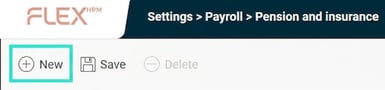
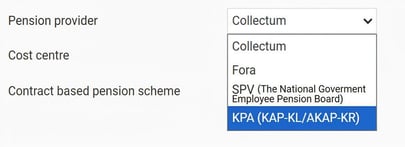
In the list on the left, you can see the company’s active reporting to the various pension intermediaries. If KPA (KAP-KL/AKAP-KR) is not listed, click the New button and fill in the details in the form to activate reporting to KPA.
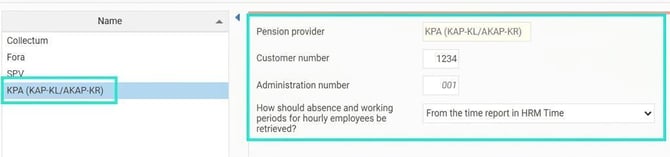
You can specify the following details here:
- Customer number
Here you enter the customer number at KPA. If you have a seven-digit customer number, use both the customer number and administration number fields. Enter the first four digits in the customer number field and the last three in the administration number field. - Administration number
Enter using 3 digits. Use 001 if you do not intend to report under a specific administration number. Administration numbers are used for sorting purposes such as on invoices. - How leave and work periods for hourly staff are to be retrieved
For hourly employees, you need to report a unique employment period for each occasion worked. If several days are worked consecutively, it counts as one occasion. Sick days for the employee should also be included.
There are two available solutions for how work periods for hourly staff and leave are retrieved:- From the time report in HRM Time
If you use Flex HRM Time, you can advantageously retrieve the information directly from the employees’ time reports. Leaves are then retrieved via absence applications. - From reporting pay code in the payroll run
If you are unable to use Flex HRM Time, you must instead use a pay code for work periods. You must therefore ensure that there is a payroll transaction for every separate work period with correct dates in the payroll runs. Read more about this under settings for pay codes. Leave is then retrieved from the calendar in HRM Payroll.
- From the time report in HRM Time
Details at individual level
In the employee register, under the tab Pension & insurance, enter the conditions that apply to the employee when reporting to KPA.
Please note that these details apply per employment period.
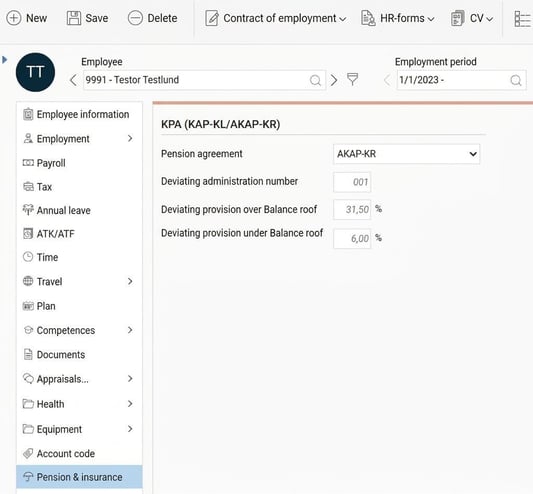
You enter the following details here:
- Pension agreement
Here you state whether the employee is considered to belong to KAP-KL or AKAP-KR. You may also specify if the employee should not be reported to KPA at all. - Deviating administration number
Here you can enter an administration number that differs from the company’s standard. - Deviating provision over Balance roof
Here you can specify a deviating percentage for the provision above the roof according to the pension agreement. - Deviating provision percentage below balance roof
Here you can specify a deviating percentage for the provision below the roof according to the pension agreement.
Pay code settings
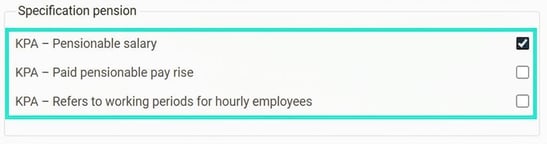
For reporting to KPA to work, several details must be gathered from pay codes. This means you must specify which pay codes will be used as specification for pensionable salary, pay rise, as well as work periods for hourly employees using these checkboxes in the tab Payroll , heading Specification pension, in the pay code register. For more information on how the system uses these settings for calculation of payroll specification, see the article "Which details are included in reporting to KPA (KAP-KL/AKAP-KR)?" which provides further information on how the specification is created.
Types of employment
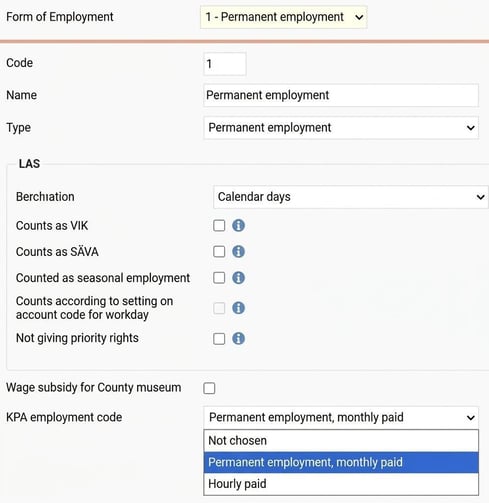
To report the correct employment code to KPA, you need to set configurations under Administration > Settings > Personnel > Types of employment. For each form of employment in Flex HRM, specify the corresponding employment code to be reported to KPA.
Things to consider before the first payroll reporting in HRM Payroll
Before you make the first report, ensure that all specification for the period concerned is available in the system. This includes, for example, details regarding pensionable salary and pay rise. Another key consideration is information on hourly staff work periods. You can read more about how to manage work periods under the section Settings – Basic settings.
Employers planning to change payroll systems should contact KPA Pension by email: rapportering@kpa.se. When changing payroll systems, the same employee number as in the old payroll system should be used in the new system. If you change employee numbers, a translation file with both old and new employee numbers must be created and reported before the first submission from the new payroll system. Such a file cannot be created in Flex HRM, but must instead be created manually.
Related articles:

How do I report pension specification to KPA (KAP-KL/AKAP-KR) in HRM Payroll?


Which details are included in reporting to KPA (KAP-KL/AKAP-KR)?
Please note: This article is AI-translated. This means that linguistic errors or misunderstandings may occur.