
As an employer, you are required at various points throughout the year to report employment information, annual salary information, and leave periods to KPA. This is done in Flex HRM Payroll under Payroll > Pension.
Different types of reporting

Create a specification

Complete and remove a base

Work in the view

Check the specification

Create a file for reporting
Different types of reporting
There are three different types of reports that must be submitted to KPA at various occasions:
- Annual reporting
This reporting is mandatory once per calendar year and applies only to employees covered by the KAP-KL agreement. - Half-year reporting
This reporting is mandatory and must be submitted twice a year and applies only to employees covered by the AKAP-KR agreement. - Interim reporting
Ongoing throughout the year, interim reports can be made for any interval of your choice. It is common to report every other or every third month. This applies to employees covered by both KAP-KL and AKAP-KR. When doing interim reporting, pensionable salary should not be reported.
Create a specification
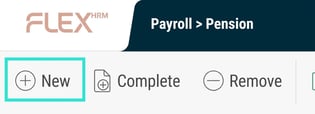
The first step in the reporting process is to create a specification for the information to be reported. You do this by clicking the button New in the toolbar.
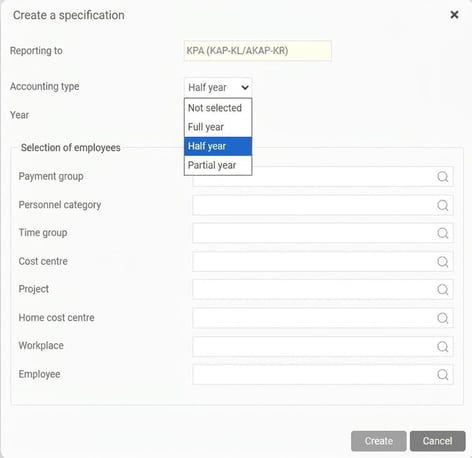
Start by selecting which type of reporting you want to create a specification for and then specify the period to be reported. If needed, you can also select specific employees.
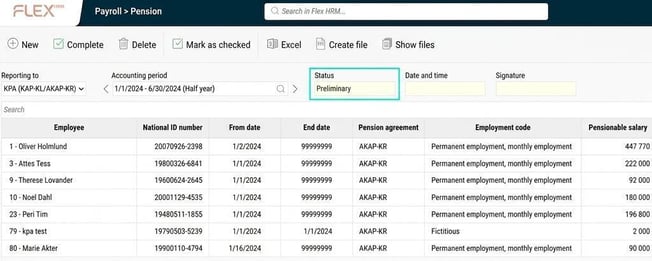
When you click the button Create the process of creating the specification begins. When the specification is created, you will see it with the status set to Preliminary in the view.
Complete and remove a base
If you have found an error in the specification, you can, after correcting the cause, recalculate the specification for all employees or a selection of employees by clicking the button Complete and then making your desired selection.
You can also remove one or more employees from the specification, or delete the entire specification and start over by using the button Remove and specify your selection.
Work in the view
The next step is to audit the specification before submitting the information to KPA. You do this by reviewing the specification in the view.
At the top of the view, you select which reporting (if you have more than KPA) and which accounting period you want to look at. Earlier reports remain and are easily accessible.

The list shows all specifications that have been compiled and that will be included in the file to KPA. The list contains one row per employment period, which means employees with several employments during the reporting period may appear on several rows.
Above the list is a search field where you can search by name, employee number, and National ID number.
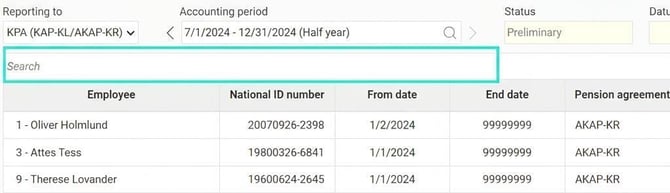
You can click on the columns for pensionable salary and leaves to view more detailed information. In this way, you can see the entire specification reported for an employee whilst also getting an overview of the employees.

There are two columns for pensionable salary. The first displays the pensionable salary that relates to the row's employment period. The second column, called Total pensionable salary for the period shows the entire specification for the employee during the accounting period, which can help when reconciling employees with many employment periods.

Audit the specification
Once the specification has been inspected, you mark it as checked by clicking the button Mark as checked .

The status of the specification then changes to Inspected, meaning the specification is now locked from changes. The date, time, and signature of the user who marked the specification as inspected are saved to the specification.

If you find an error in an inspected specification, you can remove the inspection marking again. The status then reverts to Preliminary, and you can now complete the specification again. When you then mark the specification as inspected again, a new point in time is set for when the specification was inspected so that you can see whether the file sent to KPA was created from the latest updated specification.
Create a file for reporting
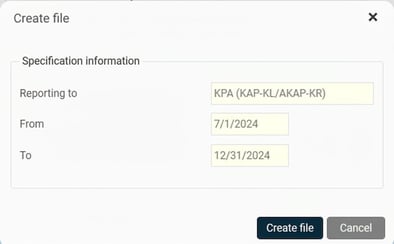
When the specification is marked as inspected, you can create the file for reporting to KPA. You do this with the button for Create file in the toolbar.

In the dialog that opens, you can see which period will be included in the file before it is created.
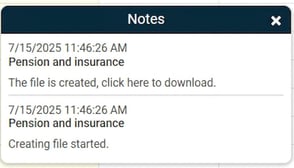
When the file is created, information about this appears at the top right of the page as a notification. If something wrong was discovered when the file was created, information about this will be shown in the notification. You can see more details about the error by opening the log file. You can choose to download the file for reporting by clicking the link as shown in the image below.
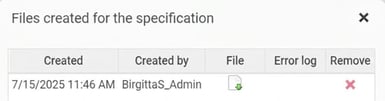
You can also view and collect the file for reporting and access error logs by clicking the button Show of files in the toolbar. The file remains here until you choose to remove it from the list. The files are viewable for the specification you are on in the view.
Send the file to KPA
When the file is created in Flex HRM, you download it and submit it to KPA. You do this by following KPA's instructions for reporting via file.
Related articles:

How do I configure settings in HRM Payroll to be able to report to KPA (KAP-KL/AKAP-KR)?

Which information is included in the reporting to KPA (KAP-KL/AKAP-KR)?
Please note: This article is AI-translated. This means that linguistic errors or misunderstandings may occur.