
Curious about our new app?
We have a new Flex HRM app that is under development. Here you can see how to get started with the new app.
Manage notes and reminders in HRM Mobile
In HRM Mobile, you receive notes that remind you of various tasks, for example to approve a travel expense claim or submit your time report. You can also get notes when you receive a new message in the system.
| Notifications are displayed at the top of HRM Mobile with a bell icon. The number on the icon indicates your total number of notifications. If there are no notifications, no number will be shown. |  |
View and act on your notes
When you click on the clock symbol, a list of all notes you have not managed will be shown.
Some notes have an arrow at the far right. If you click on such a note, you are taken directly to the correct view where you can complete the task.
Notes without an arrow are things that cannot be managed directly in HRM Mobile, for example a reminder about a staff appraisal.
Emptying the note list
| To clear all notifications at once, click the trash can icon in the top left corner. | 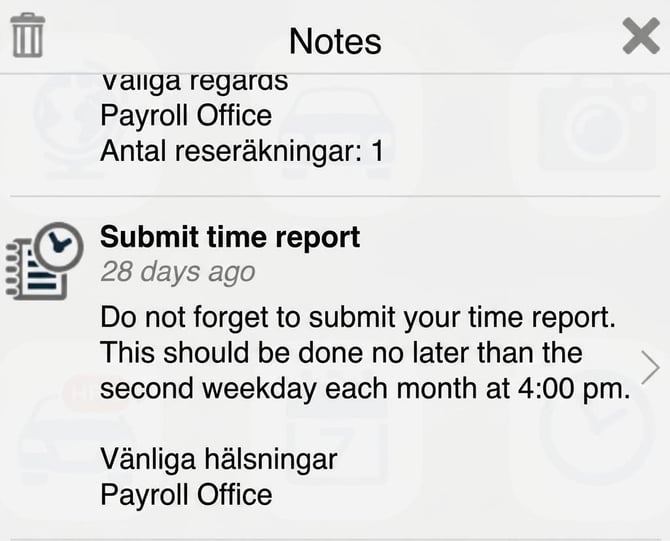
|
| To remove a single notification: swipe left on it and click Delete. | 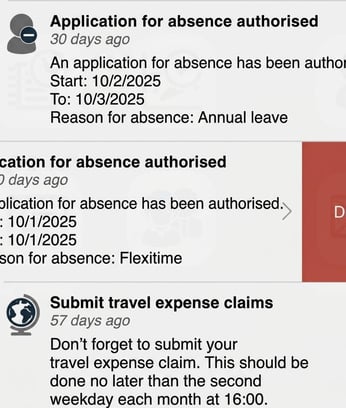
|
Please note
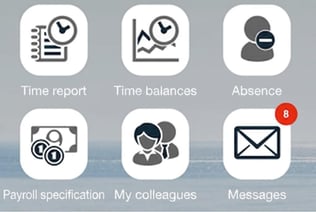
Menu entries in HRM Mobile can also have a red circle with a number inside. This number is not linked to the reminder function in HRM, and will not be affected when you delete a note. The number 8 on the icon for Messages shows that there are eight unread messages, the number 5 on the icon for To approve time reports shows that there are five time reports not yet authorised, and so on.
Please note: This article is AI-translated. This means that linguistic errors or misunderstandings may occur.